

Voice Tags
Default AI narration is professional but consistent. Voice tags let you add inline cues — pauses, emotions, and short sounds — directly in the script so the narrator delivers each line the way you want it.
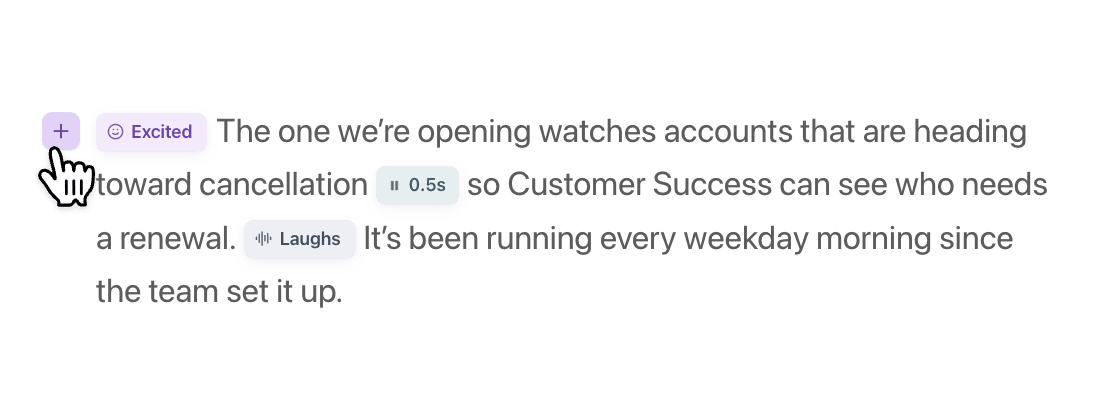
Adding a tag
Section titled “Adding a tag”In the script editor, click the + button that appears next to any sentence. A picker opens with the available categories. Pick a tag and it inserts inline at that point in the script. Click an existing tag to edit or remove it.
Tag categories
Section titled “Tag categories”Three categories cover the most common narration needs.
Insert a pause for a specific duration anywhere mid-sentence or between sentences. The pause tag opens a duration slider — drag to set the length in 0.25-second increments.
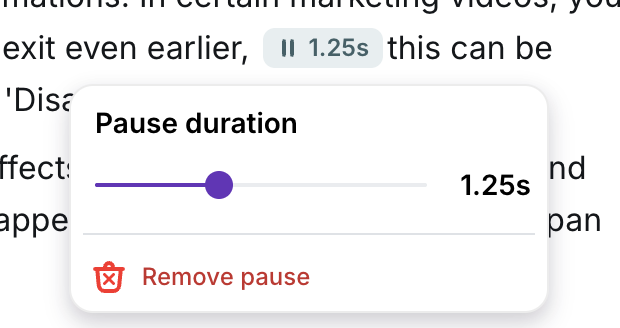
Click Remove pause in the slider popover to delete it.
Emotions
Section titled “Emotions”Apply an emotional register to a sentence. Currently available:
- Curious
- Excited
Sounds & pacing
Section titled “Sounds & pacing”Drop in a short non-verbal sound effect inline. The voice plays the sound at that exact point in the script. Currently available:
- Laughs
- Starts laughing
- Wheezing
- Whisper
- Sighs
- Exhales
- Gulps
Tag scope
Section titled “Tag scope”A tag typically applies to the sentence it’s placed in. To extend a delivery cue across multiple sentences, add the same tag at the start of each one.
Next steps
Section titled “Next steps”- Script Editing — edit the narration script the tags live inside
- AI Voices — choose the voice that delivers the tagged script
- Pronunciations — fine-tune how specific words are spoken