

Editor Overview
The Editor is where you craft your video and audio projects. Unlike traditional video editors that use timelines, Tutorial AI uses a script-based approach — you edit text, and the video updates to match.
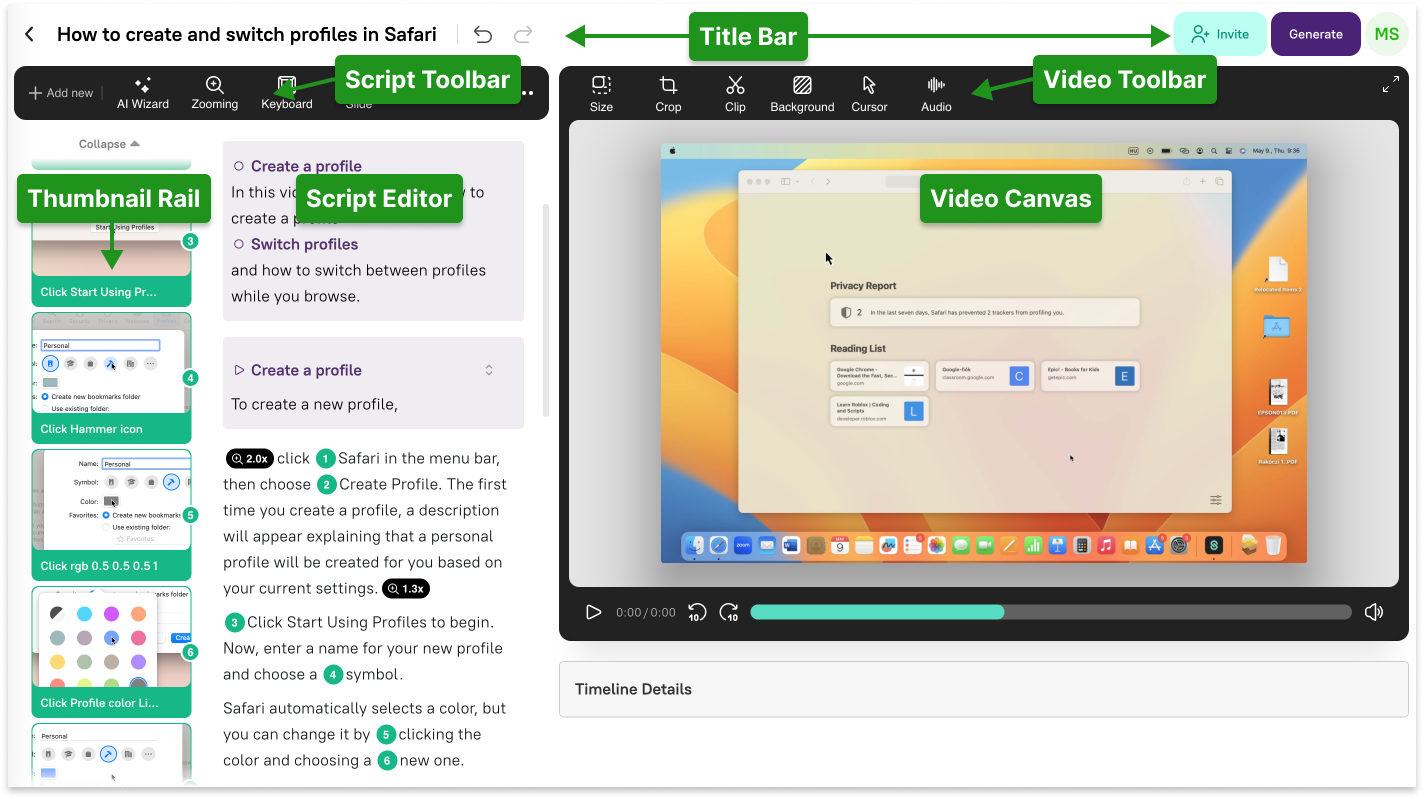
Key areas of the Editor
Section titled “Key areas of the Editor”Script Editor
Section titled “Script Editor”This is where you write and edit your narration script, which replaces the traditional video timeline. Instead of manually working with a timeline, you drag and drop Sync Markers from the thumbnail rail into your script, and the timeline is generated automatically behind the scenes.
You can also adjust video effects like zooming, add keyboard shortcuts, and edit slide contents directly from the script panel.
Video Canvas
Section titled “Video Canvas”The video canvas provides a live preview of your final video. Here you can:
- Adjust the video format and aspect ratio
- Add backgrounds — wallpapers, gradients, or solid colors
- Control padding, shadows, and rounded corners
- Enhance the mouse cursor appearance
- Preview zoom effects and highlights
Editor Toolbar
Section titled “Editor Toolbar”The toolbar provides access to enhancement tools:
- Zoom markers — highlight important sections of your recording
- Keyboard shortcuts — guide viewers on how to access features
- Slides — add intro, outro, and chapter slides
- Blur — hide sensitive data on screen
- Cursor — adjust cursor size and movement
Title Bar
Section titled “Title Bar”Your central hub for:
- Naming your project
- Granting access to workspace members and collaborators
- Generating the final video
Sync Marker Thumbnail Rail
Section titled “Sync Marker Thumbnail Rail”Navigate through key scenes of your screen recording, similar to slides in a presentation. Sync Markers are automatically created when you click on items while recording with the Recorder App.
You align your video with your script by dragging and dropping these Sync Markers into the script. Learn more in Edit Like a Doc.
Next steps
Section titled “Next steps”- Edit Like a Doc — Learn script-based editing and sync markers
- Cut & Trim — Remove unwanted sections from your recording
- Slides — Add intro, chapter, and outro slides