

Brand Kits
Brand Kits ensure every video you create aligns with your company’s visual identity — logos, typography, colors, and backgrounds — without manual setup each time.
What’s in a Brand Kit
Section titled “What’s in a Brand Kit”| Component | What you configure |
|---|---|
| Logos | Horizontal and vertical logos for light backgrounds, plus a negative logo for dark backgrounds |
| Font styles | Title and body text styles with customizable size, weight, letter spacing, and line spacing. Supports custom fonts |
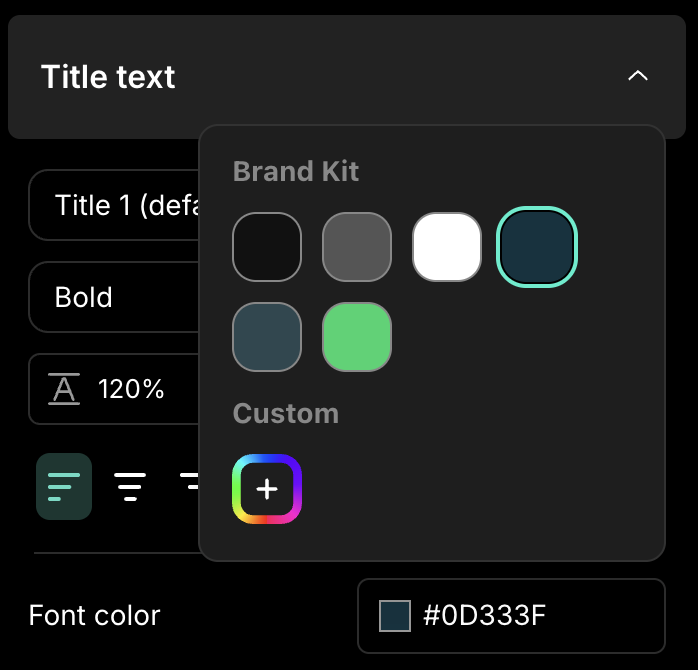
| Font colors | A palette of brand colors for text, with a default color for slides |
| Background colors | Colors and gradients for screen recording backgrounds and slide backgrounds, with separate defaults for each |
Creating a Brand Kit
Section titled “Creating a Brand Kit”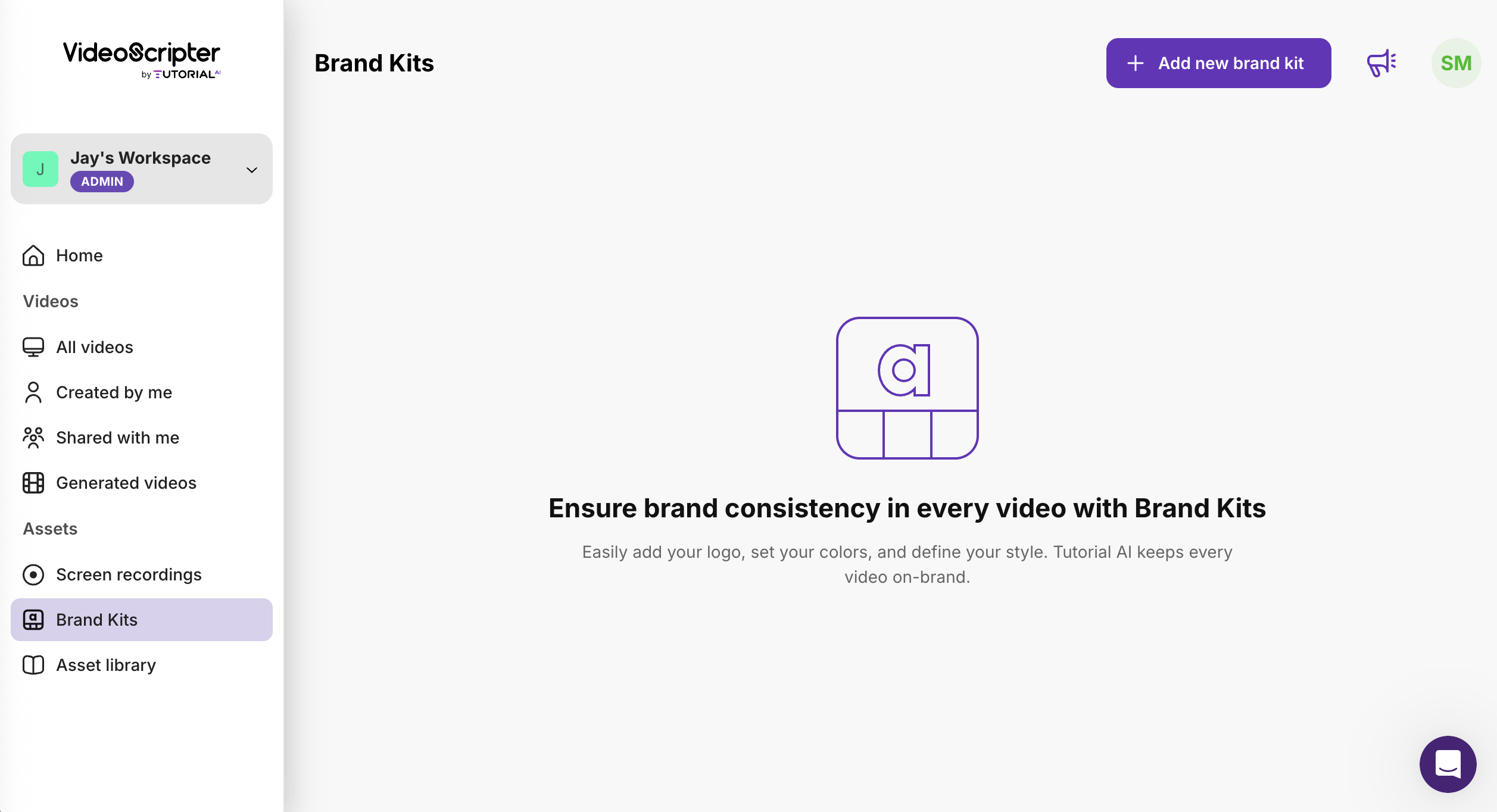
- Navigate to Assets > Brand Kits and click Add new brand kit
- Name your brand kit
- Upload your company logo (horizontal, vertical, and negative variants)
- Configure heading and body styles under Typography
- Specify your font colors and set the default for slides
- Specify background colors and/or gradients
- Set default backgrounds for screen recordings and slides
- Click Save
Applying a Brand Kit
Section titled “Applying a Brand Kit”To apply a brand kit to a video (or switch to a different one):
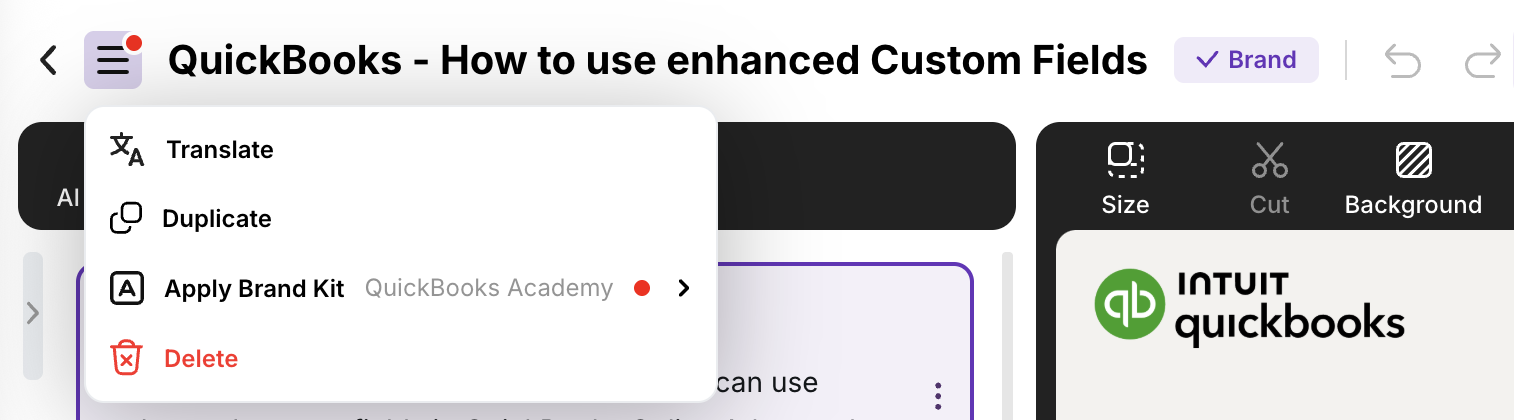
- Open the hamburger menu in the upper-left corner of the editor
- Go to the Brand Kit submenu
- Select the brand kit you want to use

Applying a brand kit automatically replaces existing colors, fonts, and logos with those from the selected kit. A brand badge appears next to your project name to confirm it’s using the kit.
You can still customize individual colors or fonts in the video. However, choosing a color or font outside the brand kit removes the brand badge. Click Reapply in the hamburger menu to restore brand kit settings.

Your brand colors, fonts, and logos are also accessible directly within the editor’s settings panels.
Editing and updating
Section titled “Editing and updating”To edit a brand kit, navigate to Assets > Brand Kits and click the kit you want to modify.
Deleting a Brand Kit
Section titled “Deleting a Brand Kit”- Go to Assets > Brand Kits
- Click the three-dot menu on the brand kit
- Select Delete
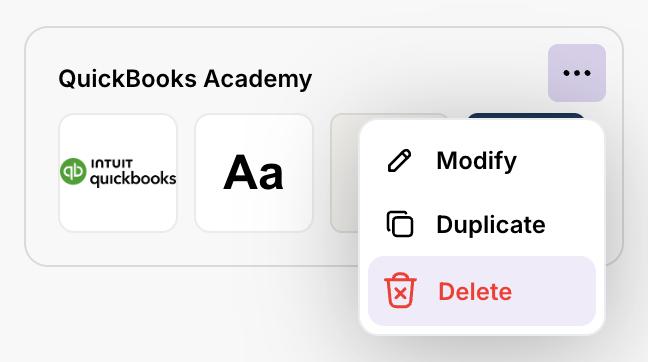
If projects are using the kit, you’ll receive a warning. Deleting won’t affect the videos themselves — they keep their current styling but lose the brand badge.
Next steps
Section titled “Next steps”- Custom Fonts — Upload your own typefaces
- Backgrounds — Brand Kit colors appear in the background picker
- Slides — Brand Kit styles apply to slide text and backgrounds