

Recording with Audio
By default, screen recordings are captured without sound. You can either write your own script or let AI generate one from your video. But there’s a better option: speak while recording to give AI a head start.

Enabling audio recording
Section titled “Enabling audio recording”- Open the Recorder
- Click the microphone icon to enable audio
- Select an audio source
- Speak naturally while recording your screen
Once you finish recording, Tutorial AI converts your narration to text and displays it in the script editor.
Automatic enhancements
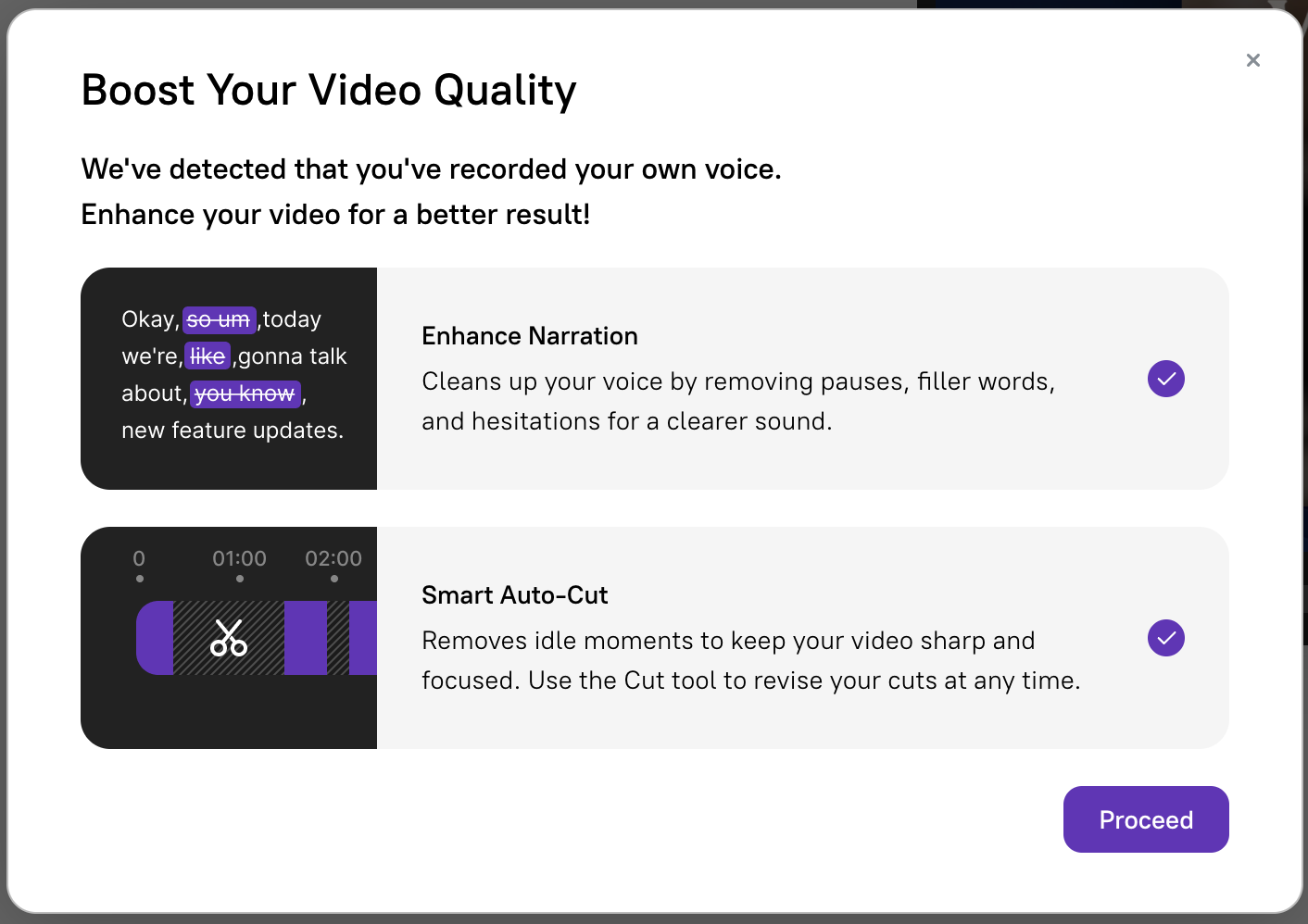
Section titled “Automatic enhancements”After uploading a recording with audio, the system offers two enhancement options:
Enhance Narration
Section titled “Enhance Narration”AI automatically removes filler words and refines sentence structure, giving your narration a more polished and professional flow.
Smart Auto-Cut
Section titled “Smart Auto-Cut”Analyzes the video and trims out sections where the mouse remains idle. You can undo individual cuts or remove all cuts in the Cut Tool for full control.
Why record with audio?
Section titled “Why record with audio?”Speaking while recording gives better results than silent recording because:
- More accurate scripts — AI starts with your actual explanation rather than guessing from screen activity
- Better pacing — your natural rhythm guides how the narration aligns with the video
- Fewer edits needed — the initial script is closer to what you intended
Simply record naturally, and let AI handle the polishing — delivering a professional result with minimal effort.
Next steps
Section titled “Next steps”- Screen Recording — Full Desktop App recording guide
- Uploading Videos — Import a pre-recorded file
- AI Voices — Choose the voice for your narration
- Script Editing — Edit and sync the generated script
- Ask AI — Polish your script with AI assistance