

Script Editing
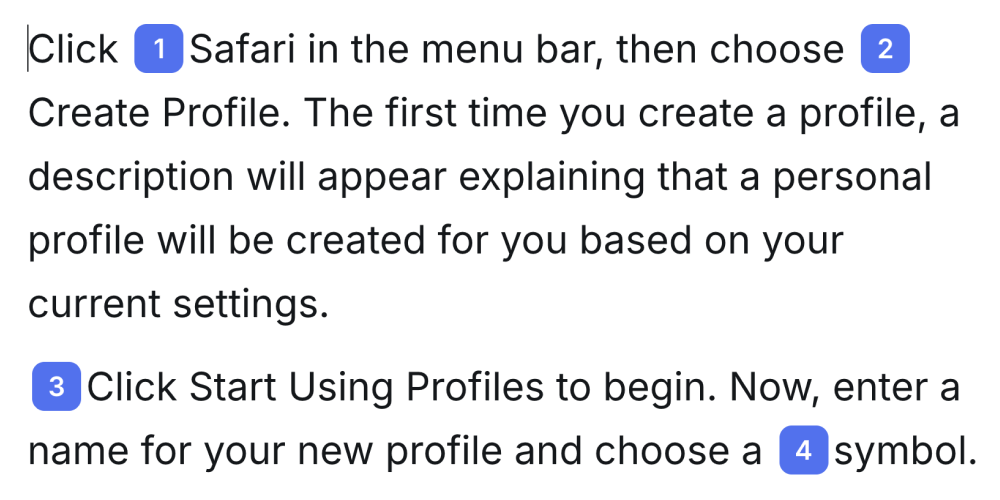
Script editing is the core of Tutorial AI’s approach. Instead of a video timeline, you work with a text document. Every change you make to the script — rewriting a sentence, adding a paragraph, deleting a word — automatically updates the AI voiceover and video synchronization.
The main concept
Section titled “The main concept”Think of the narration script as a separate, editable audio track running beneath your video. When you edit the script, the AI narration automatically re-synchronizes with the video content.
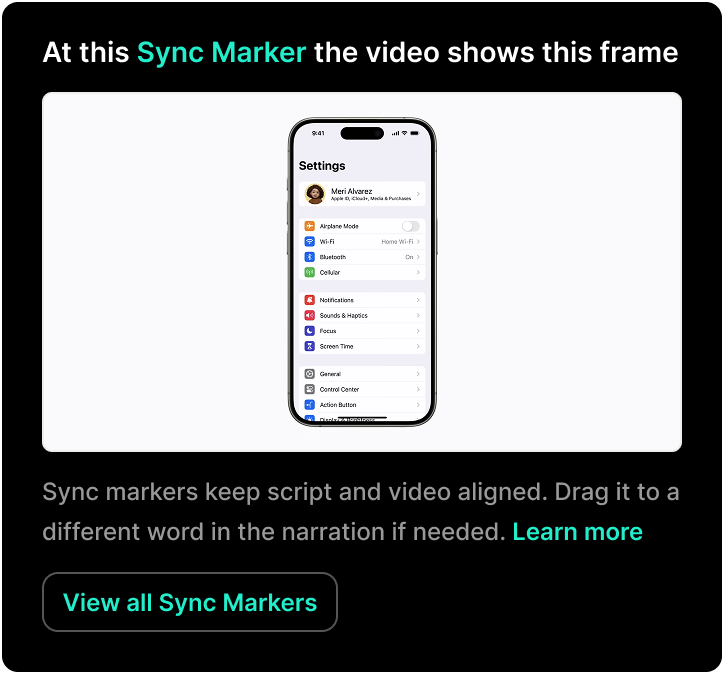
Tutorial AI divides the audio into segments and aligns them with the video using Sync Markers — timestamps that link specific words in the script to specific frames in the video.
How scripts are created
Section titled “How scripts are created”Scripts come from one of three sources:
| Source | How it works |
|---|---|
| AI-generated from video | AI analyzes your screen recording and writes a script based on what happened |
| Transcribed from audio | You speak during recording; AI transcribes and refines your words |
| Written manually | You type your own script from scratch |
In all cases, editing the script afterward works the same way.
Editing the script
Section titled “Editing the script”The script editor works like a word processor:
- Type to add or change narration text
- Delete text to shorten narration
- Rearrange paragraphs to change the order of narration
Every edit triggers automatic voiceover regeneration and video re-synchronization. You don’t need to manually re-record or re-align anything.
Sync Markers
Section titled “Sync Markers”Sync Markers link specific words in your script to specific frames in the video recording. They’re created automatically by the Recorder App when you click on screen elements.
How the system works
Section titled “How the system works”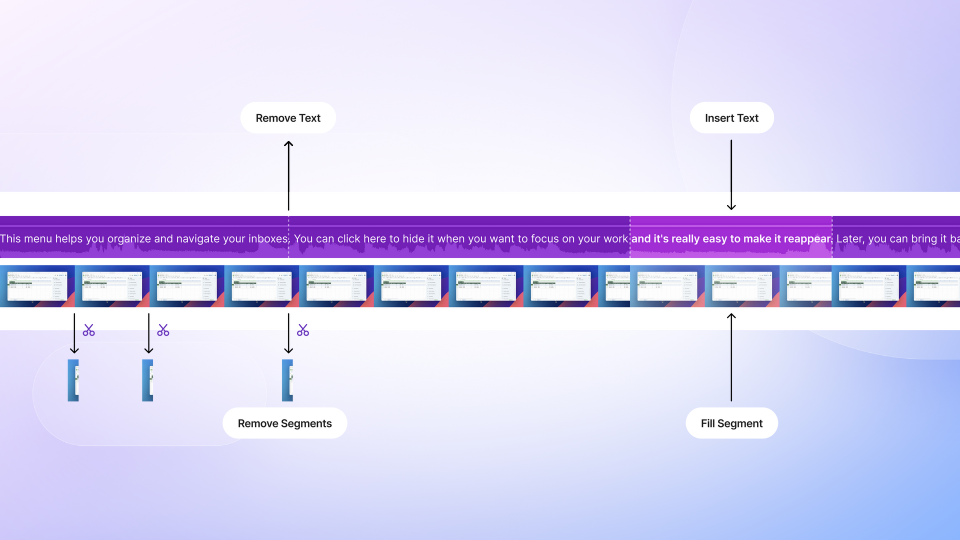
If there’s too much audio for a short video section, the video pauses. If there’s too much video for a short audio section, the video speeds up. This is all handled automatically — you don’t need to manage timing.
Positioning Sync Markers
Section titled “Positioning Sync Markers”Drag Sync Markers within the script and drop them onto a specific word to reposition them.
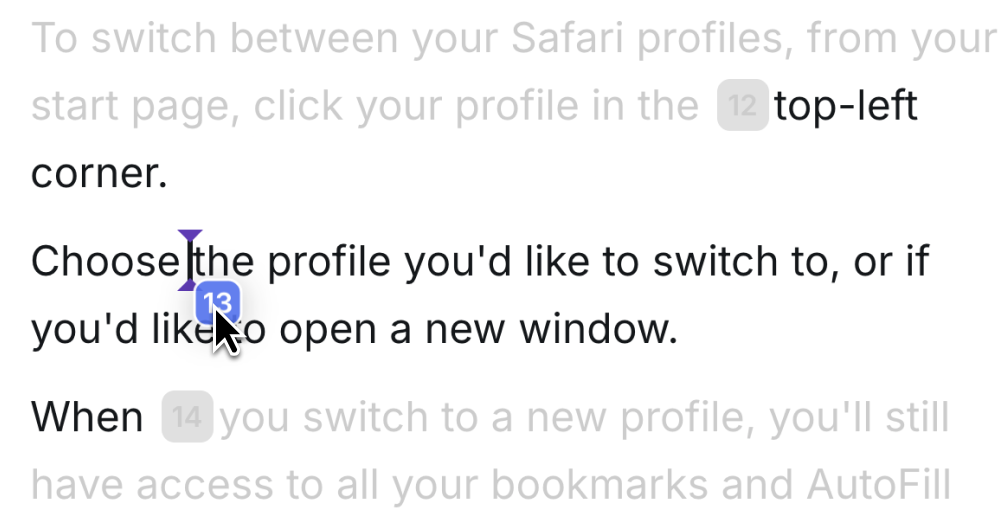
The system enforces ascending order — while dragging, areas where a marker can’t be placed appear greyed out.
Sync Marker labels
Section titled “Sync Marker labels”Each marker has an auto-generated label describing what happened at that moment (e.g., “Click on Submit button”).
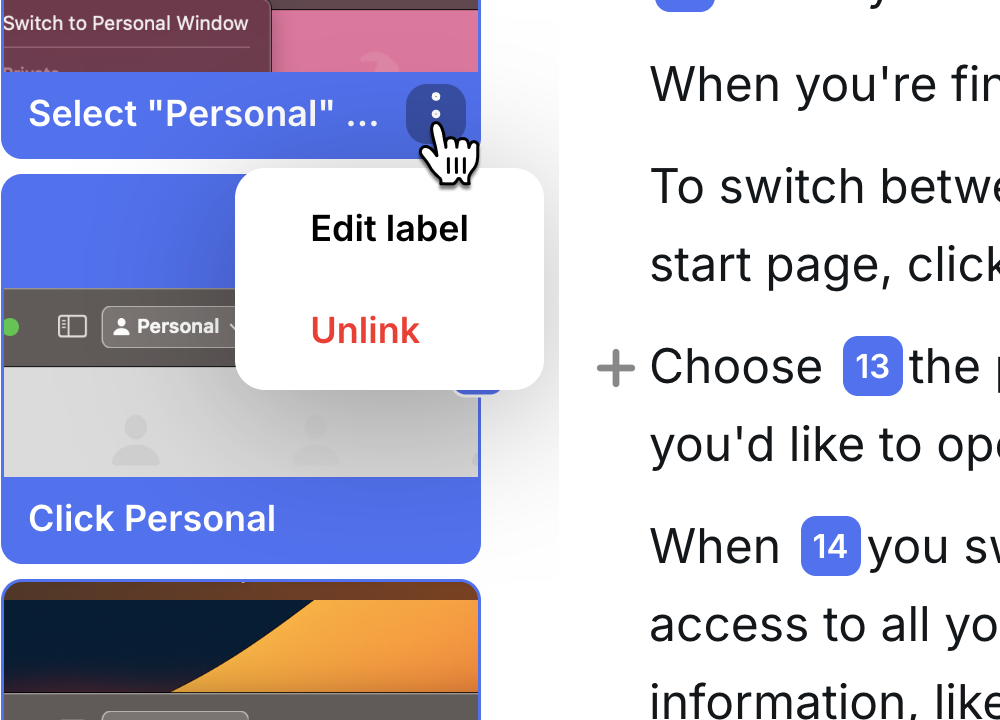
- Edit a label: hover over the three-dot menu → Edit label
- Delete a marker: select it and press Backspace, or use three-dot menu → Unlink
- Re-insert a deleted marker: open the Sync Markers panel (see below) and drag it back into the script
Custom Sync Markers
Section titled “Custom Sync Markers”Sync Markers are created automatically for every click and typing event. To align narration with a moment where no click or typing happened — a static slide, on-screen content you’re explaining, something you forgot to mention while recording — add a custom Sync Marker:
- Play or scrub the video to the exact moment you want to align narration with
- Open the Sync Markers rail by clicking the chevron (›) at the far left of the script editor
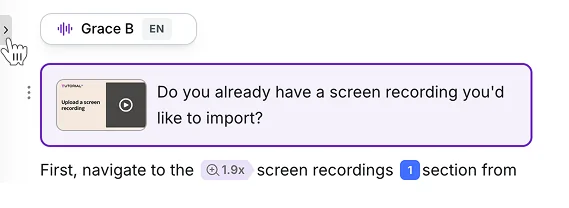
- In the rail, click the + button — a new custom Sync Marker is created at the current video frame
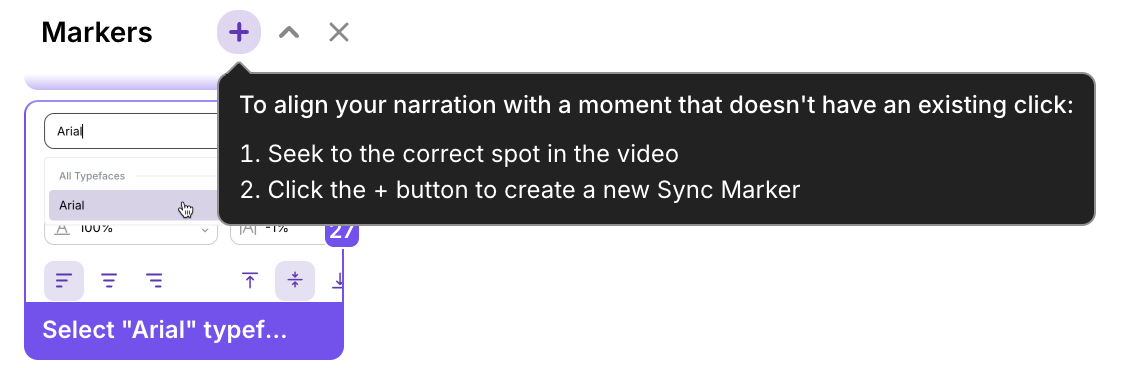
- Drag the new marker into the narration script and drop it on the word you want to sync
Next steps
Section titled “Next steps”- Voice Tags — Add inline pause, emotion, and sound tags for expressive narration
- Ask AI — Polish and restructure your script with AI
- AI Voices — Choose the voice for your narration
- Edit Like a Doc — More on the script-based editing approach