

Export Documents
Once you’ve generated documentation from your video, export it in multiple formats for use in your knowledge base, CMS, or documentation platform.
Where to access exports
Section titled “Where to access exports”You can export from two places:
- Share menu — open Share, click the Document Export tab
- Video preview page — open the Export menu, select the Document Export tab
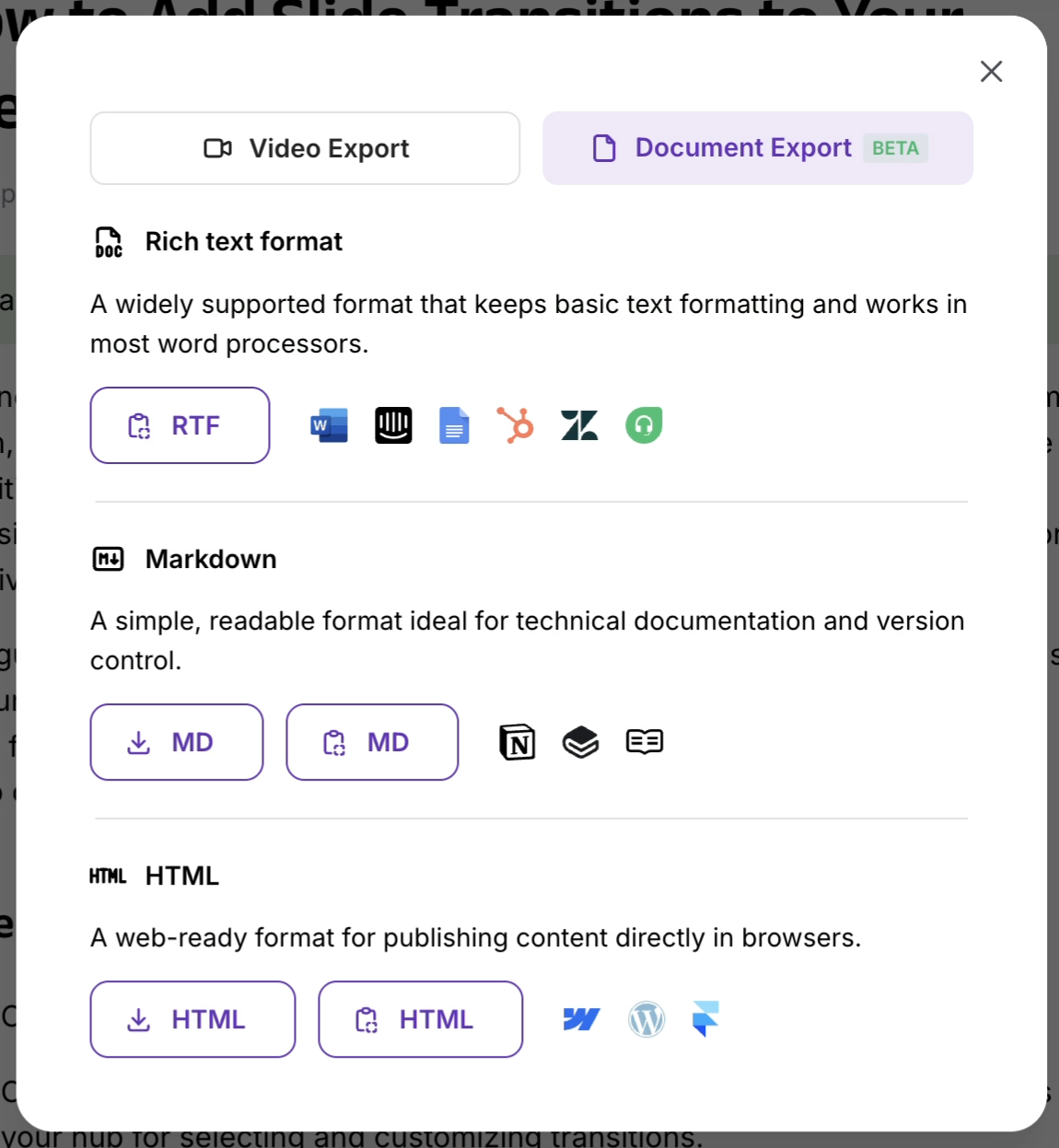
Available formats
Section titled “Available formats”| Format | Best for |
|---|---|
| RTF | Word processors (Microsoft Word, Google Docs) |
| Markdown | Developer docs, GitHub wikis, documentation systems |
| HTML | Direct web publishing, CMS platforms |
All formats preserve your document structure, formatting, headings, and screenshots.
Integration exports
Section titled “Integration exports”Beyond file downloads, you can export directly to supported platforms:
- Notion — paste as a Notion page
- HubSpot — publish to your HubSpot knowledge base
- Zendesk — create a help center article
- Freshdesk — add to your support portal
- Google Docs — open in Docs for further editing
- WordPress — publish as a blog post or page
- Webflow — add to your CMS collection
- Confluence — create a wiki page
Workflow
Section titled “Workflow”- Generate documentation from your video
- Review and edit the article in Tutorial AI’s editor
- Click Export and choose your format
- Copy or upload the exported document into your platform
Next steps
Section titled “Next steps”- Generate Documentation — Create articles from your videos
- Publish & Share — Publish the video alongside the article
- Export Video — Download the MP4 file