

Generate Documentation
Tutorial AI can transform any video recording into a structured written article with screenshots. One recording produces both a narrated video and written documentation — covering visual and text-based learners.
Getting started
Section titled “Getting started”- Record a video demonstrating the process or feature you want to document
- Open your project and switch to the Document tab

- Click Generate Documentation — AI analyzes your video and narration, transforming spoken content into written instructions
- Review the generated article — AI converts narration into text and organizes it into logical sections
Formatting and editing
Section titled “Formatting and editing”Use the editor’s formatting tools to refine the generated article:
- Adjust headings to create clear sections
- Add emphasis (bold, italic) for key terms
- Include bullet points for step-by-step instructions
- Group related instructions under Heading elements for improved readability
Well-structured headings also improve SEO and help LLMs better understand and index your content.
Adding screenshots
Section titled “Adding screenshots”Rather than capturing screenshots manually, use the built-in Screenshot Selector:

- Open the Screenshot Selector — it highlights key events and sync markers along your video’s timeline
- Choose a screenshot that demonstrates the step you’re documenting
- Select from the list of Sync Markers to find key events quickly
- Click Add Screenshot to insert it into the article
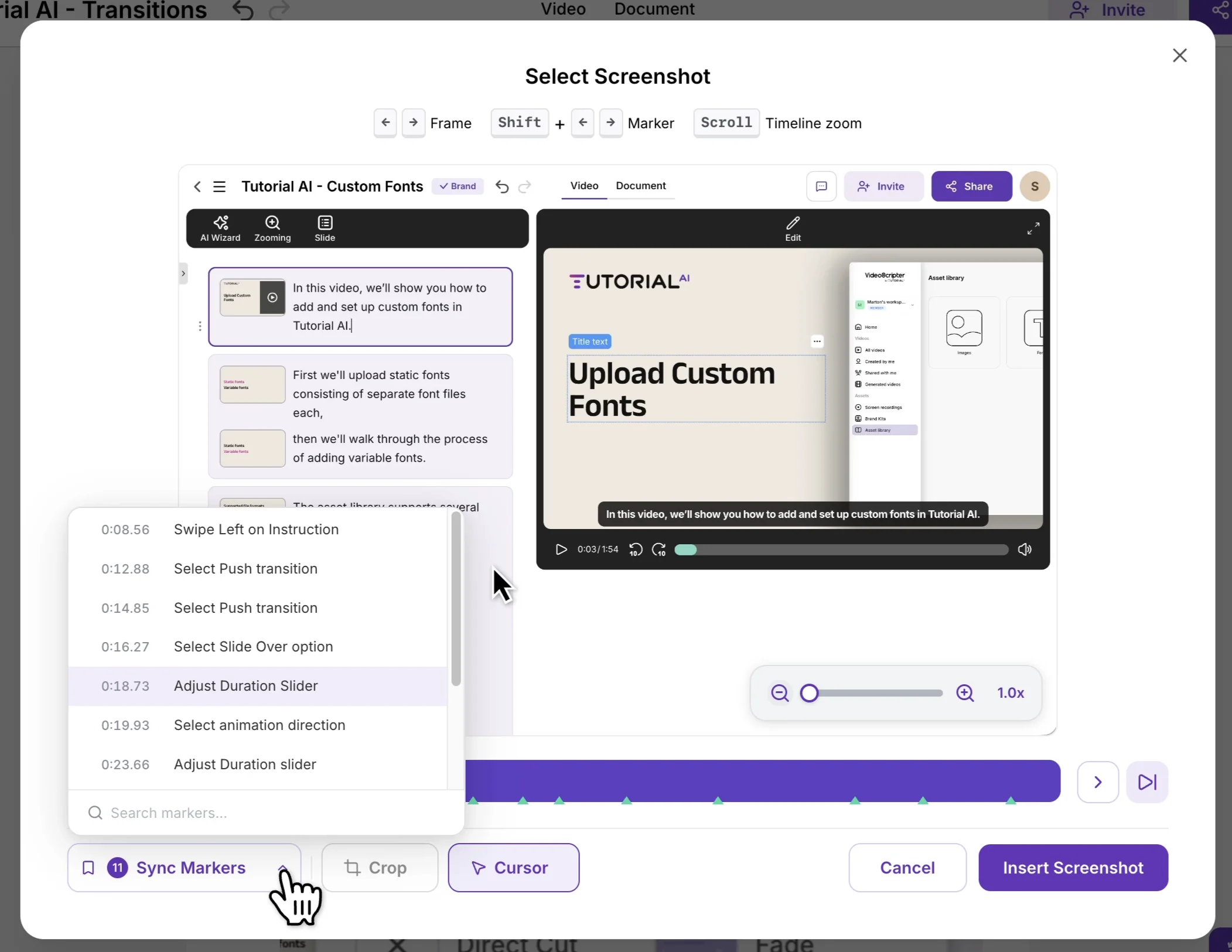
For more precise visuals, use the Crop Tool to focus on key areas before inserting.
Exporting
Section titled “Exporting”When your article is ready, click Export and choose your format:
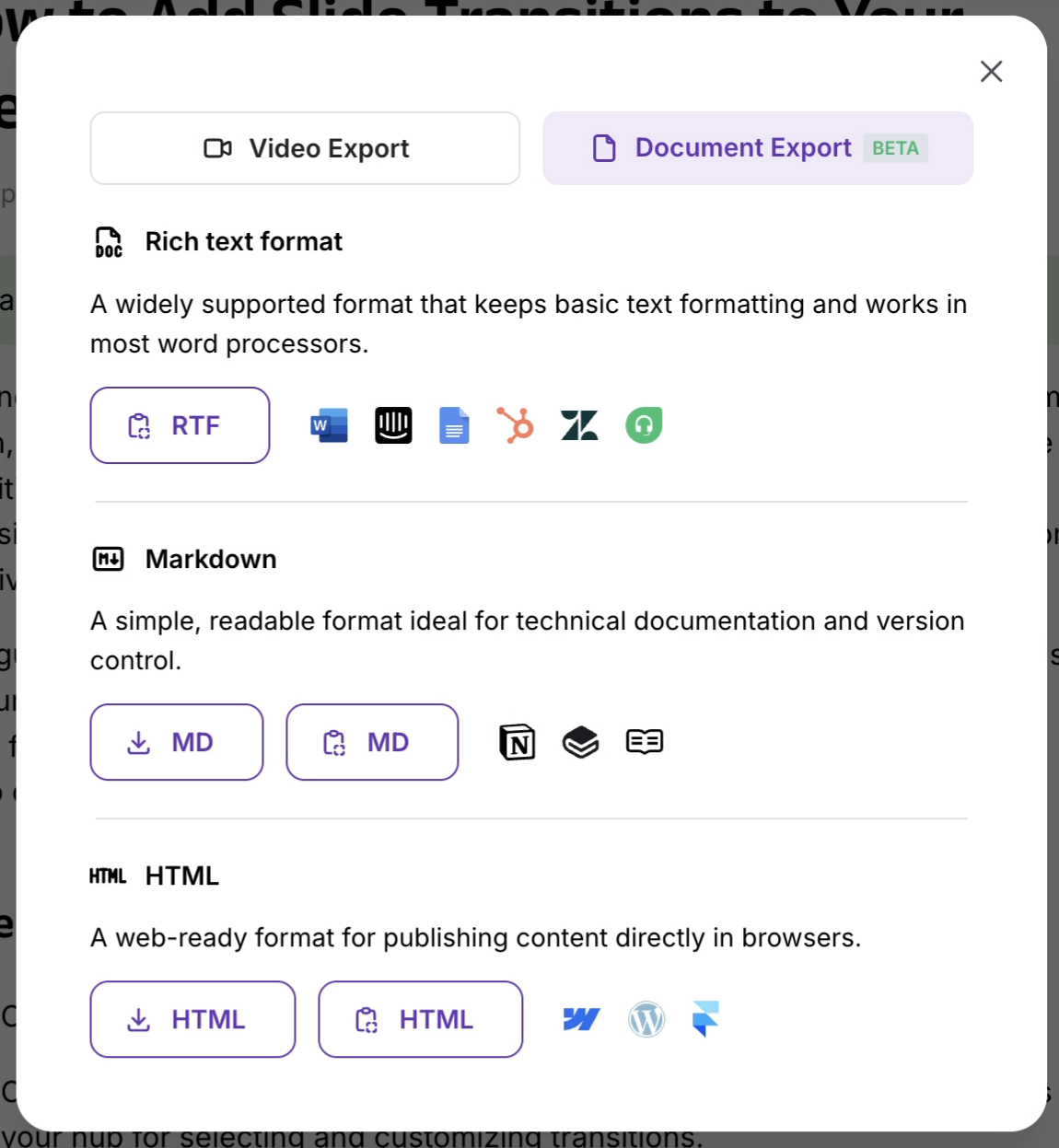
All formats preserve structure, formatting, and screenshots. See Export Documents for details on each format.
Why start with video?
Section titled “Why start with video?”- Capture all steps accurately — recording a process is more natural than writing it from scratch
- Improve SEO — written articles make your content searchable and indexable
- LLM discoverability — structured documentation is indexed by AI assistants for customer support
- Save time — AI-powered workflow reduces documentation time from hours to minutes
Best practices
Section titled “Best practices”- Speak clearly and narrate steps as you perform them — makes AI-generated docs more accurate
- Plan your recording to cover all key steps
- Use visual cues in your video to make screenshot selection intuitive
- Take advantage of formatting features to make articles easy to read
Next steps
Section titled “Next steps”- Export Documents — Export to RTF, Markdown, HTML, and integrations
- Export Video — Generate the video version alongside documentation
- Article Basics — Overview of the documentation feature