

Slide Transitions
Slide transitions determine how content moves from one slide to the next. The right transition sets the tone — subtle fades for professional content, dynamic pushes for marketing videos.
Available transition styles
Section titled “Available transition styles”| Style | Effect | Best for |
|---|---|---|
| Direct Cut | Instant switch, no visual effect | Sharp scene changes, contrasting information |
| Fade | Gradual opacity transition | Professional, corporate presentations |
| Wipe | New slide sweeps across | General purpose, clean transitions |
| Slide Over | New slide slides over the current one | Step-by-step progressions |
| Push | New slide pushes the current one out | Dynamic, energetic content |
| Zoom | Zoom in/out transition | Creative, marketing content |
Accessing the transition menu
Section titled “Accessing the transition menu”- Open your project in the editor
- Locate the area between any two slides
- Click the Transition menu button that appears between slides
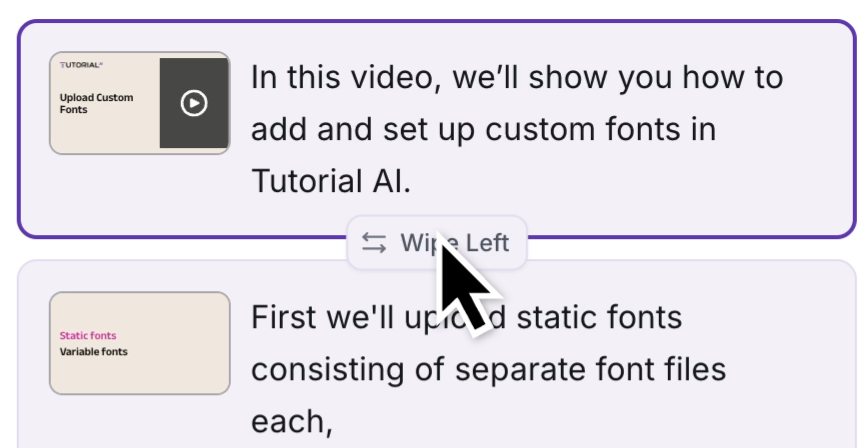
Selecting a transition style
Section titled “Selecting a transition style”Browse the available styles in the Transition menu and click your preferred option to preview its effect.
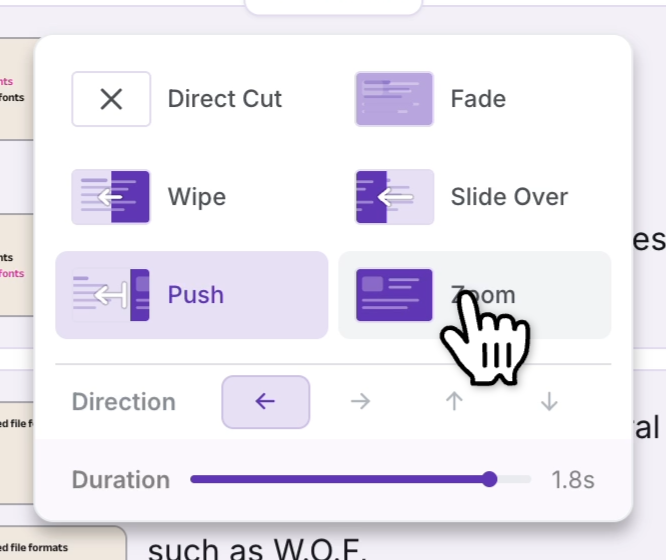
Customizing direction and duration
Section titled “Customizing direction and duration”After choosing a style:
- Direction — Set to left, right, up, or down depending on how you want the new slide to enter
- Duration — Control how fast or slow the transition plays
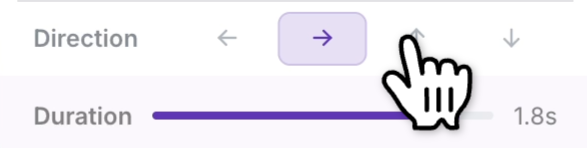
Duration guidelines:
- Fast-paced marketing videos — shorter duration for quicker transitions
- Educational/explanatory content — longer duration for smoother, more gradual changes
Applying transitions to all slides
Section titled “Applying transitions to all slides”To apply the same transition consistently across your entire presentation, click the Change All button within the transition menu.

Tips for effective transitions
Section titled “Tips for effective transitions”- Be consistent — switch styles only when it supports the content; too many different effects distract viewers
- Match the tone — subtle Fade or Slide Over for professional presentations, dynamic Push or Zoom for marketing
- Direction matters — transitioning up/down can signal a change in topic or hierarchy
- Always preview — play through transitions before finalizing to ensure they support rather than distract from your content
Next steps
Section titled “Next steps”- Slides — Learn about slide types and customization
- Brand Kits — Apply consistent branding to slides
- Backgrounds — Customize slide backgrounds