

Background Music
Background music keeps viewers engaged through transitions, breaks the monotony of long explanations, and gives the final video a more polished feel. Tutorial AI ships with a curated library of royalty-free tracks and balances them against the narration automatically.
Opening the Music panel
Section titled “Opening the Music panel”In the video toolbar, click Music to access all background-music settings.

Turning music on and off
Section titled “Turning music on and off”The Play background music toggle at the top of the panel is on by default. Turn it off to render the video with narration only.
Balancing music against narration
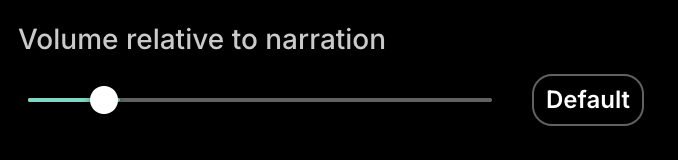
Section titled “Balancing music against narration”Use the Volume relative to narration slider to set how loud the music is compared to the AI voice. For most tutorials and explainers a subtle background level works best — keep the music perceptible but never competing with the spoken script.
Choosing a track
Section titled “Choosing a track”Below the volume control sits a curated list of royalty-free tracks. Click the play icon next to a title to preview, then select it to apply.
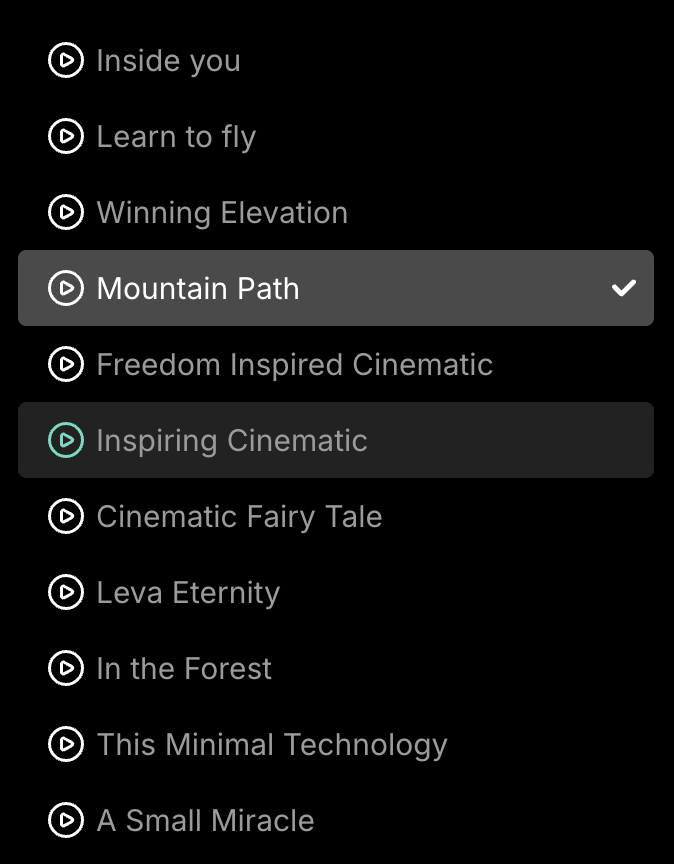
The chosen track plays across the whole video by default, but you can override that for individual slides — see below.
Per-slide overrides
Section titled “Per-slide overrides”The Music-panel settings are the default for every slide. Any individual slide can override them from the slide’s side panel — useful when a specific slide shouldn’t share the same music behavior as the rest of the video.
Open the slide, then in its side panel you can either:
- Turn background music off for this slide only, or
- Set a lower (or higher) volume for this slide only
The most common reason to override is a slide that already has its own audio — for example, a personal intro video with the presenter speaking, or any embedded media with sound. Lowering or muting the background music on that slide prevents the music from competing with the slide’s own audio.
Slides without an override keep using the global setting from the Music panel.
- Keep music well below narration — viewers should be able to focus on the words. Around 15–25% relative volume is usually right.
- Match mood to content — calm tracks for documentation walkthroughs, energetic ones for product launches.
- Preview the final mix before publishing — what reads “subtle” in the editor can feel loud at typical playback volumes.
Next steps
Section titled “Next steps”- AI Voices — Choose a voice via the speaker tag at the top of your script
- Script Editing — Edit and sync the narration script
- Pronunciations — Customize how specific words are spoken