

Blur Sensitive Data
Screen recordings often capture sensitive information — customer data, passwords, financial details, internal URLs. The Blur tool lets you mask any part of the screen for a specific duration, keeping your tutorials safe to share.
Step-by-step guide
Section titled “Step-by-step guide”1. Navigate to the section
Section titled “1. Navigate to the section”- Open the Cut tool
- Move to the part of the video containing sensitive information
2. Add a blur mask
Section titled “2. Add a blur mask”- Click the Blur tab in the lower left corner
- Click Add Blur — a blur mask appears on the canvas
- Position and resize the mask to cover the sensitive information
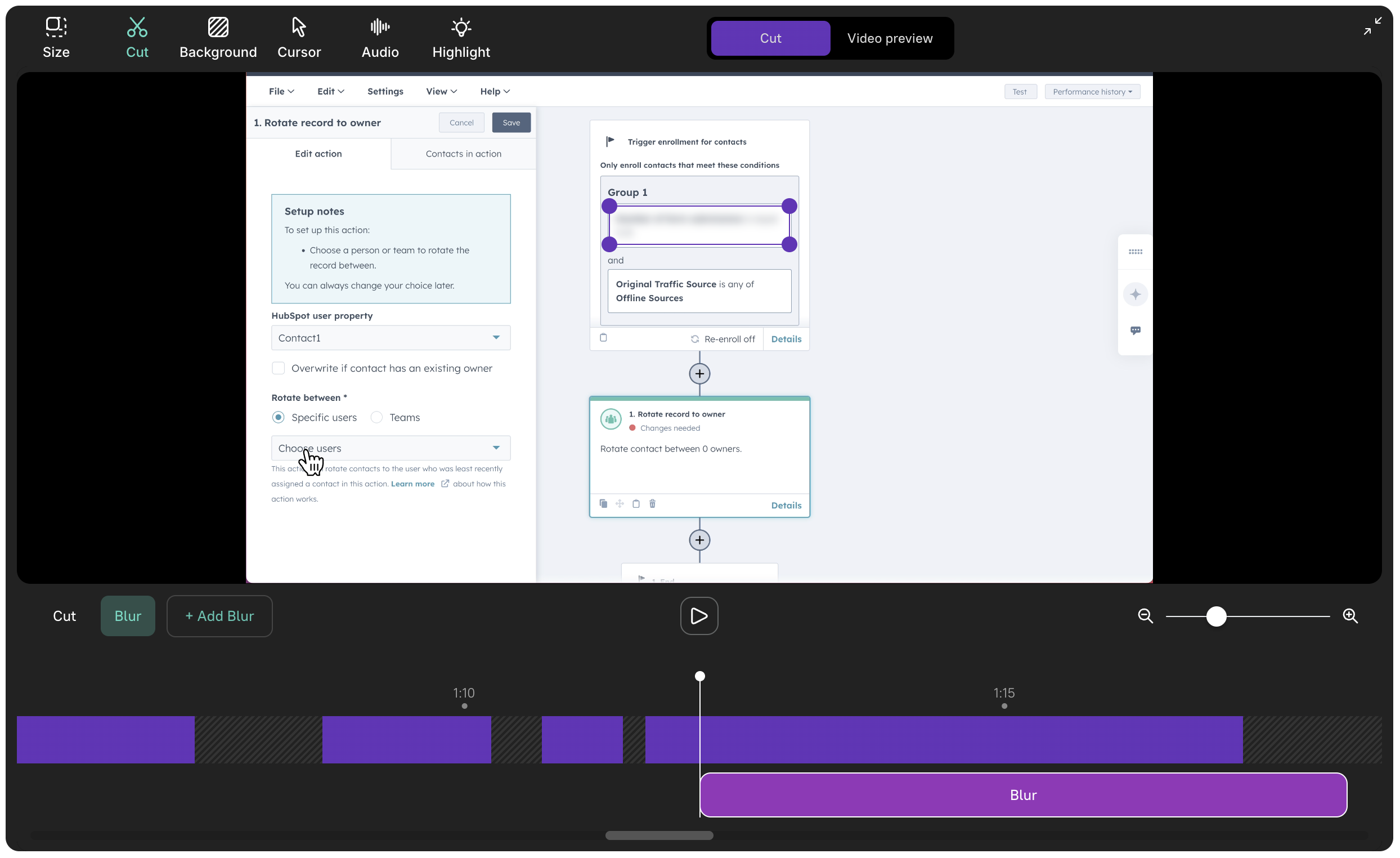
3. Adjust blur timing
Section titled “3. Adjust blur timing”Set the start and end points of the blur segment so the sensitive data stays hidden for the correct duration.
4. Preview your blur effect
Section titled “4. Preview your blur effect”- Move the playhead to the start of the blur segment
- Press Spacebar to preview
- Verify the blur mask covers the sensitive data adequately
5. Adding multiple blur masks
Section titled “5. Adding multiple blur masks”To blur several areas at the same time:
- Click Add Blur again
- Each new mask shares the same start and end times as the original
- Position and resize each mask individually
Removing blur masks
Section titled “Removing blur masks”- Move the playhead to where the blur mask appears
- Select the blur mask
- Press Backspace to delete it
What to blur
Section titled “What to blur”- Customer PII — names, emails, phone numbers, addresses
- Credentials — passwords, API keys, tokens
- Financial data — account numbers, balances, transaction details
- Internal URLs — staging environments, admin panels
- Personal information — colleague names, Slack messages, email content
Next steps
Section titled “Next steps”- Cut & Trim — Remove entire sections instead of blurring
- Highlights — Draw attention to specific areas
- Captions — Add captions to your blurred video