

Comments
Comments turn your videos into collaborative review sessions. Teammates and guests can leave feedback tied to specific moments in the video, mention colleagues, and track discussions through to resolution.
Inviting colleagues
Section titled “Inviting colleagues”After generating a video, click the Invite button at the top of the video preview page. Enter email addresses to give colleagues access to view and comment.
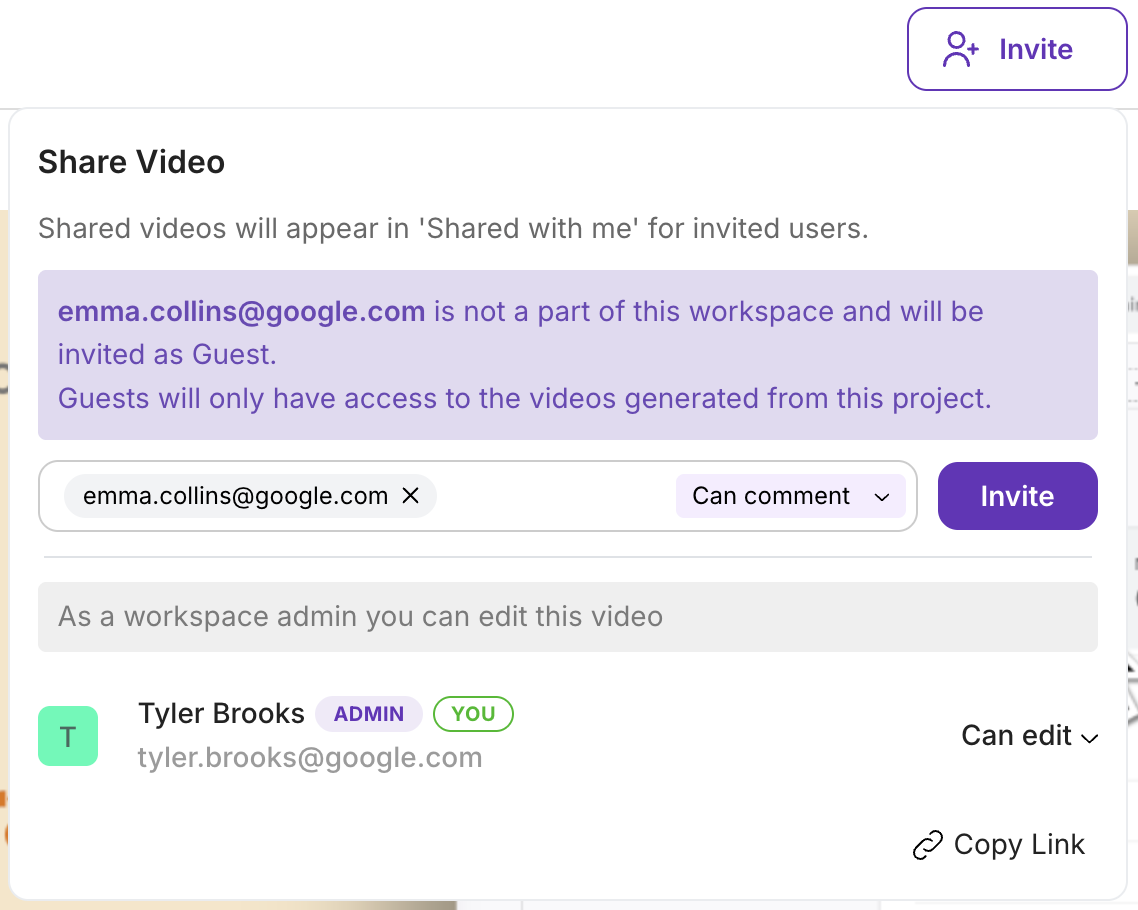
Both workspace members and guest users can leave comments on generated videos.
Leaving comments
Section titled “Leaving comments”Click anywhere on the video timeline or press the comment button to add a comment. Comments are time-stamped — they’re linked to the specific moment in the video you’re viewing.
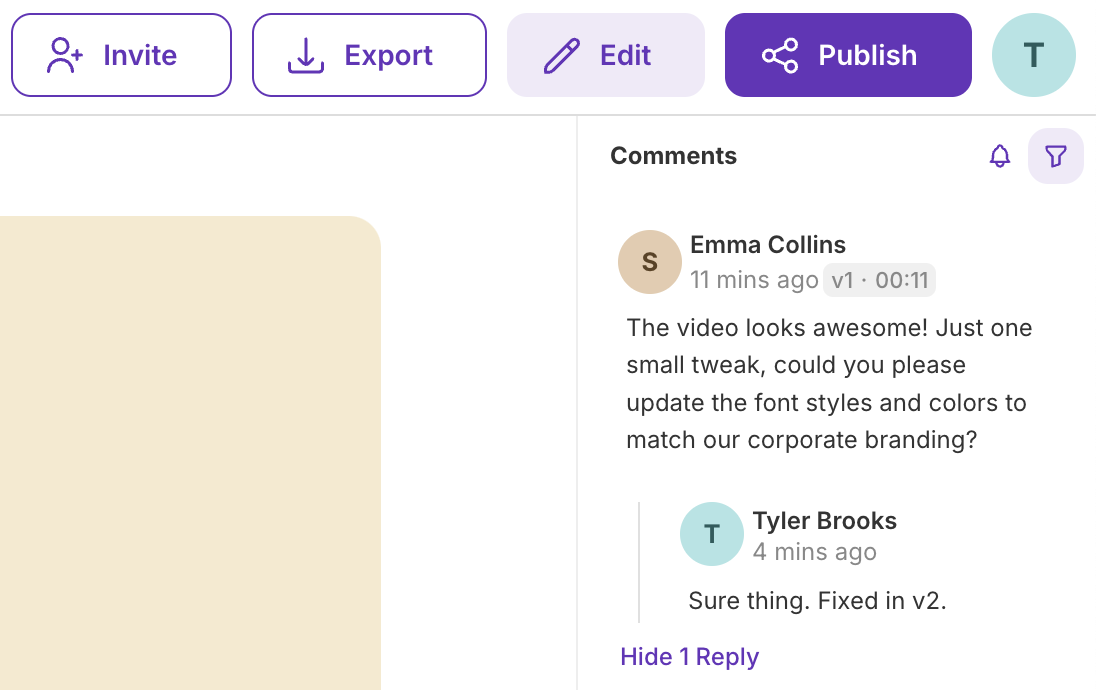
Mentions
Section titled “Mentions”Use the @ symbol to mention colleagues in comments and replies. Mentioned users receive an email notification about the thread.

Filtering comments
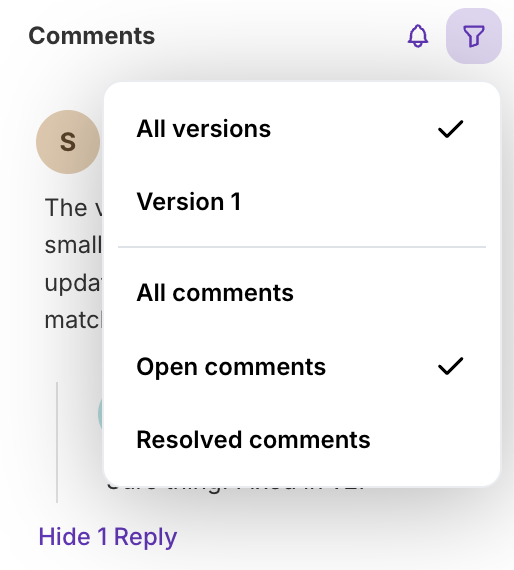
Section titled “Filtering comments”Use the filter icon to sort comments by:
- Version — see comments for a specific video version
- Status — show open, resolved, or all comments
Email notifications
Section titled “Email notifications”Notifications are automatically sent to:
- The project owner for all comments
- Mentioned users (@mentions)
- Thread participants when replies are added
Turning off notifications
Section titled “Turning off notifications”For all projects: Go to Workspace Settings → Preferences and disable the Members activity toggle.
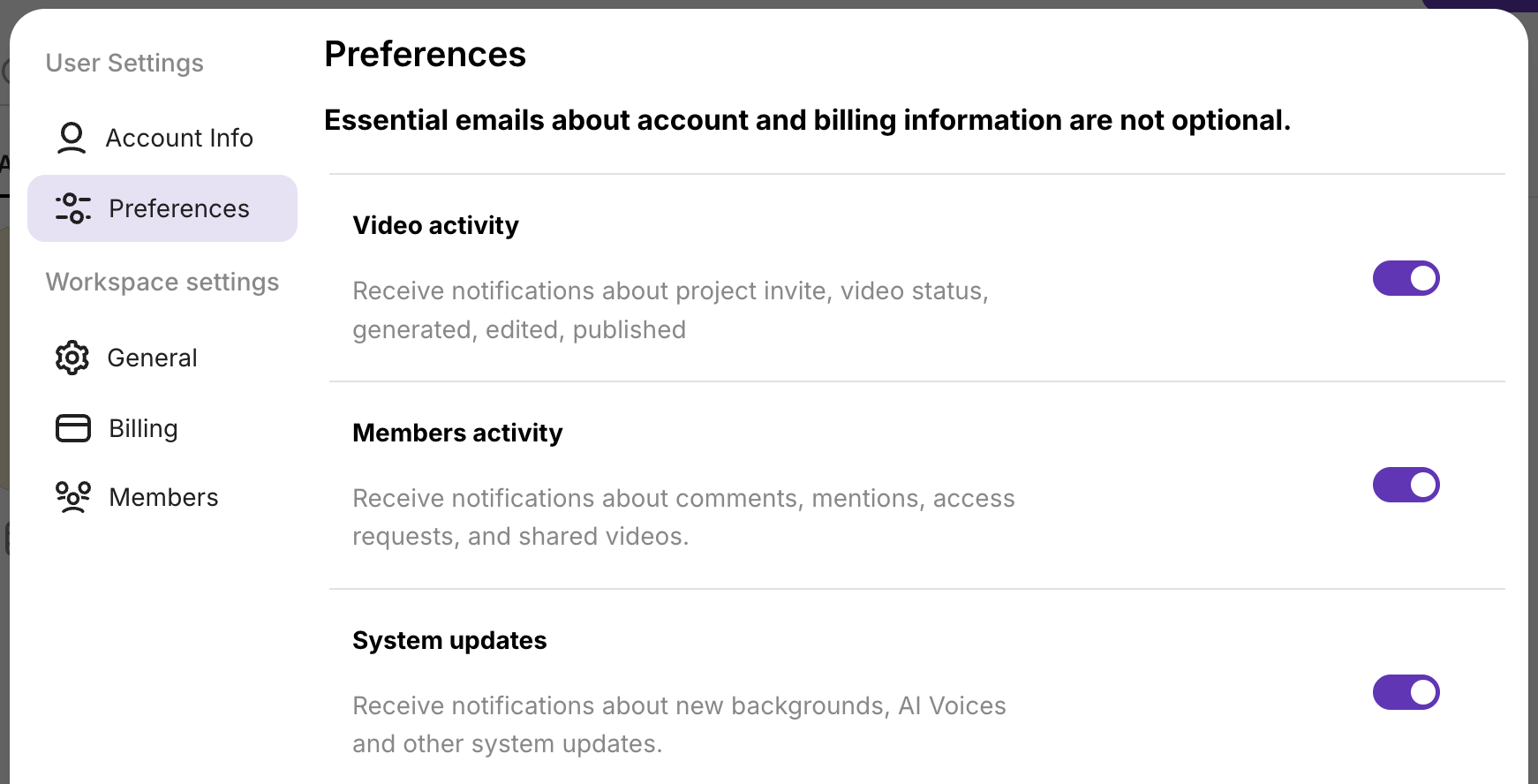
For a specific project: Click “Turn off notifications for this project” in the notification email.
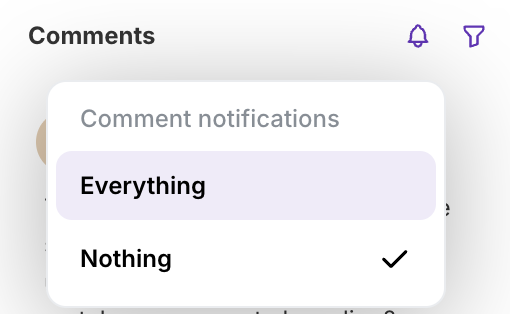
Re-enabling: Click the bell icon in the comments section, then under Comments notification select Everything.
Next steps
Section titled “Next steps”- Guest Users — Share with external collaborators
- Export Video — Generate videos for review
- Publish & Share — Share finalized videos externally