

Organizing Videos
As your video library grows, folders keep it navigable. Tutorial AI supports nested folders, multiple workspaces, and Virtual Translation Folders — automatic groupings that keep a translated set together without manual filing.
Creating a folder
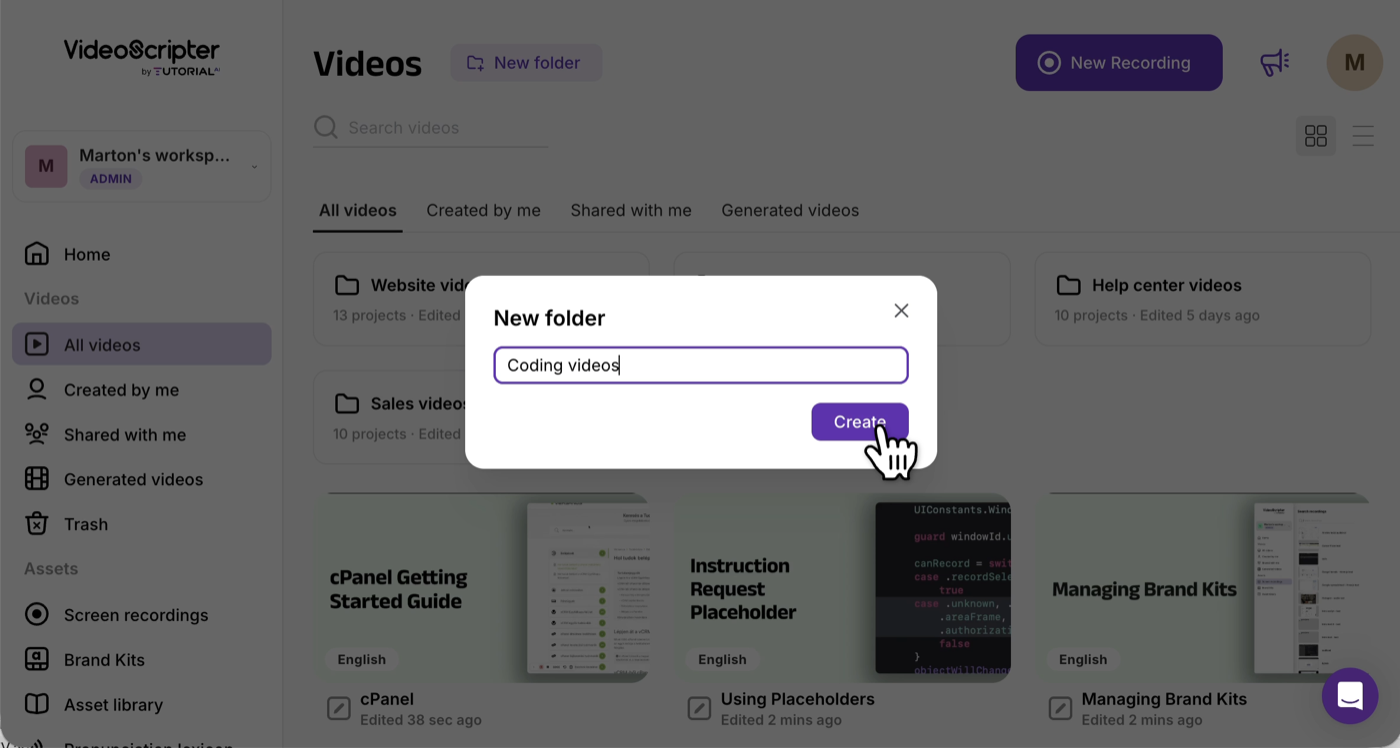
Section titled “Creating a folder”On the Videos dashboard, click New Folder, enter a name, and confirm.
Moving a video
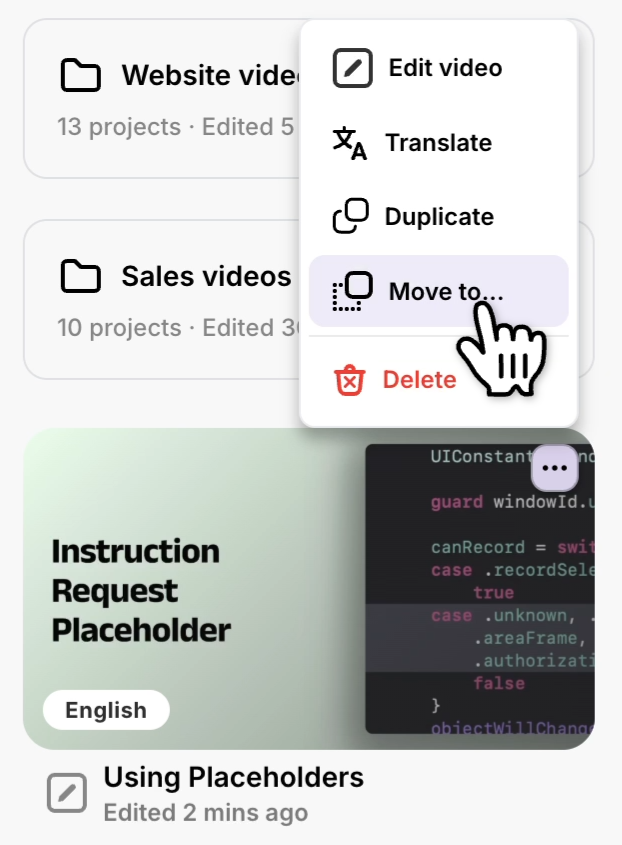
Section titled “Moving a video”Open the three-dot menu on a video tile and choose Move to → pick a destination folder.
Nested folders
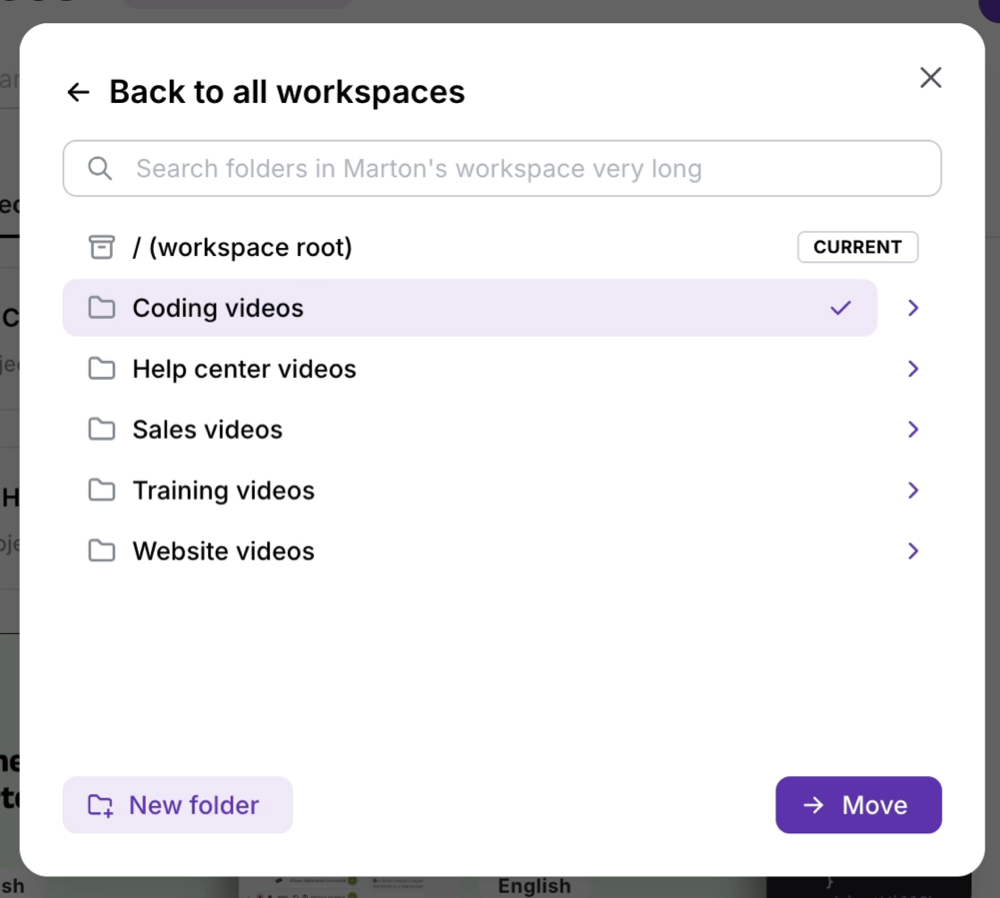
Section titled “Nested folders”Folders can contain folders. Either navigate into a folder first and click New Folder, or use the New Folder button at the bottom-left of the Move to popup to create a subfolder inline.
Virtual Translation Folders
Section titled “Virtual Translation Folders”When you translate a video, Tutorial AI groups the source and all of its translated copies into a Virtual Translation Folder — created automatically and named after the source. New translations of the same source always land in the same folder, so a multilingual set stays together as you add languages.
See 1-Click Translation for the translation flow.
Workspaces
Section titled “Workspaces”Folders are scoped to a workspace. From the Move to popup, navigate one level up past the top folder to see your other workspaces — projects can be moved across workspaces from there.
- Rename — three-dot menu on the folder → Rename.
- Delete — three-dot menu on the folder → Delete. Videos inside aren’t deleted; they move back to the parent location.
- Breadcrumbs — navigate up out of nested folders using the breadcrumb trail at the top of the dashboard.
Next steps
Section titled “Next steps”- 1-Click Translation — Create translations that auto-populate Virtual Translation Folders
- Video Player — Embed all language versions in one player
- Uploading Videos — Get videos into the library in the first place
- Brand Kits — Workspace-scoped branding