

Quickstart
This guide walks you through creating your first video tutorial with Tutorial AI — from recording to published video.
Step 1: Install the recorder
Section titled “Step 1: Install the recorder”Download the Desktop App for macOS or Windows. Alternatively, install the Chrome Extension for browser-based recording.
Already have a recording you want to use? Skip to Uploading Videos — Tutorial AI can analyze an existing file and build the project for you.

The Desktop App is recommended — it captures metadata and cursor positions that enable advanced cursor effects the Chrome Extension can’t provide.
Step 2: Record your screen
Section titled “Step 2: Record your screen”Open the recorder and capture your workflow. You can:
- Stay silent — AI will generate a narration script from your screen actions
- Speak while recording — AI transcribes your words and refines them into a polished script
Quick tips:
- Keep recordings under 10 minutes for best results
- Close unnecessary tabs and mute notifications
- Click deliberately on elements — the recorder tracks clicks to generate Sync Markers
Step 3: Let AI do the editing
Section titled “Step 3: Let AI do the editing”Once your recording uploads, Tutorial AI automatically:
- Generates a polished narration script from your actions
- Adds professional AI voiceover
- Applies smart zoom effects on key interactions
- Creates smooth transitions
If you recorded with audio, you’ll see additional enhancement options:
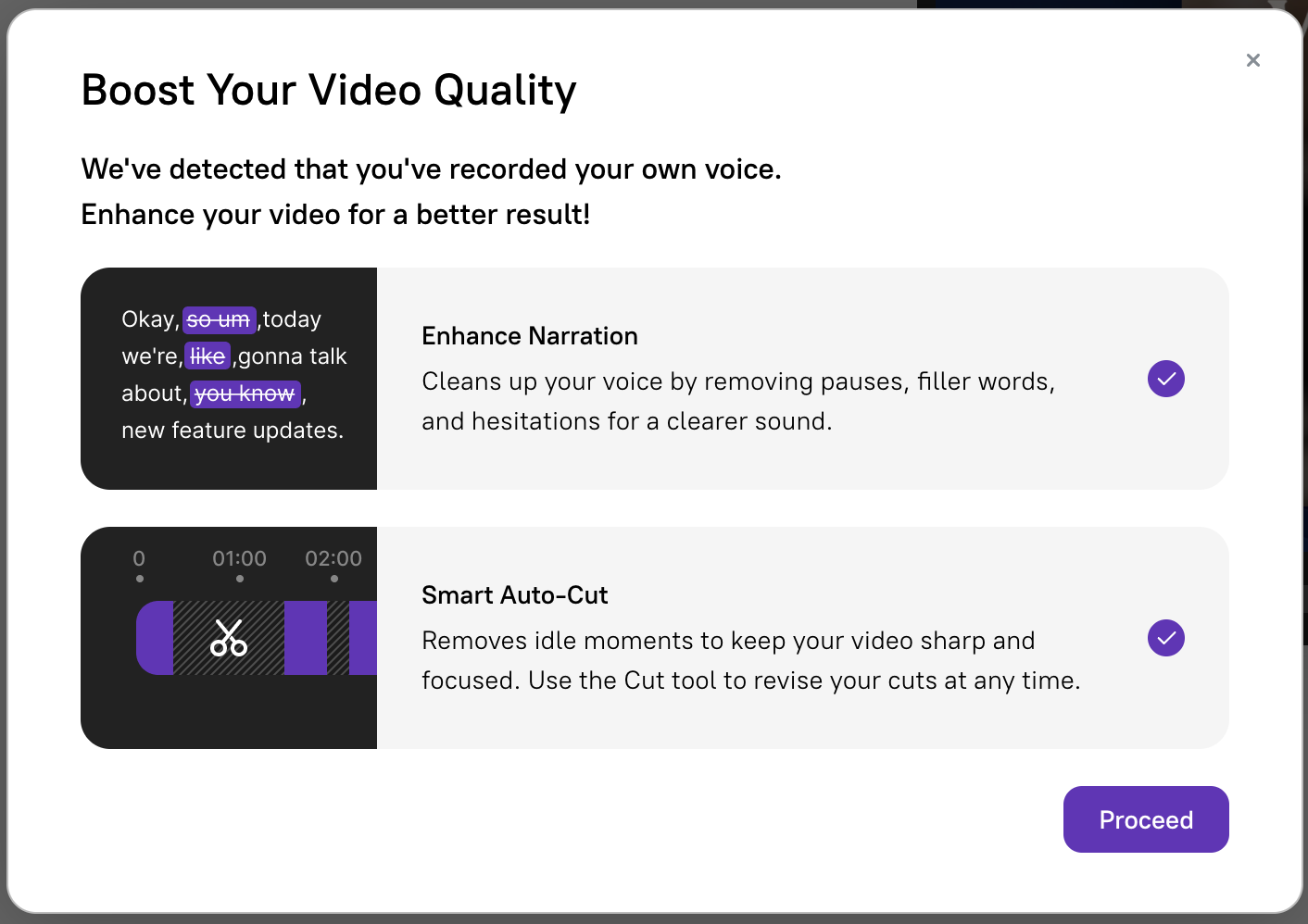
- Enhance Narration — AI removes filler words and refines sentence structure
- Smart Auto-Cut — trims idle sections from the video
Step 4: Review and refine
Section titled “Step 4: Review and refine”Open the editor to fine-tune your video. The editor uses a script-based approach — you edit text, not a timeline.
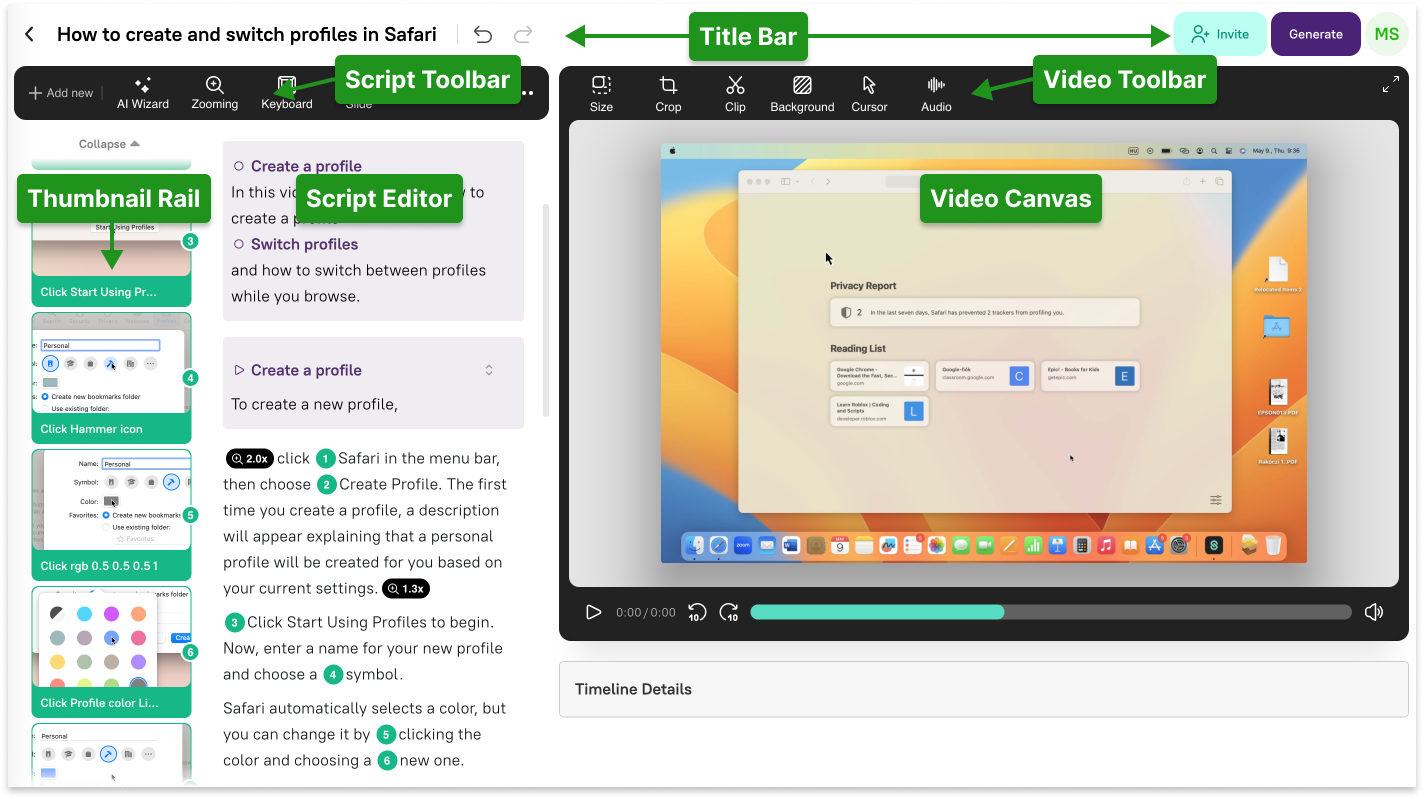
- Edit the script — changes update the voiceover and video timing instantly
- Adjust zoom — fine-tune timing and positioning of zoom effects
- Add slides — insert intros, outros, or chapter breaks
- Apply branding — set your logo, colors, and fonts via Brand Kits
Step 5: Publish
Section titled “Step 5: Publish”Export your finished video as MP4, share via link, or embed directly in your help center, LMS, or website.
Tutorial AI also generates a written article with screenshots from the same recording — giving you both a video tutorial and step-by-step documentation from a single recording session.
Next steps
Section titled “Next steps”- Video Basics — Understand the full video creation workflow
- Article Basics — Generate written documentation from recordings
- Screen Recording — Detailed Desktop App guide
- Edit Like a Doc — How script-based editing works