

Pronunciations
There are two ways to fix how the AI voice pronounces words: regenerating audio for quick one-off fixes (available on all plans), and the Pronunciation Lexicon for systematic control over specific terms (Team and Enterprise plans).
Regenerating audio
Section titled “Regenerating audio”Sometimes the AI voice mispronounces a word or generates an awkward-sounding sentence. You can fix this instantly by regenerating the audio for that specific sentence:
- Right-click the sentence in the script
- Select Regenerate audio in selection
- The AI produces a new take — which often resolves the issue
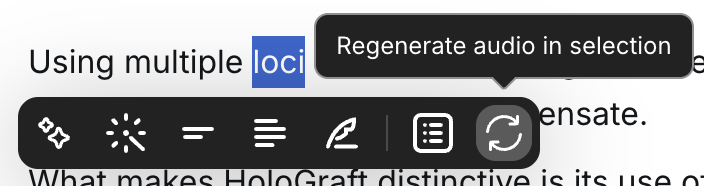
This is available on all plans and doesn’t require any setup. Use it whenever a sentence doesn’t sound right.
Pronunciation Lexicon
Section titled “Pronunciation Lexicon”For words that need to be pronounced correctly every time, across every project — brand names, technical terms, acronyms — the Pronunciation Lexicon gives you systematic control.
Accessing the lexicon
Section titled “Accessing the lexicon”Open the Pronunciation Lexicon panel on the left side of the interface and select Add Languages.
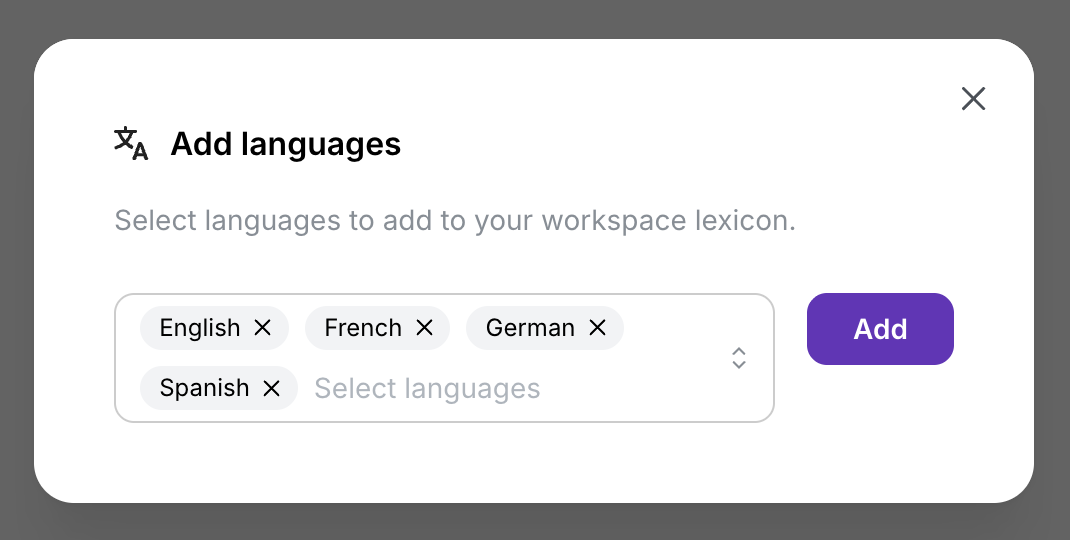
Add the languages you’ll use in your projects to customize pronunciations across multiple languages.
Adding a new entry
Section titled “Adding a new entry”- Click New Pronunciation

- Enter the written form — the word or phrase as it appears in your script
- By default, entries apply to all AI voices. You can override for a specific voice actor by adding the same entry and selecting a different voice from the dropdown.
Defining the respelling
Section titled “Defining the respelling”Specify the phonetic or Respelling form — how you want the word to sound.
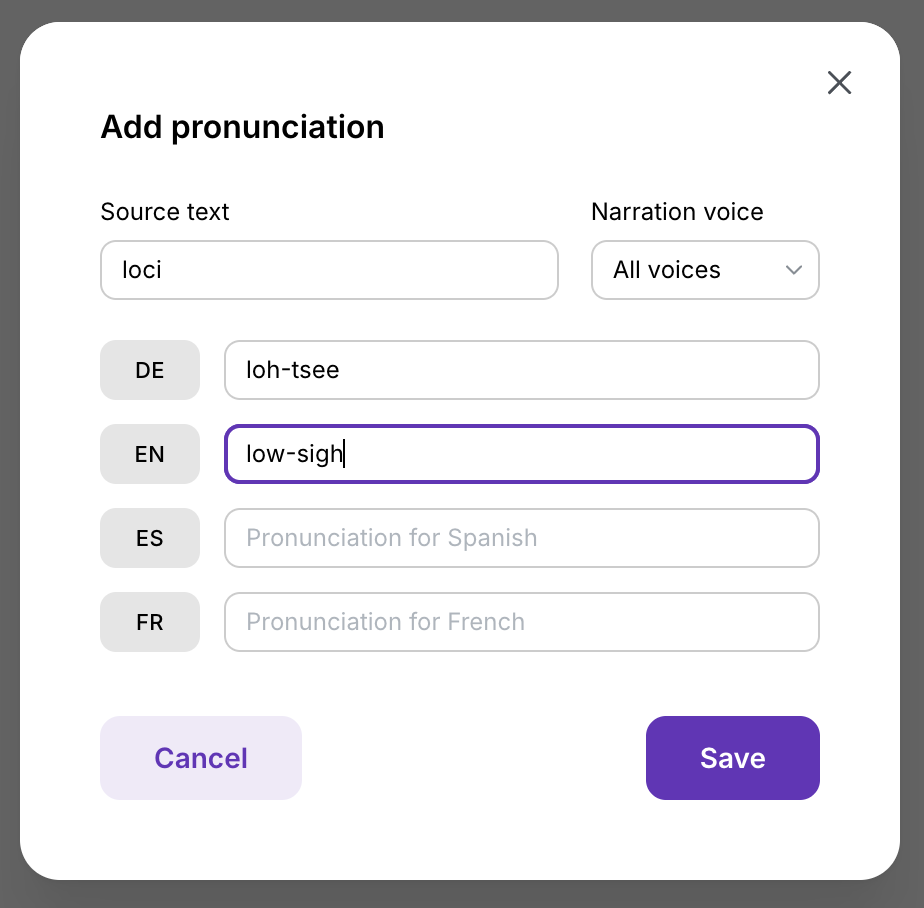
After saving, the pronunciation updates across all projects in your workspace automatically.
Multi-language pronunciations
Section titled “Multi-language pronunciations”Add pronunciation entries for additional languages to ensure terms sound correct when you translate your video.
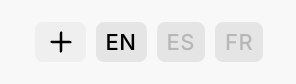
The same term can have different respellings per language — the AI uses the correct one based on the video’s language.
Previewing pronunciation
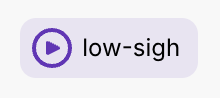
Section titled “Previewing pronunciation”After saving an entry, click the purple Play icon to hear how the AI will pronounce it. Confirm the respelling sounds correct before publishing.
Workspace scope
Section titled “Workspace scope”Pronunciation lexicons are specific to each workspace. Each workspace maintains its own entries and languages. If you move projects between workspaces, you’ll need to recreate the lexicon — entries don’t transfer automatically.
Common use cases
Section titled “Common use cases”| Type | Example |
|---|---|
| Brand names | ”QIAgen” → “Kee-ah-gen” |
| Product names | ”QIAcuityDx” → “Kee-ah-cue-ity D X” |
| Acronyms | ”SAML” → “sam-uhl” |
| Technical terms | ”kubectl” → “koob-cuttle” |
| People’s names | ”Szőke” → “Suh-keh” |
Next steps
Section titled “Next steps”- AI Voices — Choose the voice that uses your pronunciations
- 1-Click Translation — Pronunciations carry over to translated videos
- Supported Languages — All languages that support pronunciation entries