

Backgrounds
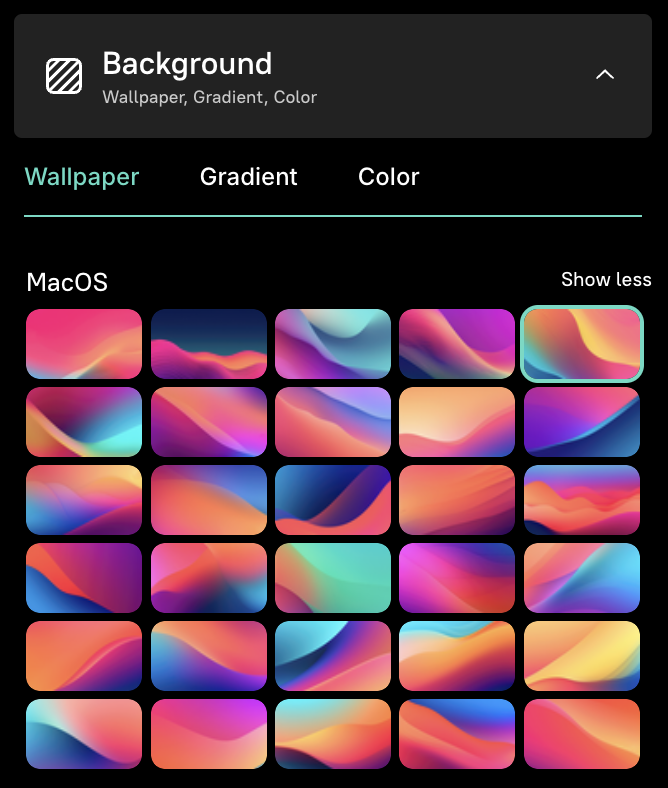
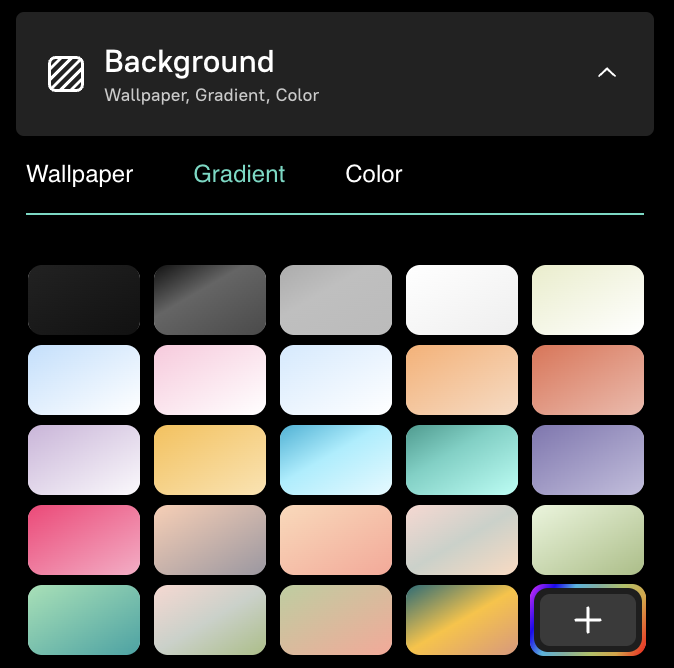
The Background tool lets you wrap your screen recording in a polished visual frame — wallpaper images, gradient backgrounds, or solid colors — plus control padding, rounded corners, and shadow for a professional look.
Wallpapers, gradients, solid colors
Section titled “Wallpapers, gradients, solid colors”Click the Background icon in the Video Toolbar to access background options.
Wallpapers
Section titled “Wallpapers”Choose from a library of stunning wallpaper images to add behind your recording.
Gradients and solid colors
Section titled “Gradients and solid colors”Switch to the Gradient tab for vibrant multi-stop gradient backgrounds, or the Color tab for simple solid colors.
Padding, rounded corners, shadow
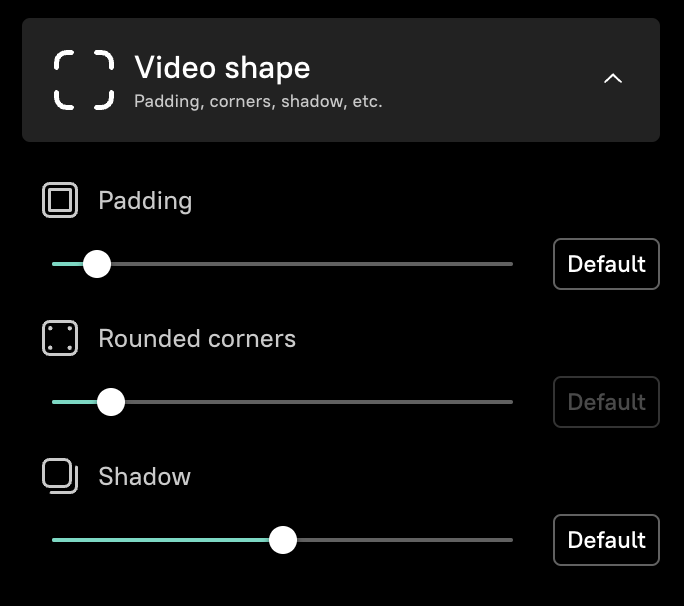
Section titled “Padding, rounded corners, shadow”Use the sliders in the Video Shape section to fine-tune:
- Padding — control the space between your recording and the background edge
- Rounded corners — adjust the corner radius for a softer or sharper look
- Shadow — control the shadow strength around your recording for depth
- Dark backgrounds make UI recordings pop — especially for light-themed apps
- Brand colors keep your tutorials consistent with your company identity
- Subtle shadows add depth without distraction
- Larger padding gives the recording room to breathe and feels more polished
- Minimal rounded corners (4–8px) look clean and modern
Next steps
Section titled “Next steps”- Brand Kits — Apply your brand colors and gradients automatically
- Cursor Effects — Customize the cursor on top of your background
- Zooming — Add zoom effects that complement your background