

Export Video
The Generate function finalizes your project into a publish-ready video. Choose frame rate and resolution, manage multiple versions, and continue working while the video renders in the background.
Generating a video
Section titled “Generating a video”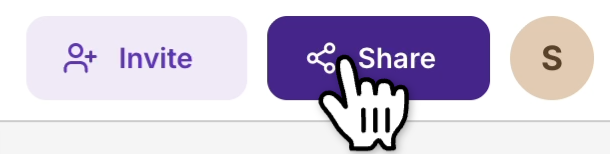
Open the Share menu and configure:
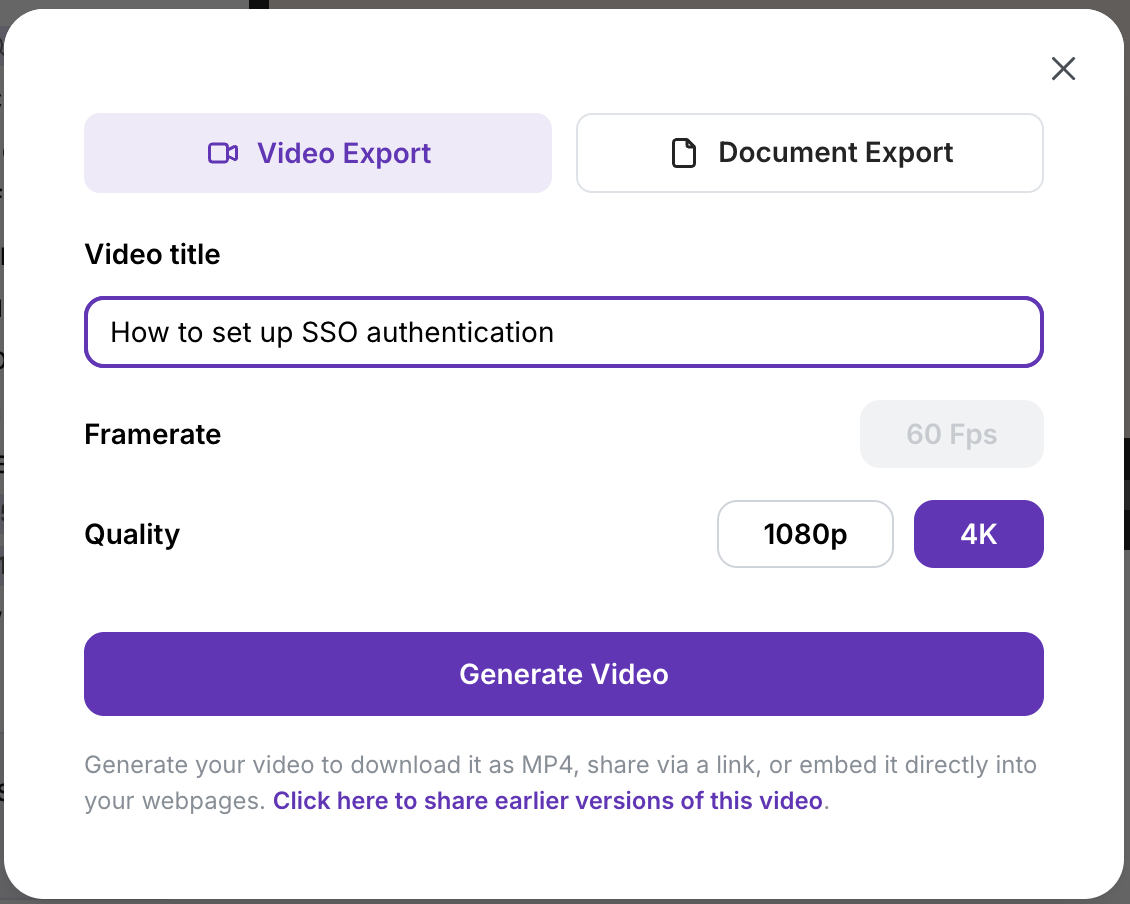
- Title — shown on the share page and in social previews
- Frame Rate — 30 FPS (standard) or 60 FPS (smoother motion)
- Video Quality — 1080p (Full HD) or 4K (ultra-high-definition)
Click Generate video to start rendering. You’ll be redirected to the dashboard where a thumbnail shows progress and estimated time remaining.
Managing versions
Section titled “Managing versions”Once generated, a movie icon appears next to the project and it’s listed under Generated videos.
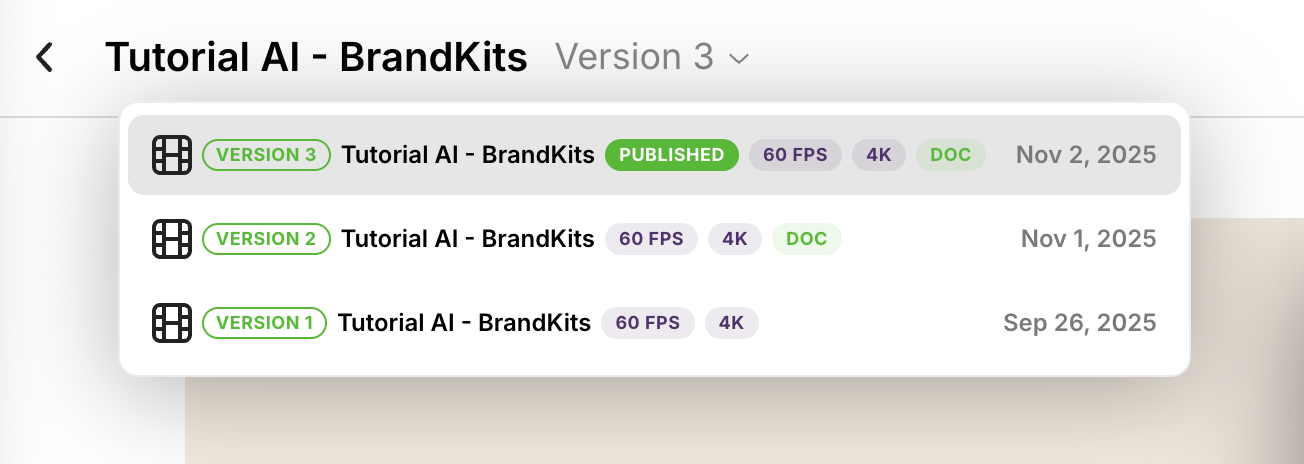
- Use the dropdown menu next to the project title to switch between versions
- Click the play button to watch any version
- Click Open in Editor to return to editing (disabled while generating)
Downloading a cover image
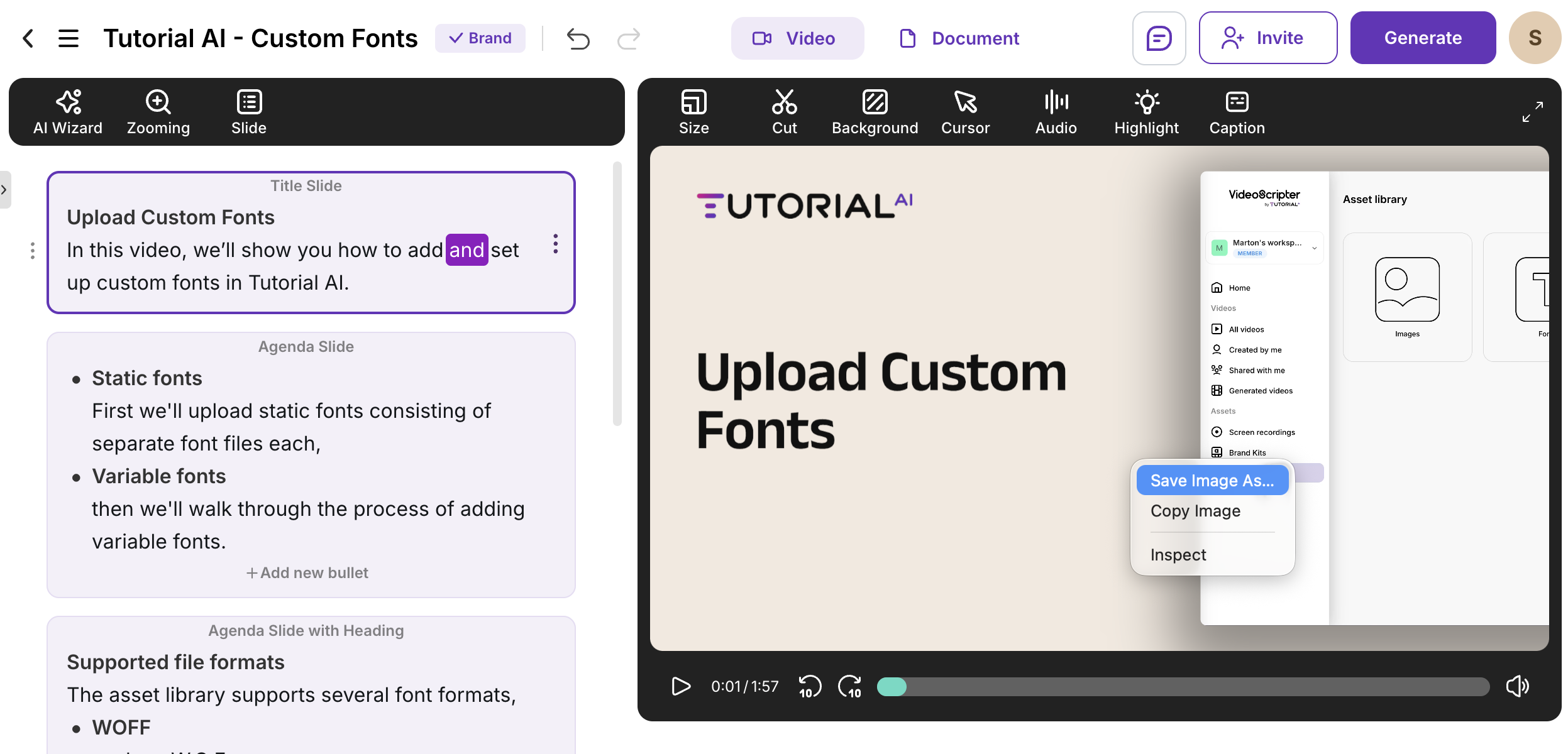
Section titled “Downloading a cover image”You can save any frame as a thumbnail for YouTube or other platforms:
- Play the video to the frame you want
- Pause at the exact moment
- Right-click the video preview and select “Save Image As…”
Next steps
Section titled “Next steps”- Publish & Share — Share via link or embed code
- Export SCORM Package — Package a published video for your LMS with completion tracking
- Generate Documentation — Create written articles from your video
- Export Documents — Download in RTF, Markdown, or HTML