
Video messaging tools like Loom have become a go-to for async communication. But as teams scale and content expectations rise for demos, training, and product walkthroughs, many start to feel the limitations of simple screen recorders — especially when videos need to look polished, stay on-brand, and double as documentation.
In this guide, we compare tools across use cases like demos, tutorials, documentation, and team collaboration, highlighting where each option fits best. Whether you need faster creation, better quality, AI-powered workflows, or enterprise-ready features, this guide will help you find the right Loom alternative.
Why Teams Are Exploring Alternatives to Loom
Loom works well for fast, informal communication, but many teams run into limitations that push them to look elsewhere:
1. Video Quality Gaps
The basic recording experience often results in videos that feel unpolished. There's little support for professional touches like cursor smoothing, automatic zoom effects, or click highlighting. For customer-facing content, this quality gap matters. Teams find themselves choosing between speed (Loom) and quality (hours in a video editor).
2. Friction in Content Updates
Loom's editing is limited to trimming the start and end of a video. If you misspeak in the middle, stumble over a word, or your product UI changes after recording, you have to re-record the entire video. There's no way to edit narration after the fact, insert new sections, or rearrange content. For teams maintaining tutorial libraries, this creates a constant re-recording burden.
3. No AI Production Features
Loom doesn't generate voiceover from text, doesn't smooth cursor movements, and doesn't automatically add zoom effects to key interactions. Every visual and audio element depends entirely on your live performance during recording. For introverts, non-native speakers, or anyone who doesn't want to narrate live, this is a significant barrier.
4. Challenges at Scale
Collaboration features are fairly basic, content organization is limited, and there's no support for branding consistency across a video library. For larger teams, enterprise-level controls, multilingual capabilities, and the ability to generate documentation alongside video are increasingly important.
Top Loom Alternatives Compared
1. Tutorial AI — AI-Powered Tutorial Production
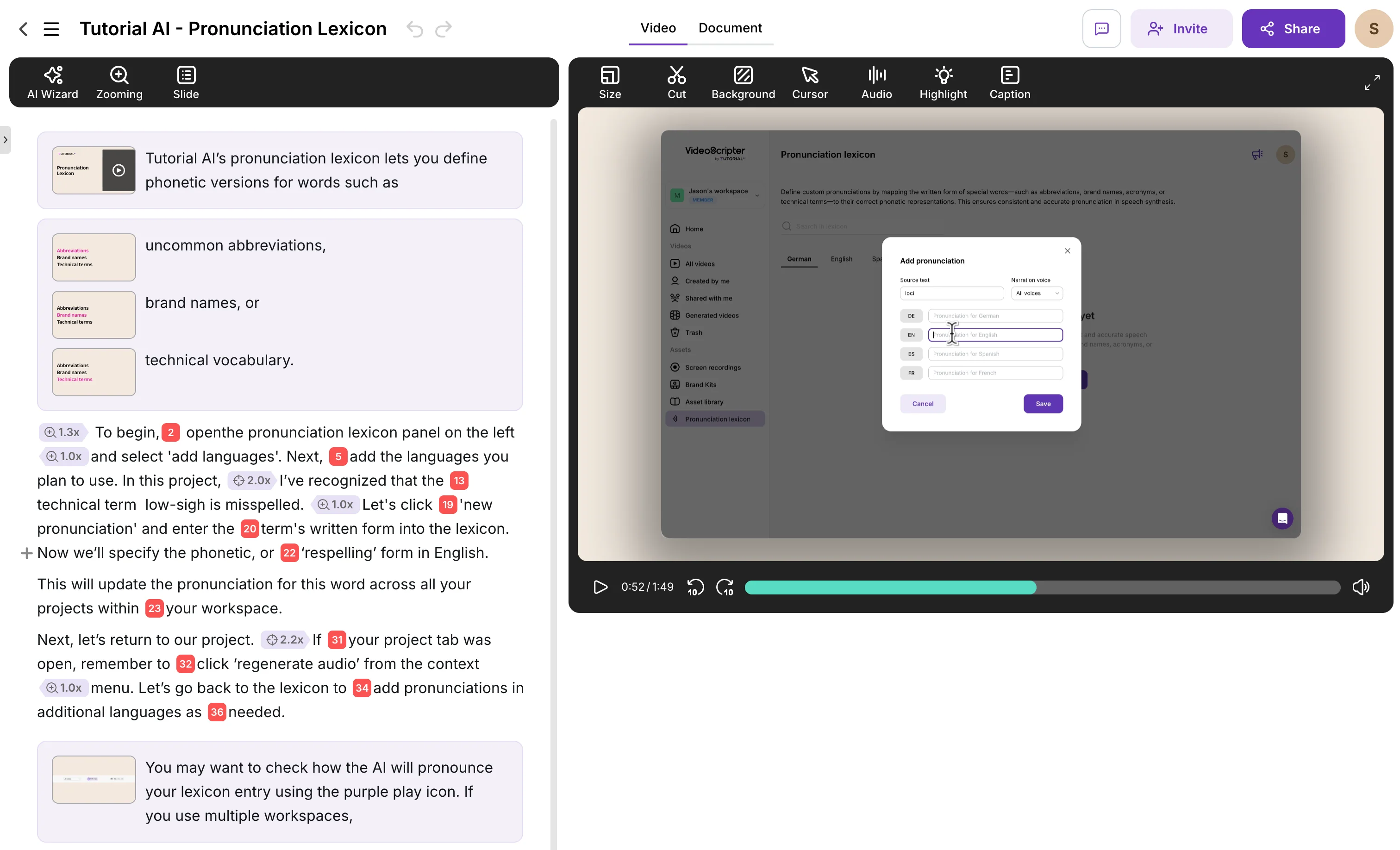
If you're evaluating tools like Loom for professional use, Tutorial AI is one of the standout alternatives in 2026. It's an AI-powered platform that goes beyond simple screen recording, making it a strong option for teams searching for a Loom alternative that produces studio-quality output.
Instead of narrating live during recording, Tutorial AI lets you record your screen silently. AI then generates the narration automatically using studio-quality voiceover in 74 languages. You can then edit the script like a document — change a word, rearrange paragraphs — and AI regenerates the audio instantly. Ask AI can rewrite entire sections, adjust tone, or restructure your script.
How Tutorial AI compares to Loom
- AI Voiceover Generation — Record silently, generate narration in 74 languages with natural-sounding AI voices.
- Text-Based Editing — Edit your video narration like a Google Doc instead of re-recording from scratch.
- Automatic Cursor Effects — Cursor paths are smoothed, clicks highlighted, and shaky movements removed automatically.
- Smart Auto-Zoom — AI detects key interactions and adds smooth zoom effects that guide the viewer's eye.
- AutoRetime Translations — Translate voiceover, captions, and timing into 74 languages with one click.
- Documentation Generation — Auto-generate written step-by-step guides with screenshots from the same recording.
- Brand Kits — Apply consistent logos, colors, fonts, and templates across all videos.
- Blur Sensitive Data — Hide passwords, emails, and personal data with a single click.
Whether you're creating product walkthroughs, training guides, sales demos, or internal tutorials, Tutorial AI ensures you don't just record — you create refined, studio-quality results.
Pricing
Free plan available. Paid plans start at $29/month with unlimited recordings and AI features. Enterprise plans with brand kits, custom fonts, and team management available.
2. Loom vs Camtasia
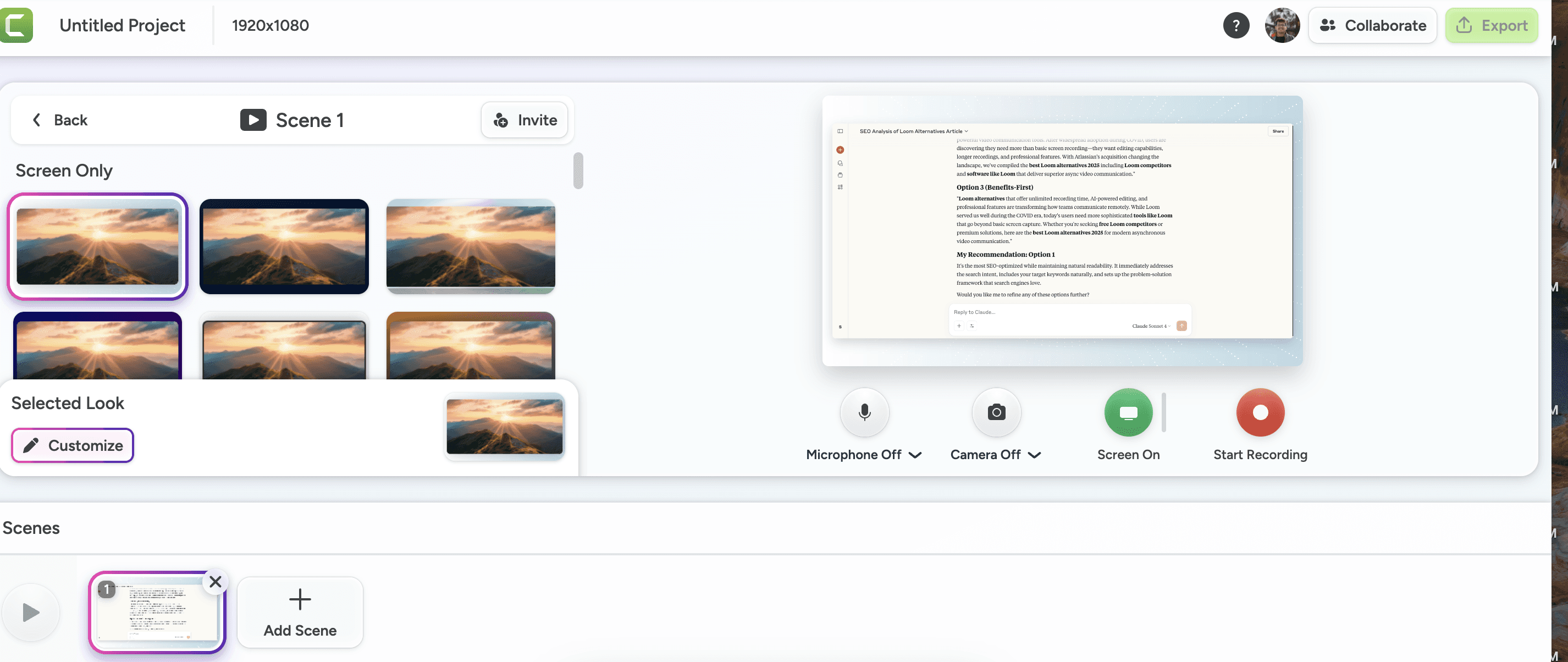
Camtasia by TechSmith has been the industry standard for screen recording and video editing for over two decades. It offers a full multi-track timeline editor, a comprehensive library of transitions, annotations, and effects, and the ability to produce highly customized videos. For experienced editors who need full creative control, Camtasia's depth is unmatched.
The trade-off is complexity and time. A 5-minute tutorial can easily take 2-3 hours to produce in Camtasia. Every zoom effect, cursor highlight, and audio edit must be manually configured on the timeline. There's no AI voiceover, no text-based editing, and no automatic cursor smoothing. Updating a tutorial when your product changes means reopening the project and manually editing the timeline — or recording from scratch.
For teams who need to produce and update tutorials frequently, Camtasia's per-video time investment becomes a bottleneck. It also lacks multilingual support, documentation generation, and brand kit features that modern tutorial platforms offer.
Pricing
One-time purchase around $300. Annual maintenance plan for updates is extra. No free plan available.
3. Loom vs Screen Studio
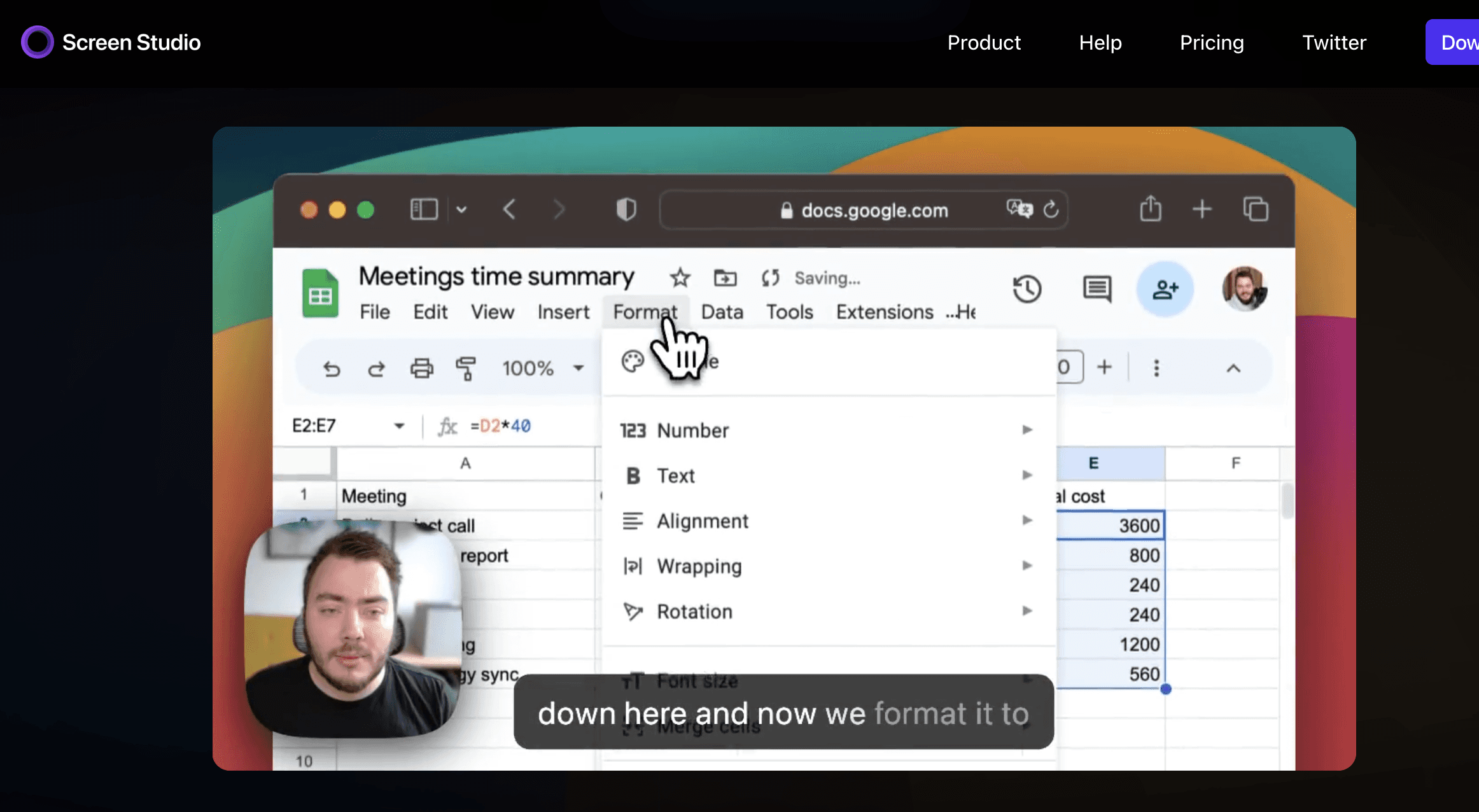
Screen Studio is a Mac-only screen recorder that focuses on making recordings look visually polished out of the box. It automatically adds smooth cursor movements, window framing, and background effects — producing videos that look noticeably more refined than raw Loom recordings without manual editing.
It's a strong choice for developers, designers, and content creators who want beautiful product demos without learning a video editor. However, Screen Studio is Mac-only, offers no AI voiceover or transcription, no translation capabilities, and no documentation generation. It's a recording tool, not a tutorial production platform — you still need to narrate live and do your own script planning.
Pricing
One-time purchase starting at $89. Mac only. No free plan.
4. Loom vs Scribe
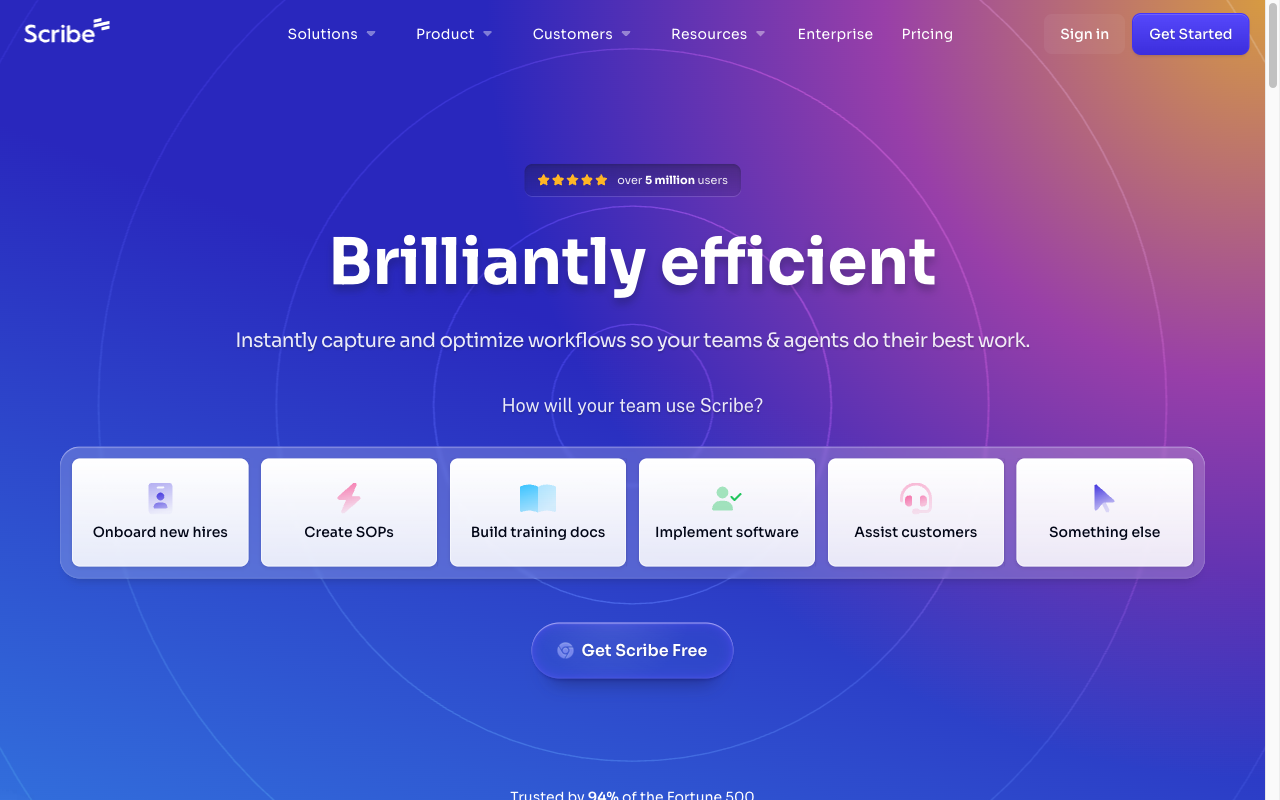
Scribe captures your clicks and keystrokes as you walk through a workflow, then automatically generates a written step-by-step guide with annotated screenshots. It's excellent for creating SOPs, process documentation, and internal knowledge base articles with minimal effort. The Chrome extension makes it especially convenient for web-based workflows.
The key limitation is that Scribe produces written guides only — no video output. In contexts where video tutorials drive significantly higher engagement (help centers, onboarding, product marketing), Scribe can't fill the gap. It also offers limited branding options and no translation capabilities.
Teams that need both video and written documentation often end up using Scribe alongside a screen recorder — duplicating effort. Tutorial AI's dual-output approach (video + docs from one recording) addresses this directly.
Pricing
Free plan with limited features. Pro from $29/user/month. Enterprise pricing available.
5. Loom vs Vidyard
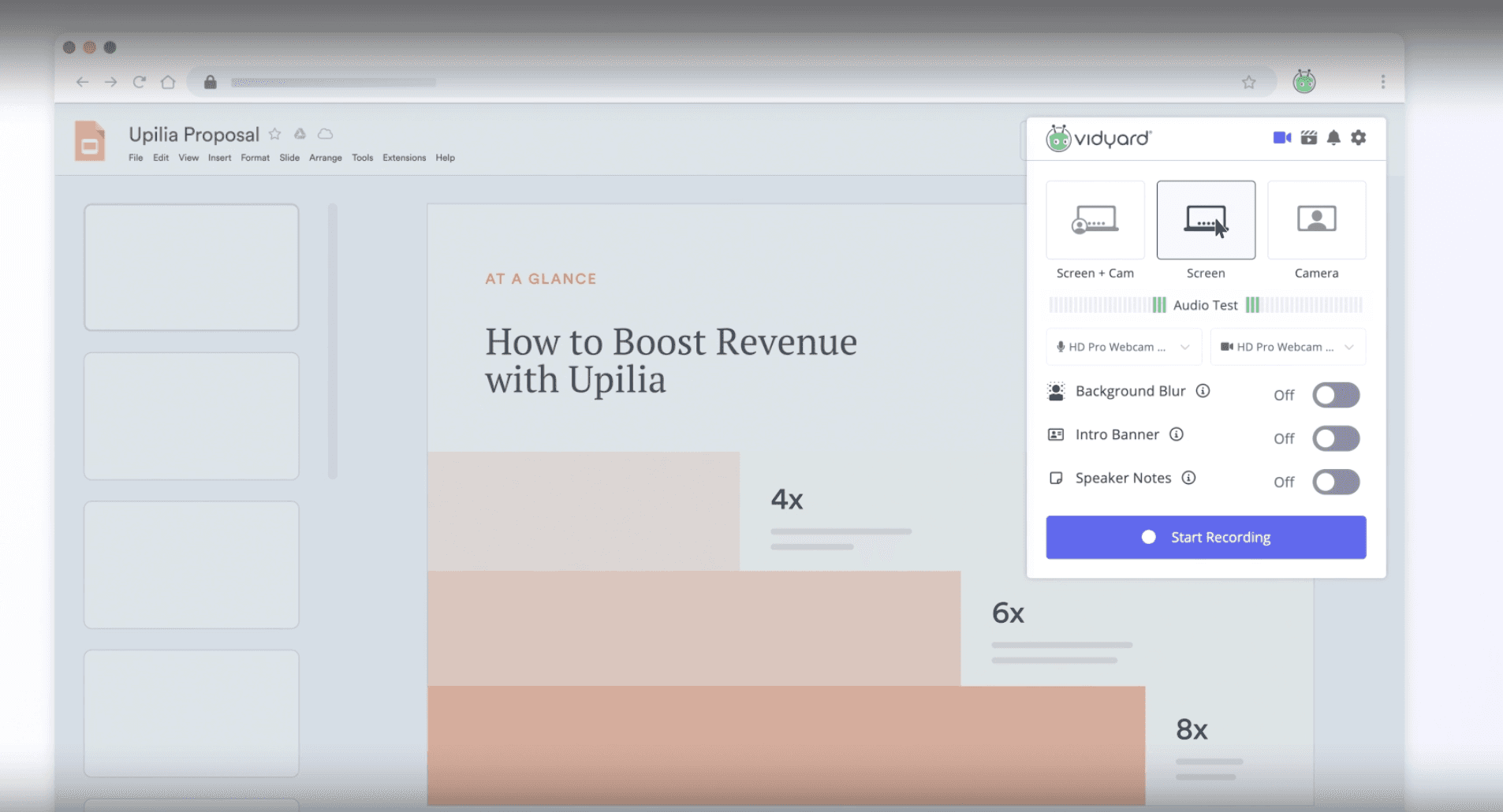
Vidyard is a video platform built primarily for sales and marketing teams. Its standout features are video analytics — tracking who watched your video, how long, and which sections — and deep CRM integrations with Salesforce, HubSpot, and Marketo. For sales reps sending personalized outreach videos, the data layer is genuinely valuable.
Like Loom, Vidyard's recording and editing capabilities are basic. You must narrate live, editing is limited, and there are no AI production features. It's designed for disposable, one-off video messages rather than maintaining a library of polished, evergreen tutorials. No translation support, no documentation generation, and no visual effects automation.
Pricing
Free plan with limited features. Business pricing available on request. Enterprise plans with advanced analytics.
Detailed Feature Comparison: Loom vs Tutorial AI
Since Loom is the tool most teams are evaluating against, here's a detailed side-by-side comparison of capabilities:
| Feature | Tutorial AI | Loom |
|---|---|---|
| AI voiceover from text | 74 languages, studio quality | Not available |
| Editing workflow | Text-based, edit like a document | Trim start/end only |
| Cursor effects | Auto-smooth, resize, click highlights | None |
| Auto-zoom | Smart zoom on key interactions | Not available |
| Translations 2.0 | 1-click into 74 languages with AutoRetime — review drafts in a Translation Folder, then publish per language or all at once | Captions in 50+ languages (no voiceover, no translated audio) |
| Multilingual embed player | One embed code, all published languages, in-player language switcher — adds new languages automatically | Separate share link per video (no language switcher) |
| Documentation generation | Auto-generated written guides from recording | Not available |
| Brand kits | Logos, colors, fonts, templates | Not available |
| Blur sensitive data | Yes, 1-click | Not available |
| Animated slides | Intro, chapter, agenda slides | Not available |
| Collaboration | Shared projects, time-stamped comments | Comments, emoji reactions |
| Integrations | YouTube, Notion, SharePoint, LMS, CMS | Slack, Jira, Figma, 100+ |
| Free plan | Yes | Yes (25 videos, 5 min limit) |
Frequently Asked Questions (FAQs)
What can I use instead of Loom in 2026?
It depends on what you need. For AI-powered tutorial creation with voiceover and documentation, Tutorial AI is a strong pick. If you want a polished recording experience on Mac without editing, Screen Studio is worth a look. Camtasia gives you full creative control with timeline editing. For written-only guides, Scribe and Tango are fast options. And if sales analytics are the priority, Vidyard integrates deeply with CRMs like Salesforce and HubSpot.
What are apps like Loom?
Apps similar to Loom include Tutorial AI, Vidyard, Screen Studio, and Camtasia — all offering screen recording with varying levels of editing and post-production. Scribe and Tango are also popular in similar workflows, though they focus on screenshot-based documentation rather than video. Each tool has a different strength: Tutorial AI for AI voiceover and tutorials, Vidyard for sales analytics, Screen Studio for visual polish, and Camtasia for deep editing control.
Can you edit a video after recording in Loom?
Loom only lets you trim the beginning and end of a recording. You can't edit the middle, rearrange sections, or change narration. If you need to fix a mistake or update content, you typically have to re-record the entire video. Alternatives like Tutorial AI let you edit narration as text and regenerate the voiceover, while Camtasia offers full multi-track timeline editing for more granular control.
Does Loom support video dubbing or translations?
Loom offers auto-generated captions in 50+ languages, but doesn't translate or dub the voiceover itself — your original voice stays in the video. Tutorial AI's AutoRetime feature translates voiceover, captions, and video timing into 74 languages from a single recording. Screen Studio and Camtasia don't have built-in translation features either.
Which Loom competitors support AI features in 2026?
Tutorial AI has the broadest AI feature set — voiceover generation, script creation, Ask AI for rewriting, transcription, cursor smoothing, and documentation generation. Loom itself has added AI summaries and Jira ticket creation. Vidyard uses AI for sales-focused features like prospecting. Camtasia, Scribe, and Screen Studio have minimal or no AI capabilities currently.
What are the best Loom alternatives for Mac users?
Screen Studio is a popular Mac-only option that produces visually polished recordings with automatic effects. Tutorial AI works on both Mac and Windows and adds AI voiceover and editing on top. Camtasia also supports Mac, though its interface is more complex. Loom itself has a solid Mac app — the limitation is editing, not the recording experience.
Which Loom alternatives are best for sales teams?
Vidyard is the most established choice for sales teams, with deep CRM integration and viewer analytics that help reps understand engagement. Tutorial AI is a good fit for sales teams that need polished product demos in multiple languages without re-recording. Loom is still widely used for quick personalized outreach where production quality is less critical.
Can I get both video and written documentation from one tool?
Tutorial AI generates both a polished video tutorial and written step-by-step documentation from a single screen recording. Most other tools produce one or the other: Loom, Camtasia, and Vidyard output video only, while Scribe and Tango produce written guides only. If you need both formats, Tutorial AI eliminates the need for separate tools.