
AI Transcription for Tutorial Videos
Turn spoken narration from a screen recording into an editable tutorial script. Fix wording, remove mistakes and regenerate the voiceover without recording the whole workflow again.
How it works
From Screen Recording to Editable Tutorial Script
The transcript is part of the tutorial workflow, not a separate meeting-notes product.
- 1
Record
Capture the software workflow and explain what you are doing.
- 2
Transcribe
Tutorial AI turns the spoken narration into editable text.
- 3
Edit
Remove filler, fix mistakes and rewrite unclear instructions.
- 4
Generate voiceover
Create updated narration aligned with the tutorial.
- 5
Publish
Share the video and reuse the recording for documentation.
Two ways in
Start fresh, or bring your own footage
Record inside Tutorial AI
Capture your screen with the desktop recorder, Chrome extension, or iPhone/iPad — speak naturally while you go. AI transcribes your speech and aligns each line with the matching screen action automatically.
Upload an existing video
Already have a recording from Loom, OBS, QuickTime, Zoom, or anywhere else? Drop it in. Tutorial AI analyzes the video, transcribes the audio, and turns it into the same editable script — same polish, no re-recording.
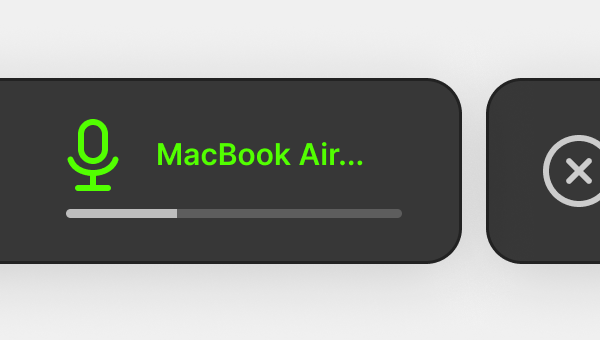
Turn Screen Recording Narration Into an Editable Script
Tutorial AI converts what you say during a software walkthrough into editable narration aligned with the recording.
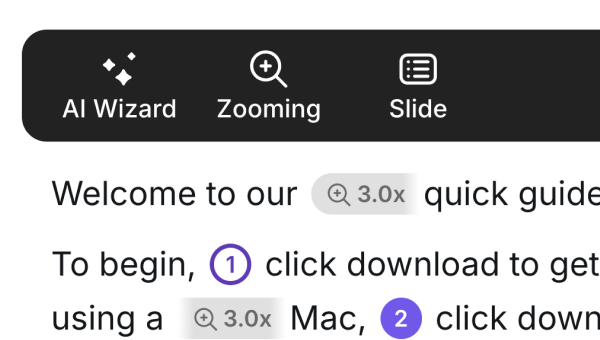
Edit the Transcript, Then Regenerate the Voiceover
Fix wording, remove filler and rewrite unclear instructions before generating the updated narration.
Keep the Explanation Synced to the Tutorial
Generate revised AI narration that stays aligned with the screen actions instead of recording the workflow again.
Edit the Transcript, Then
Regenerate the Voiceover
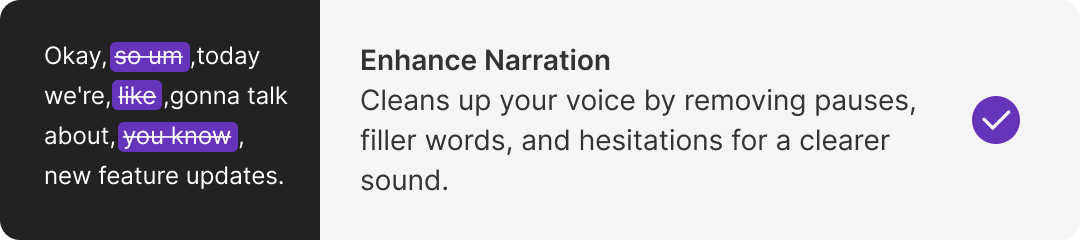
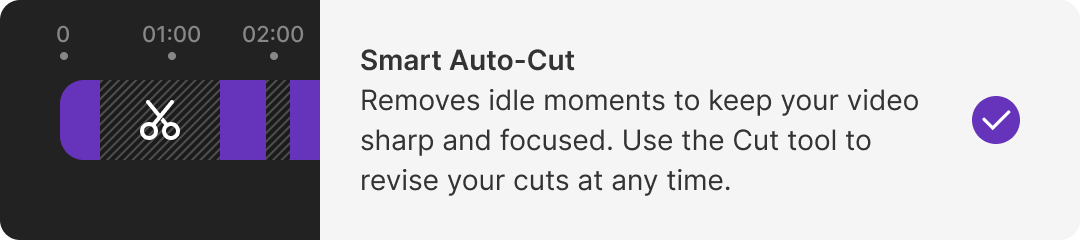
Enhance your recordings with smart narration cleanup and automatic cuts — so even if you record with your own voice, every video stays sharp, clear, and professional.
Voice Tags
Bring the personality
back in
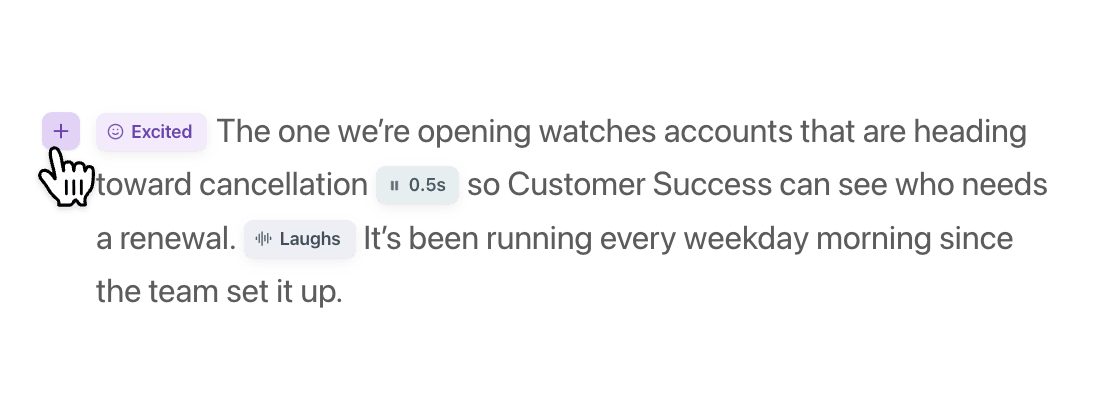
Transcription strips out the natural pauses, energy, and reactions that made the original recording feel human. Drop voice tags inline anywhere in the transcript — a pause before a key click, excitement on the launch line, a laugh at the right beat — and the regenerated voiceover delivers each line the way you intended.
Built for Real Tutorial Workflows
Software Tutorials
Explain a software workflow naturally, then clean the script before publishing the finished tutorial.
Feature Release Walkthroughs
Update product explanations without repeating the screen capture whenever a sentence needs to change.
SOP and Training Recordings
Reuse the recording as a polished training video and as source material for written documentation.
FAQ
AI transcription for screen recordings
Can Tutorial AI transcribe a screen recording?
Yes. Tutorial AI converts spoken narration from a screen recording into editable text that can be used as the tutorial script.
Can I edit the transcript before publishing?
Yes. You can fix wording, shorten explanations or rewrite steps before generating the final voiceover.
Explore AI voices →Do I need to re-record if I change the script?
No. Change the narration text and regenerate the voiceover instead of repeating the screen recording for small wording changes.
See how document-style editing works →Is this the same as a meeting transcription tool?
No. Tutorial AI transcription is part of a screen-recording-to-tutorial workflow rather than a general meeting-notes product.
Explore software training workflows →Record Once. Refine the Explanation in Text.
Turn your screen recording into an editable script, clean up the narration and publish a polished tutorial without starting over every time the wording changes.
Start free