Your screen recording becomes a help article automatically
Just hit record and walk through a process. Tutorial AI writes the instructions, pulls the screenshots, and delivers a publish-ready guide — no manual work needed.
Here's what a Tutorial AI guide looks like ↓
Created from a screen recording in under a minute
AI-written intro. Sets context automatically.
Screenshots selected and zoomed by AI.
Bold action words. Consistent tone throughout.
Callout blocks for important details.
Section headings structure the guide.
How to Filter Out Internal Traffic in Google Analytics
This guide will walk you through the step-by-step process of identifying internal traffic, creating rules to define it, and setting up filters to exclude it from your reports within Google Analytics. By following these steps, you can trust your data and gain genuine insight into your users' behavior.
Defining an Internal Traffic Rule
- 1
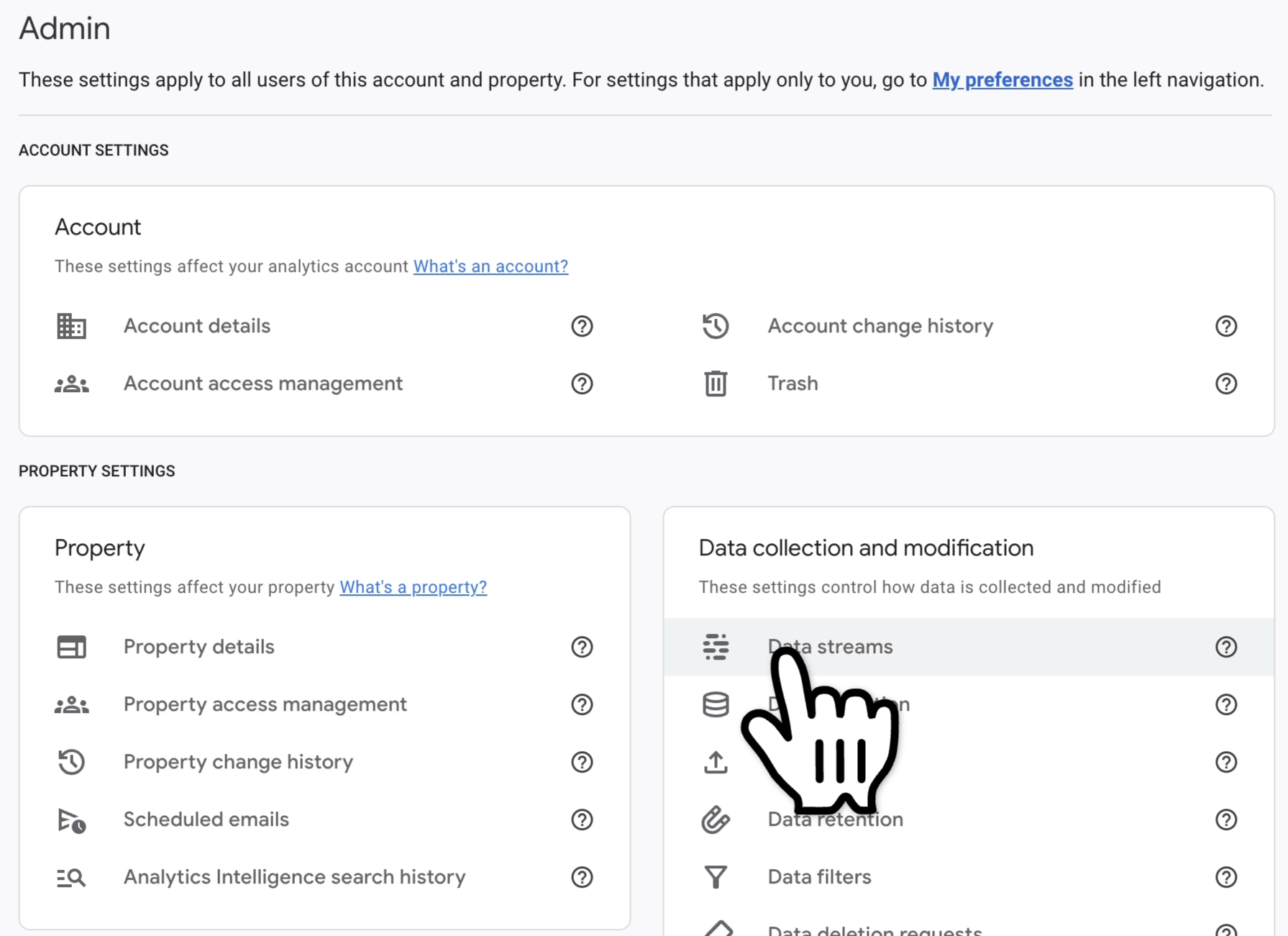
Click Admin in the lower-left corner of Google Analytics.
- 2
Click Data Streams.
- 3
Select the data stream you want to configure (for example, your website property).
- 4
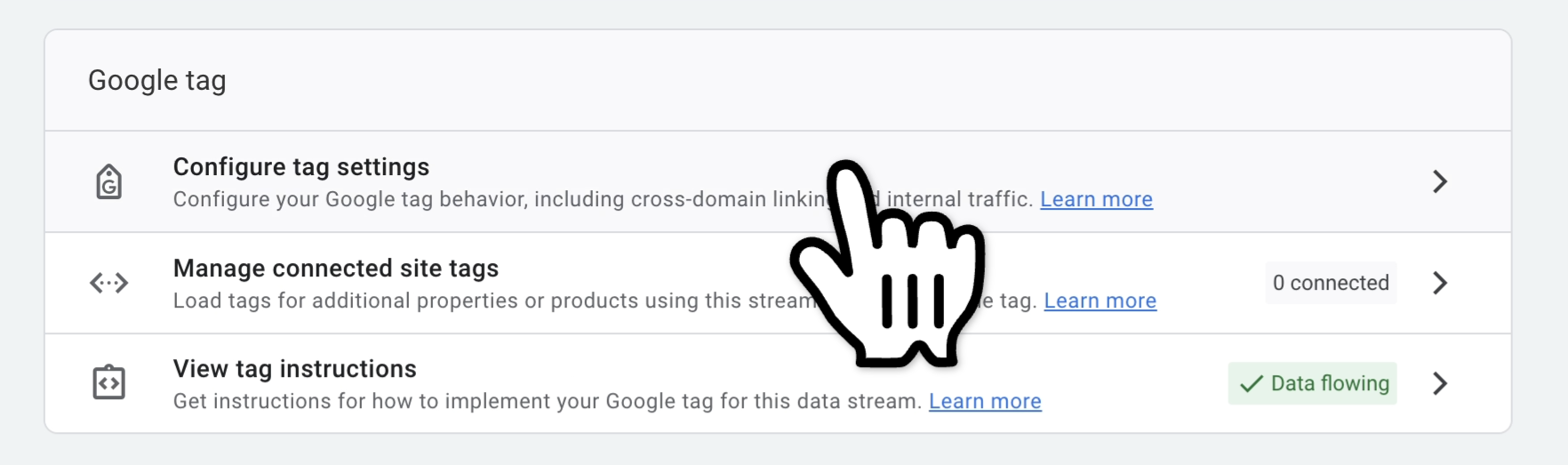
Click Configure tag settings.
- 5
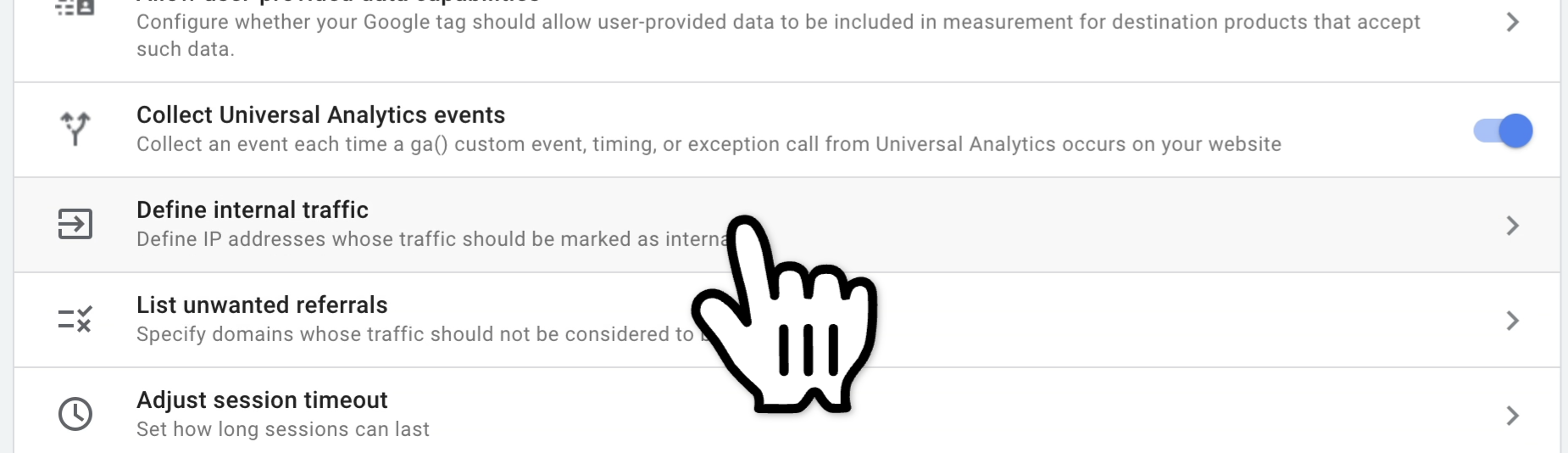
Click Show more to reveal additional settings.
- 6
Click Define internal traffic.
- 7
Click Create to begin making a new rule.
- 8
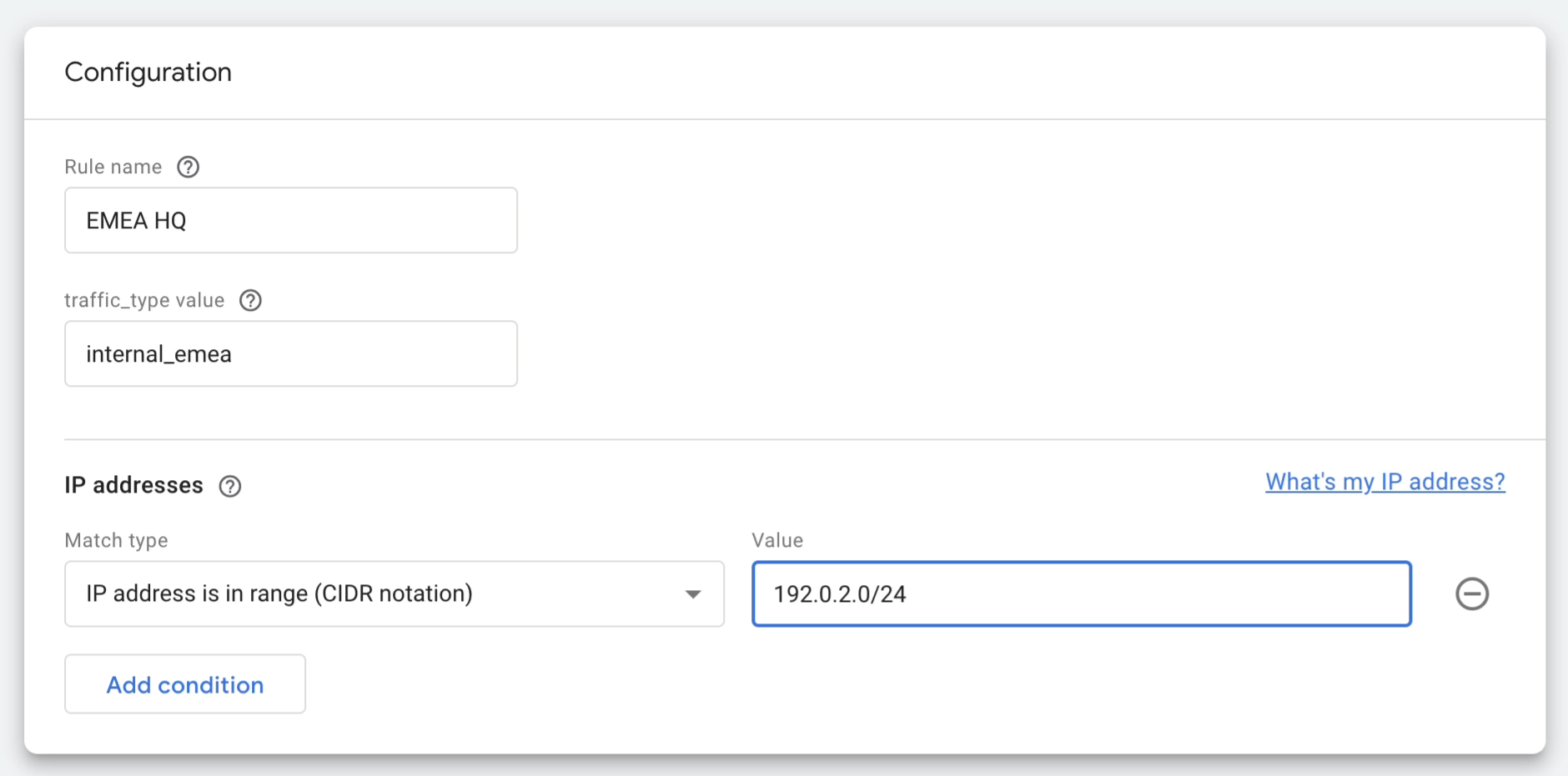
Enter a unique name for your internal traffic rule. This will help you identify it when creating your filter later on.
Enter a descriptive value for the traffic_type parameter. This value will be used to match your filter.
- 9
Input the IP address or IP address range that represents your internal traffic.
- 10
Once all information has been entered and verified, click Create to finalize your internal traffic rule.
Creating a Data Filter for Internal Traffic
- 1
Click Admin from the Google Analytics dashboard.
- 2
Click Data filters.
- 3
Click Create filter.
- 4
In the filter options, select Internal traffic.
Video to article in seconds
Record any workflow with the screen recorder. Get a polished how-to guide instantly.
Powered by AI
Every step is professionally crafted by AI. Get an intro and conclusion paragraph too.
No more manual screenshots
Screenshots are captured automatically from your recording, and auto-zoomed to the relevant area.
Collaborate with your team
Invite team members to view, edit, and comment on guides before publishing.
Export your content
Copy your documentation into any tool with support for RTF, Markdown, and HTML.
Translate into 74 languages
One click translates your guide — voiceover, captions, and written docs — into any language.