A product manager finishes a screen recording for a new feature and discovers that the twelve-minute file contains long pauses, repeated explanations, filler words, and a cursor that disappears whenever the important control is discussed. The subject-matter expert understands the product perfectly, but turning that knowledge into a polished tutorial now requires a separate editor, captioning workflow, documentation pass, and localization process.
That record-then-edit model is increasingly difficult to sustain. Educational video is already a mainstream format in major markets. A Korean survey found that 12.0% of respondents used online educational video content in 2021, up 3.2 percentage points from 2020, with 1,221 users among 10,154 respondents. Smartphones remained the most common device, while PC, laptop, and tablet use also rose over the preceding three years. The Korean survey data points to a practical reality for tutorial teams: content needs to work across screens, audiences, and formats.
A modern tutorial video editor brings recording, transcript editing, pacing, captions, localization, and documentation into one workflow. The shift isn’t just from manual editing to automated editing. It’s from separate production stages to a single-pass process in which the recording becomes the source for a video, a help article, and localized versions.
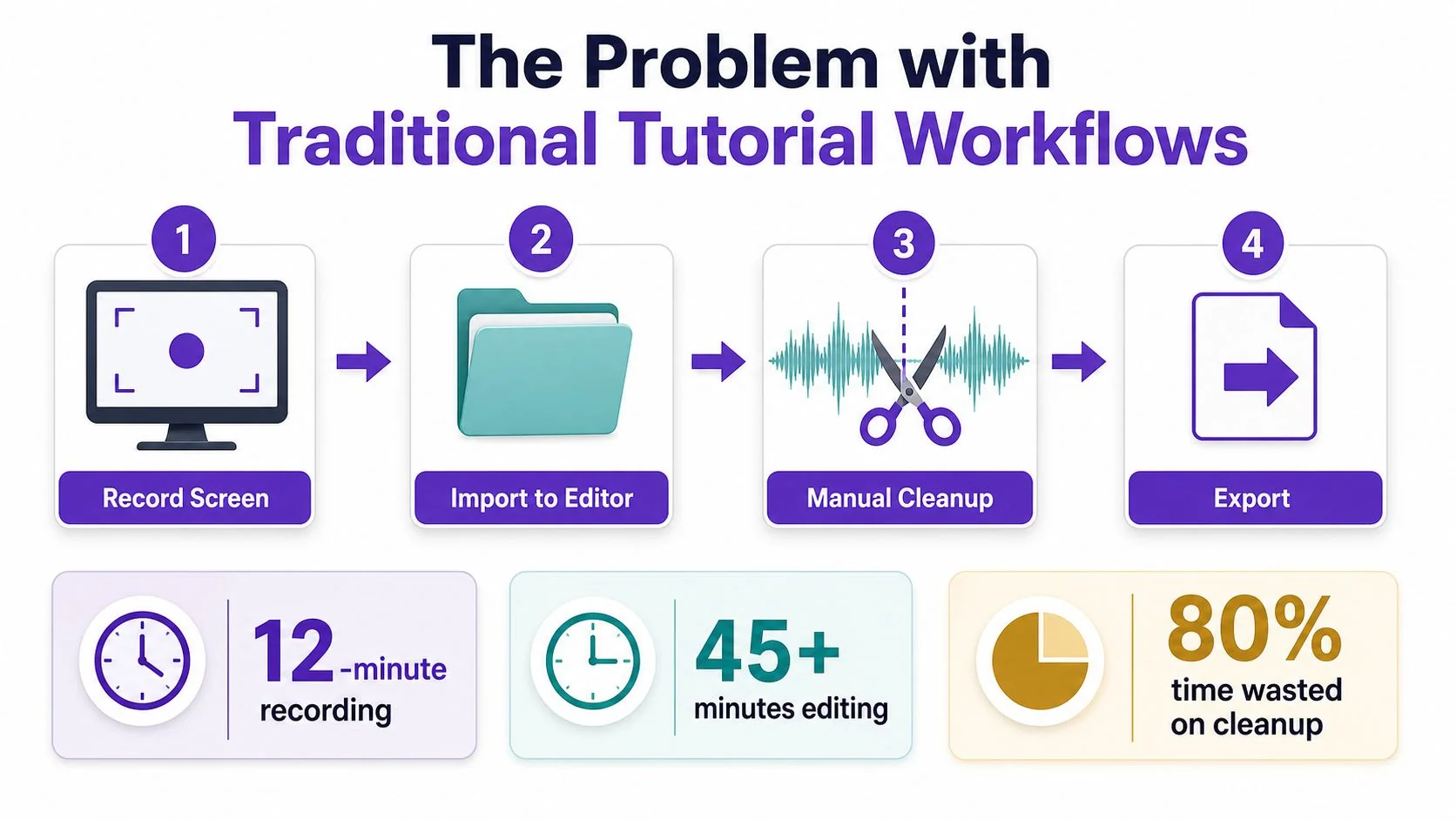
The Problem with Traditional Tutorial Workflows
The most expensive part of a tutorial usually isn’t explaining the product. It’s everything that happens after the explanation. A product manager records a feature walkthrough, sends the file to a video specialist, waits for a rough cut, reviews captions, requests cursor adjustments, and then asks a technical writer to create the supporting article. A small change in the interface can send everyone back to the beginning.
Traditional production also creates a skills mismatch. The person who knows the product often isn’t comfortable in Adobe Premiere Pro, Final Cut, or Camtasia. The person who knows those tools may not know which interaction matters, which warning needs emphasis, or where a user is likely to get confused. That handoff introduces avoidable review cycles.
The problem becomes more visible as video moves deeper into instructional operations. In a global K-12 and higher-education survey, 86% of respondents said teachers actively used video in the classroom, 79% reported video use for synchronous remote teaching and learning, and 70% used video for supplementary course material and lecture capture. Another industry survey found that 54% of institutions planned to use more video than in the previous academic year, while 49% estimated that a typical student watched six to twenty education videos per month. The Kaltura education survey shows why tutorial production now resembles documentation infrastructure rather than occasional marketing work.
Practical rule: If a subject-matter expert can explain the workflow, the editor shouldn’t become the reason the workflow takes weeks to publish.
The same fragmentation affects documentation. A team may record in one application, trim in another, generate captions elsewhere, and manually convert the transcript into an article. Even a simple request such as embedding a video in a PDF can become a separate formatting project.
An AI-first editor changes the starting assumption. The recording still matters, and the expert still has to demonstrate the correct process, but the system can use the spoken script and screen activity to tighten the result, guide attention, produce captions, and generate written documentation. That leaves the expert focused on accuracy instead of timeline mechanics.
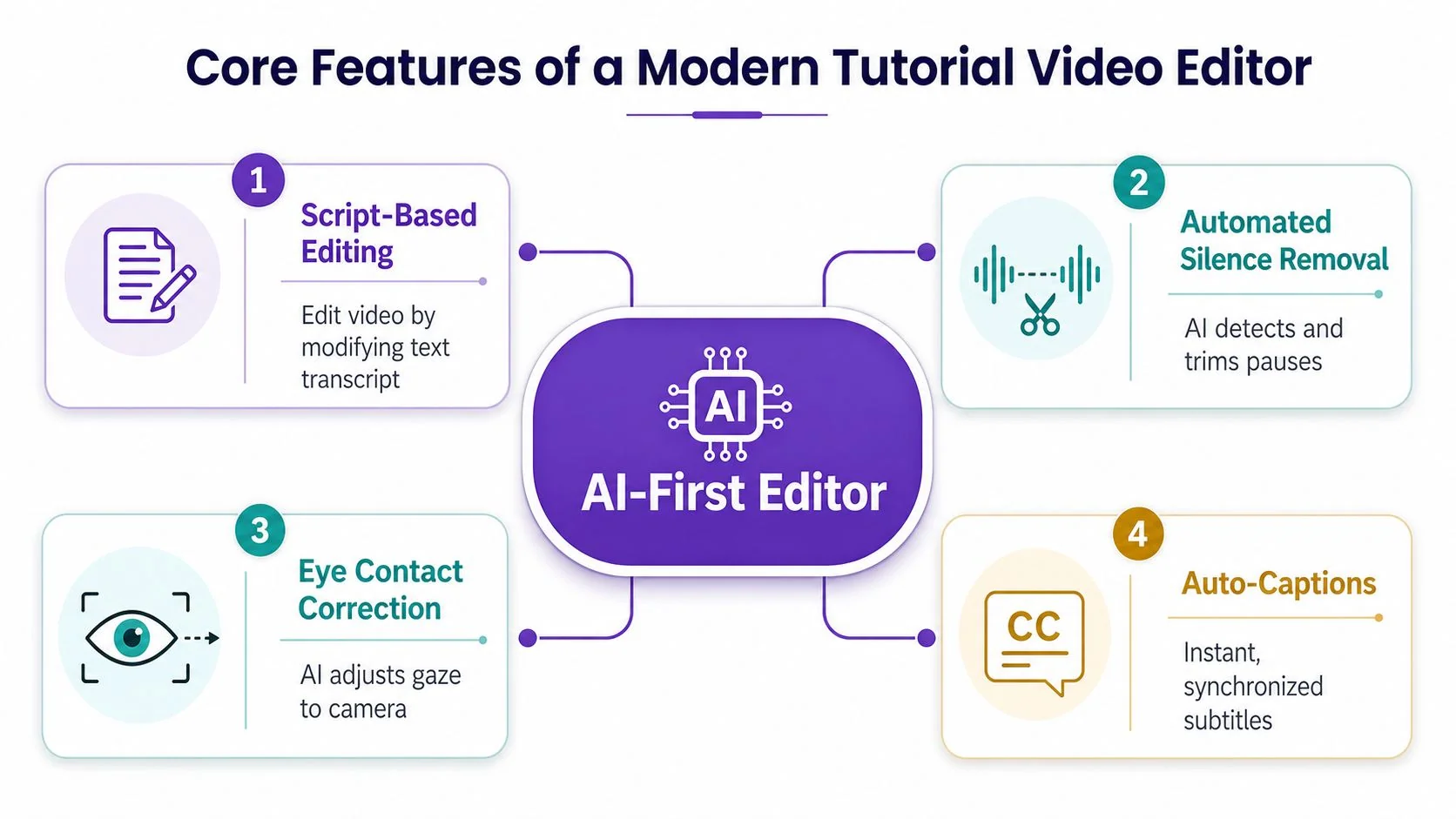
Core Features of a Modern Tutorial Video Editor
A capable tutorial video editor should be judged by how much manual coordination it removes without hiding important editorial decisions. The strongest workflows connect several features around the transcript and the screen recording.
Script-based editing
Transcript-driven editing lets an expert refine the spoken explanation as if it were a document. Delete a sentence, and the corresponding video segment can be removed. Rearrange the narration, and the rough cut follows the structure of the revised text.
This works particularly well for product demos, onboarding walkthroughs, and support videos because narration often defines the sequence. Script-based video editing tools use speech-to-text content so editors can select and cut by reading instead of scrubbing through a timeline. Independent coverage of Avid’s workflow describes the same mechanic, clicking transcript words to jump to the matching video and syncing scripts manually or automatically. Avid’s script-based editing workflow explains why this approach can make a rough cut faster to assemble.
Pacing and cursor control
A good editor doesn’t remove every pause. It distinguishes dead air from a pause that helps a viewer follow a complex interface. Tutorial AI’s AutoRetime is designed for this kind of pacing adjustment, while cursor tracking can smooth erratic movement, add emphasis, and trigger zooms around the action.
The distinction matters. Automatic zoom that follows every movement creates visual noise. Cursor effects should reinforce the explanation, not compete with it.
Captions and narration
Captions aren’t finished when a transcript is generated. Accessibility guidance recommends a generate, review, edit, publish loop, including timing adjustments so captions align with speech pauses and the visual rhythm of the video. The University of Virginia captioning guidance specifically describes the need to review transcript errors and work in timed text when synchronization requires changes.
Creators can also record and add narration from a prepared script. Tutorial AI supports narration in 74 languages, which is useful when a product team needs consistent voiceover without scheduling a new recording for every market.
For people who dictate scripts or notes before recording, a dictation recording modes guide can help establish a cleaner capture routine before the video enters the editor.
Documentation and distribution
The best output isn’t only an MP4. A structured recording can also produce a step-by-step article, screenshots, and searchable knowledge-base content. Clevera describes a workflow in which one screen recording becomes a narrated video and a formatted written document, with both outputs localized into 74 languages. Clevera’s AI SOP generator demonstrates the value of treating video and documentation as two representations of one source.
For teams evaluating automatic video editing software, the key question is whether these capabilities operate together. Captions, cursor effects, narration, translation, and article generation are most useful when they share the same recording and script rather than requiring repeated exports between tools.
Comparing Tool Categories for Tutorial Creation
The right tool depends on the job, not on the amount of AI in the product name. A casual screen recorder, a professional editor, and an AI-first tutorial video editor solve different production problems.
Loom and built-in operating-system recorders are effective when speed and informality matter. A support specialist can record a quick answer, trim the beginning and end, and send a link. That workflow breaks down when the video becomes a public help-center asset that needs consistent branding, captions, localization, and updates.
Adobe Premiere Pro and Final Cut offer deep creative control. They remain appropriate for launch films, product footage, complex compositing, and marketing videos where a specialist needs frame-level control. The trade-off is a steeper learning curve and a workflow built around manual decisions that may not suit a support or documentation team publishing frequent software walkthroughs.
Tutorial AI sits between those categories. It captures real screens and real voice rather than generating a synthetic talking head, which matters when viewers need to see the actual interface. Its transcript editing, cursor treatment, AutoRetime, Brand Kits, multilingual narration, and document generation target the recurring needs of software education.
| Tool Category | Best For | Editing Capability | Learning Curve | Time to Publish | Localization Support |
|---|---|---|---|---|---|
| Casual screen recorders | One-off answers and informal demos | Basic trimming and sharing | Low | Fast for simple content | Usually limited |
| Professional editors | Hero videos and complex creative work | Extensive timeline and effects control | High | Slower without an experienced editor | Available through additional workflows |
| AI-first tutorial editors | Product demos, onboarding, support, SOPs, and training | Transcript edits, pacing, cursor effects, captions, and structured exports | Moderate | Fast once the workflow is configured | Built into the production process |
There is one further consideration for teams publishing AI-assisted copy alongside video. Editorial review still matters, particularly for product terminology and claims. A practical guide to humanizing AI content with Lumi is useful when a generated article needs to sound like the team’s established documentation rather than an unreviewed transcript.
Practical Workflows for Creating Tutorial Content
A reliable workflow starts before the recording button. Define the user task, the expected outcome, and the sequence of interface actions. Then write or import a structured script that tells the expert what to demonstrate and gives the editor a clear narrative spine.
Prepare the source
Keep each section focused on one task. A product demo might introduce the feature, show the setup, demonstrate the main action, and finish with the expected result. This structure makes the eventual article easier to generate and gives reviewers clear points to check.
Don’t over-script every natural phrase. The expert should sound comfortable, but the script should contain the exact product names, menu labels, and warnings that must survive transcription.
Record once with intent
The single-pass workflow combines screen capture and narration. The expert reads the script while demonstrating the process, allowing the system to associate spoken instructions with the relevant screen activity. Cursor tracking, smart zoom, backgrounds, blurs, and shadows can then be applied after recording without asking the expert to perform the same interaction repeatedly for the camera.
A mistake doesn’t always require a new take. Transcript editing can remove a flawed sentence, while AI narration can regenerate a corrected line from the revised script. That saves time on verbal fixes, but it doesn’t correct a wrong screen action. If the expert clicked the wrong control, the relevant screen segment still needs review or another recording.
Process and review
Use AutoRetime to tighten pacing, then inspect transitions where the interface changes quickly. Automatic zoom and pan should highlight the control being discussed, not merely follow cursor movement. Review every caption for terminology, timing, and line breaks. Caption generation is an initial draft, not an accessibility sign-off.
For multilingual versions, translation must preserve the connection between voiceover, captions, cuts, and screen actions. The current opportunity is larger than subtitle replacement. Coverage of screen-recording workflows describes the move toward AI narration, automatic captions, and repurposing, while emphasizing that translated narration can change scene length and require new timing decisions. The screen-recording workflow analysis captures why localization belongs inside the editing process.
Publish the full package
Export the video, generate the written article, check screenshots against the final UI, and publish through the team’s documentation or learning system. A multilingual player can keep language versions organized in one experience. Synthesia, for example, describes a single player supporting 160+ languages and lists SOC 2, GDPR, ISO 42001, and SAML/SSO among its enterprise offering details. Synthesia’s multilingual platform illustrates how one asset can serve multiple language audiences without separate, disconnected links.
Before distributing videos across channels, document the required dimensions, file types, and publishing destinations. A reference for teams that need to automate video upload specs can reduce avoidable export mistakes.
A focused screen-recording workflow for tutorials should end with a review checklist, not only a download. Confirm the product behavior, narration, captions, cursor emphasis, article steps, and language versions before the content reaches customers.
Evaluation Criteria for Teams and Enterprises
A tutorial video editor should pass an operational test, not just produce an attractive sample. Ask who can create, review, approve, update, localize, and publish a tutorial when the original expert is unavailable.
Collaboration comes first. Look for shared workspaces, timestamped comments, version history, guest review, and permissions that let a product expert validate a screen action without requiring that person to become a video editor. A useful review process should make it obvious whether a comment applies to the narration, the cursor position, the caption, or the underlying product behavior.
Security deserves equal attention when recordings contain proprietary software or internal procedures. Check for SOC 2, GDPR handling, SSO or SAML, access controls, retention policies, and data residency requirements. Don’t treat an enterprise badge as a substitute for reading the actual security documentation. Ask where recordings, transcripts, generated voices, and localized outputs are stored, and who can export them.
A practical decision matrix
| Criterion | Small Teams (1-10) | Mid-Market (10-100) | Enterprise (100+) |
|---|---|---|---|
| Collaboration | Simple sharing and comments | Shared workspaces and version control | Role-based access, approvals, and audit visibility |
| Security | Standard access controls | SSO may become important | SSO/SAML, compliance evidence, residency, and granular permissions |
| Localization | Captions and occasional translated versions | Repeatable translation and voiceover workflows | Glossaries, regional review, multilingual publishing, and governance |
| Integrations | Share links and basic embeds | CMS, LMS, CRM, or knowledge-base connections | API publishing, managed embeds, and enterprise administration |
| Scalability | Low-friction creation | Templates, Brand Kits, and repeatable review | Capacity planning, permissions, support, and procurement fit |
Localization needs careful evaluation. Ask whether the tool translates narration and captions together, whether terminology can be controlled, and whether scene timing adapts to the new voiceover. A multilingual player is more manageable than maintaining separate links, but only if users can select their language and the team can update versions without losing governance.
Finally, test the workflow with a real tutorial rather than a polished demo file. Use a recording with a correction, a caption-sensitive term, a UI change, and a second language. The result will reveal more about the tool’s practical limits than a feature checklist.
Real-World Use Cases and Pain Point Solutions
A product team shipping a feature demo for several markets faces a predictable bottleneck. The English recording may be ready, but regional teams still need translated narration, captions, and timing that matches the interface. The traditional workaround is to send the script and video to separate translators and regional recording teams, then reconcile every version during review. That process creates coordination work and makes a small UI change expensive.
An AI-first workflow starts with one reviewed recording. Translation, narration, caption generation, and AutoRetime can produce localized versions while preserving the relationship between the spoken instruction and the screen action. The team still needs native or regional review for terminology and tone, but it isn’t rebuilding the tutorial from separate source files.
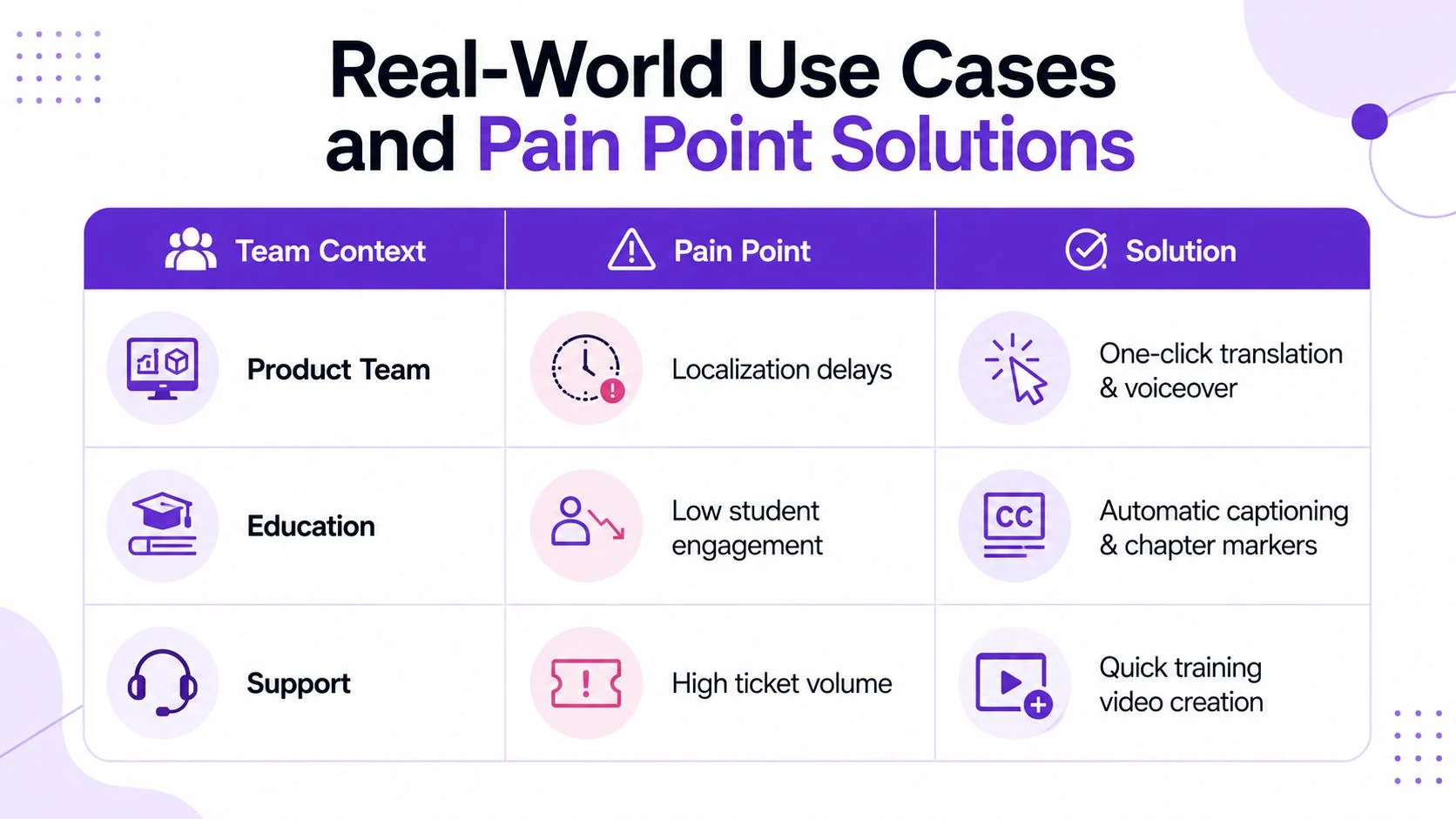
A documentation team has a different problem. Its help article and embedded video become inaccurate after a navigation change. In a timeline-based workflow, an editor searches for the affected moment, cuts the footage, records replacement narration, updates captions, and asks the writer to revise the article separately. Script-based editing offers a narrower repair path. The writer or product expert can update the relevant text, inspect the associated screen segment, and regenerate the affected output when the source recording still supports the new instruction.
The useful unit of maintenance is the source script, not the exported video file.
Customer success teams often need personalized onboarding. A generic walkthrough may not reflect a client’s configuration, permissions, or preferred process, while recording every customer version manually doesn’t scale. Templates, Brand Kits, reusable scenes, and variable insertion can make personalization more repeatable, provided the team reviews each version for accuracy before delivery.
The same pattern applies to internal training and SOPs. A single demonstration can become a narrated video, a formatted article, screenshots, and structured documentation. That matters for support teams handling recurring questions, sales enablement teams explaining product workflows, and learning teams maintaining process training. The content remains grounded in a real interface, unlike avatar-first tools that present synthetic talking heads instead of the actual UI.
These workflows also require restraint. AI can tighten narration, regenerate a line, and produce a first-pass article, but it can’t decide whether a permission warning is legally or operationally important. A subject-matter expert still owns the truth of the tutorial.
Getting Started with Your Tutorial Video Strategy
Start with an audit, not a wholesale migration. Review existing demos, onboarding flows, SOPs, and help-center videos, then identify assets with outdated screens, excessive narration cleanup, missing captions, or a written article that doesn’t match the video.
Next, choose one high-traffic help article or onboarding task for a pilot. Write a structured script, record the workflow in one pass, edit the transcript, review AutoRetime and cursor effects, and generate the companion documentation. Measure the practical result through review effort, correction speed, and publishing coordination rather than editing speed alone.
Finally, establish team conventions before scaling. Decide how much silence to retain, when cursor tracking should add emphasis, which Brand Kit elements are mandatory, how captions are reviewed, and which export or embed formats documentation owners accept.
The largest gain comes from collapsing recording, editing, localization, and documentation into one source workflow. Teams that build that habit now can increase content consistency as voice and translation tools improve, without making every subject-matter expert learn a professional timeline editor.
Tutorial AI turns a screen recording and spoken narration into a polished tutorial video, then generates a matching written article from the same recording. It supports transcript-based editing, AutoRetime, cursor effects, Brand Kits, multilingual narration, a Multilingual Player, and enterprise controls including SSO/SAML, SOC 2, and GDPR. Visit Tutorial AI to test a single-pass workflow for your product demos, onboarding content, support videos, or internal training.