When you need to show someone how to zoom in video, you’re really choosing between two paths. You can either let a smart AI tool handle it automatically, tracking the action for you, or you can roll up your sleeves and manually control every zoom point in a traditional video editor. Picking the right approach is the key to turning a potentially confusing demo into a crystal-clear tutorial that your audience will actually appreciate.
Why Zooming In Is a Game-Changer for Demos
Have you ever tried to follow a software tutorial where you had to squint at the screen, desperately trying to figure out which tiny icon the presenter just clicked? It’s a universal frustration. For a business, this isn’t just a minor annoyance; it’s a direct path to more support tickets, confused customers, and a product that people give up on.
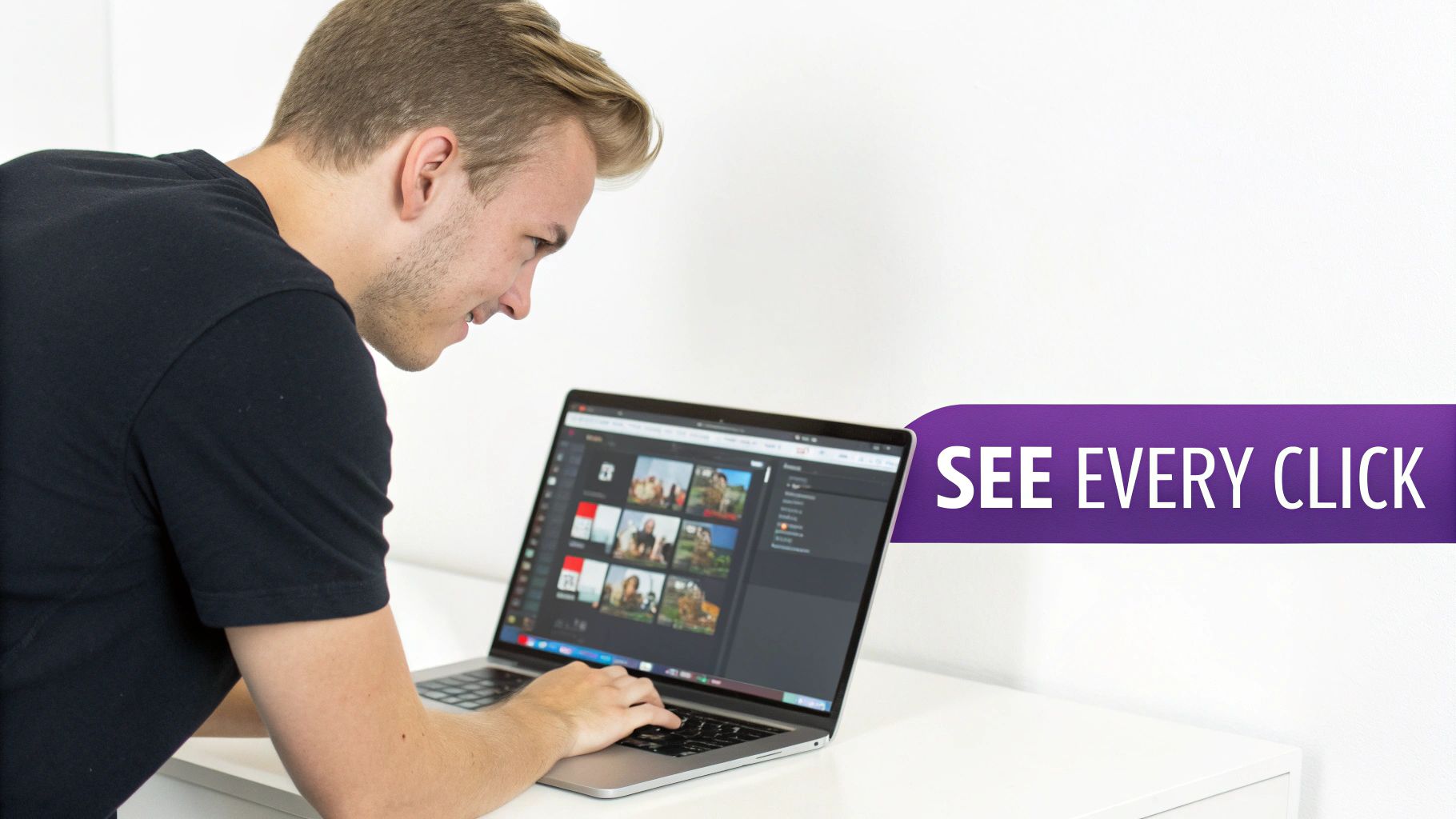
A good zoom isn’t just a stylistic flourish—it’s a fundamental tool for clear instruction. Its job is to guide your viewer’s attention right where it needs to be. When you get it right, a zoom can make a complex process feel simple, instantly making your tutorial more professional and accessible.
Guiding the Eye and Making Things Clear
If you don’t use zooms, you’re forcing your audience to scan the entire screen, trying to keep up with your cursor. That’s a lot of work, and it’s easy for them to miss the most important part of a step. A well-timed zoom cuts through the noise. It’s like putting a spotlight on the one thing that matters in that exact moment.
This has a real, measurable effect. E-learning studies have shown that video tutorials using smart, targeted zooms can retain 65% more viewer attention. For SaaS companies, the impact is even more direct: demos that use cursor tracking and auto-zooms after recording have been shown to convert 40% better. If you’re interested in the broader trends, Zoapi offers great insights on the evolution of video.
A great instructional video doesn’t just show what to do; it guides the viewer’s eye, making complex actions feel simple. Zooming is your most powerful tool for achieving that guidance. To help you decide which method works best for you, here’s a quick breakdown of the main options.
Video Zooming Methods at a Glance
This table compares the different ways you can zoom in, giving you a sense of the effort involved and where each method shines.
| Tool | Platform | Method | Best For |
|---|---|---|---|
| Magnifier | Windows | Real-time Recording | Quick, live screen magnification during demos. |
| Photos App | Windows | Post-production | Basic static zooms and cropping on finished videos. |
| Accessibility Zoom | Mac | Real-time Recording | Powerful, flexible live zooming for tutorials. |
| iMovie | Mac | Post-production | Easy "Ken Burns" style zooms and simple crops. |
| Camtasia | Windows/Mac | Post-production | Detailed keyframe control for smooth, dynamic zooms. |
| Final Cut Pro | Mac | Post-production | Professional-grade keyframing and advanced effects. |
Ultimately, while the built-in tools are great in a pinch, dedicated software gives you the polish and control needed for high-quality instructional videos.
Why a Consistent Workflow Matters More Than Your OS
While it’s good to know the native tools, relying on them can create real friction, especially for teams. If your Mac expert creates a tutorial one way and your Windows pro does it another, you end up with an inconsistent viewer experience.
This is exactly where a cross-platform tool like Tutorial AI changes the game. It creates a single, standardized process whether you’re on a PC or a Mac. No more learning two different apps.
Your subject matter expert can just focus on what they do best: sharing their knowledge. They can record a demo or walkthrough without worrying about a script, knowing the final video will have polished, on-brand zooms—as if it were edited by a pro in Adobe Premiere Pro. Capturing clear audio is just as important, so it’s worth learning how to screen record with sound to make your instructions even clearer.
The real efficiency comes from letting the person with the knowledge—the subject matter expert—create the video themselves without needing specialized editing skills. A consistent tool removes the platform barrier completely. From my experience, raw screen recordings are often 50-100% longer than they need to be. Professional editing software can fix that, but it requires a steep learning curve. An automated tool like Tutorial AI bridges that gap. It lets you produce sharp, concise feature release videos and knowledge base articles with smart zooms that are consistent every single time, no matter the operating system.
Got Questions About Zooming in Video? Let’s Clear Things Up.
When you start digging into how to zoom in on a video, a few questions pop up time and time again. From keeping your footage crisp to picking the right tool, getting straight answers is the fastest way to create demos that look truly professional. Let’s tackle some of the most common ones I hear.
Can I Really Zoom in on a Video Without Losing Quality?
Yes, you absolutely can, but it all hinges on your source footage. The golden rule here is to record at a higher resolution than your final video.
For example, if you record in 4K for a 1080p video, you’ve given yourself a massive canvas to work with. All that extra pixel data means you can punch in on a specific area, and the image will stay sharp and clear. If you try the same thing with low-resolution footage, you’re just stretching the pixels you have, which is why things get blurry and pixelated fast.
What’s the Difference Between Digital and Optical Zoom, Anyway?
This is a really important distinction. Optical zoom is physical. It’s the camera’s lens actually moving to magnify the scene before the image is even captured. Think of it like a real magnifying glass—it preserves every bit of the original quality.
Digital zoom, on the other hand, is a software trick. It happens in post-production and simply blows up the pixels that are already there. So, when you’re zooming in on your timeline, you are always using digital zoom. This is exactly why starting with high-resolution footage is non-negotiable for clean zooms.
How Do I Make My Video Zooms Look Smooth and Professional?
The key to a great-looking zoom is making it feel effortless. When you’re setting zooms manually with keyframes, always look for the “ease in” and “ease out” settings in your editor. This tells the software to gently accelerate into the zoom and then smoothly decelerate as it finishes, avoiding that jarring, robotic motion.
Fast, jerky movements are a dead giveaway of an amateur edit (unless you’re going for a specific chaotic effect). This natural smoothness is actually a huge selling point for AI-driven tools like Tutorial AI, which are designed to build in that professional feel automatically, no tweaking required.
A great zoom shouldn’t feel like an effect; it should feel like an extension of the viewer’s natural focus. The smoother the motion, the more invisible and effective it becomes.
What’s the Best Software for Automatic Cursor Zooms?
For screen recordings, you really want a tool built for the job. Manually tracking a cursor with keyframes is one of the most tedious editing tasks imaginable. This is where a platform like Tutorial AI really shines. It’s designed specifically for this.
Instead of you having to create dozens of keyframes to follow the on-screen action, its AI identifies where the viewer’s attention should be and applies smooth, perfectly-timed zooms that follow your cursor automatically. It turns a painstaking, hours-long process into something that happens in the background.
Ready to stop wrestling with timelines and start creating professional demos in minutes? With Tutorial AI, you can record freely and let our AI handle the zooms, cuts, and narration to create polished, on-brand videos effortlessly. Start creating for free today at Tutorial AI.