To screen record with sound, open your device’s built-in screen recorder and choose the audio source before you start. Select microphone audio for narration, system or device audio for sounds from apps, or both if your recorder supports it.
- Windows: Use Xbox Game Bar for quick app recording with audio.
- Mac: Use the built-in screen recording tools for screen and microphone capture. System-audio options depend on your macOS version.
- iPhone or iPad: Open Control Center, press and hold Screen Recording, then turn the microphone on if you need narration.
- Android: Open Screen Recorder from Quick Settings and choose your audio source before recording.
Choose What Sound You Need to Record
Diving into your first screen recording, especially with audio, might seem a little intimidating. But you probably already have everything you need. Modern operating systems, whether on a computer or a phone, come packed with native tools designed for this exact task. For most basic recordings, you won’t need to download a thing.
Before you start, it’s crucial to understand the two main types of audio you can capture. Getting this right is the foundation of a good recording.
System Audio vs. Microphone Audio
The most common point of confusion is the difference between system audio and your microphone. Let’s clear that up.
- System Audio: Think of this as all the sounds your computer or phone makes on its own. This includes everything from app notifications and video playback to in-game sound effects. If you want to record the sounds coming from your device, this is the setting you need.
- Microphone Audio: This is any sound captured from the outside world, either through your device’s built-in mic or an external one you’ve plugged in. This is what you’ll use to record your voice for narration, commentary, or a step-by-step tutorial.
Many recorders can capture both sources at once. That is useful for a software tutorial where you explain each action while the application audio remains audible.
Why Quality Audio Matters
A clear recording is easier to follow, especially when your voice is explaining actions on screen. A short test clip will catch low microphone levels, background noise or app audio that overpowers the narration before you record the full walkthrough.
Capturing clean, intelligible audio is just as important as recording crisp visuals. A recording with clear sound feels engaging and professional. One with poor audio can be unwatchable, no matter how good the video looks.
Screen Recording Audio Options at a Glance
To make it even clearer, here’s a quick breakdown of your audio options and when to use each one.
| Audio Source Type | What It Captures | Best For |
|---|---|---|
| Microphone Audio Only | Your voice from a built-in or external mic. | Narrating a silent process, providing voiceover for a presentation, or recording a personal message. |
| System Audio Only | All internal sounds from your device (apps, videos, games). | Capturing gameplay, recording a webinar without commentary, or saving a clip from a video call. |
| Microphone + System Audio | Both your voice and your device’s internal sounds simultaneously. | Creating software tutorials, "Let's Play" gaming videos, or reaction-style content. |
| No Audio | Only captures the video from your screen. | Creating a quick, silent GIF, or when you plan to add a separate music track or voiceover later. |
This table should help you choose the right setup before you even press record, saving you a ton of editing headaches later on.
If you would rather replace a rough live take, Tutorial AI’s AI voices let you refine the script and generate a cleaner voiceover after recording.
Screen Record with Sound on Windows
If you’re on a Windows machine, you already have a surprisingly powerful screen recorder built right in—you just might not know it. I’m talking about the Xbox Game Bar. Don’t let the name fool you; it’s not just for gaming. It’s a fantastic utility for quickly capturing what’s happening in an app, complete with system sounds and your own voice-over.
Forget digging through menus. The easiest way to pull it up is with a simple keyboard shortcut: Windows Key + G. This overlay pops up over most applications, giving you instant access to a bunch of widgets, including the one we care about most: Capture.
Getting Your Audio and Video Settings Right
Once the Game Bar overlay is visible, look for the Capture widget. If it’s not there, just click the little camera icon in the main bar to pop it open. This is your control panel for all things recording.
Before you hit that big red button, check your microphone. See the small mic icon in the Capture widget? A quick click toggles it on or off. This is absolutely essential if you’re planning to narrate a tutorial, explain a bug to your IT team, or add commentary to a presentation.
How to Balance Your Sound
Now, let’s talk audio mixing. Find the Audio widget. This little tool is your key to getting the sound just right. By default, it’s set to record everything you hear—application alerts, video playback, game sounds—through the main “Mix” channel.
This is where you can dial things in. For example, if you’re recording a software walkthrough that has its own sound effects, the Game Bar will pick them up alongside your voice. The sliders in the Audio widget let you individually adjust the volume for different apps and your microphone, so your narration comes through loud and clear without being overpowered by system dings.
My best advice? Always do a quick test run. Record for 30 seconds, then play it back. Is your voice clear? Are the application sounds too loud? Nailing this balance before you record a long session will save you a world of headaches later.
Knowing When to Level Up Your Tools
The Xbox Game Bar is perfect for straightforward recordings of a single application. It’s fast, free, and already on your computer. But it does have its limits. For instance, it’s designed to capture one window at a time; you can’t record your entire desktop or the File Explorer.
If your project is more complex, such as switching between multiple windows, adding transitions, or managing several audio inputs, you may need dedicated software. This guide to choosing an AI screen recorder explains what to look for beyond basic capture.
Capture Your Mac Screen with Audio
Apple gives macOS users some fantastic built-in tools for screen recording, but hitting record is just the first step. The real trick, as many quickly discover, is figuring out how to capture your Mac’s internal audio along with the video.
Let’s walk through it, starting with the basics and then tackling the system audio challenge head-on.
The quickest way to get started is by using the native Screenshot Toolbar. Just hit Shift + Command + 5, and a small control panel will pop up. From there, you can choose to record your entire screen or drag a box around a specific section. Simple.
Before you jump in, pop open the Options menu in that toolbar. This is where you can select a microphone, whether it’s the one built into your Mac or an external one you’ve plugged in. This is perfect if you’re narrating a tutorial or giving commentary over a software demo.
Solving the System Audio Puzzle
Apple’s built-in Screenshot app can record a selected microphone on supported macOS versions. In macOS 27 or later, the recording options also include Include System Audio. On earlier versions, the built-in tool does not offer that system-audio option, so you need a recorder that supports system audio or an audio-routing tool.
Record Microphone or System Audio
Press Shift + Command + 5, choose whether to record the whole screen or a selected portion, then open Options. Select your microphone if you need narration. If Include System Audio appears, select it before recording. Otherwise, check the instructions for your chosen recording app rather than assuming an older routing workaround is still required. The infographic below shows the Windows flow: open the recorder, select the audio source and record.
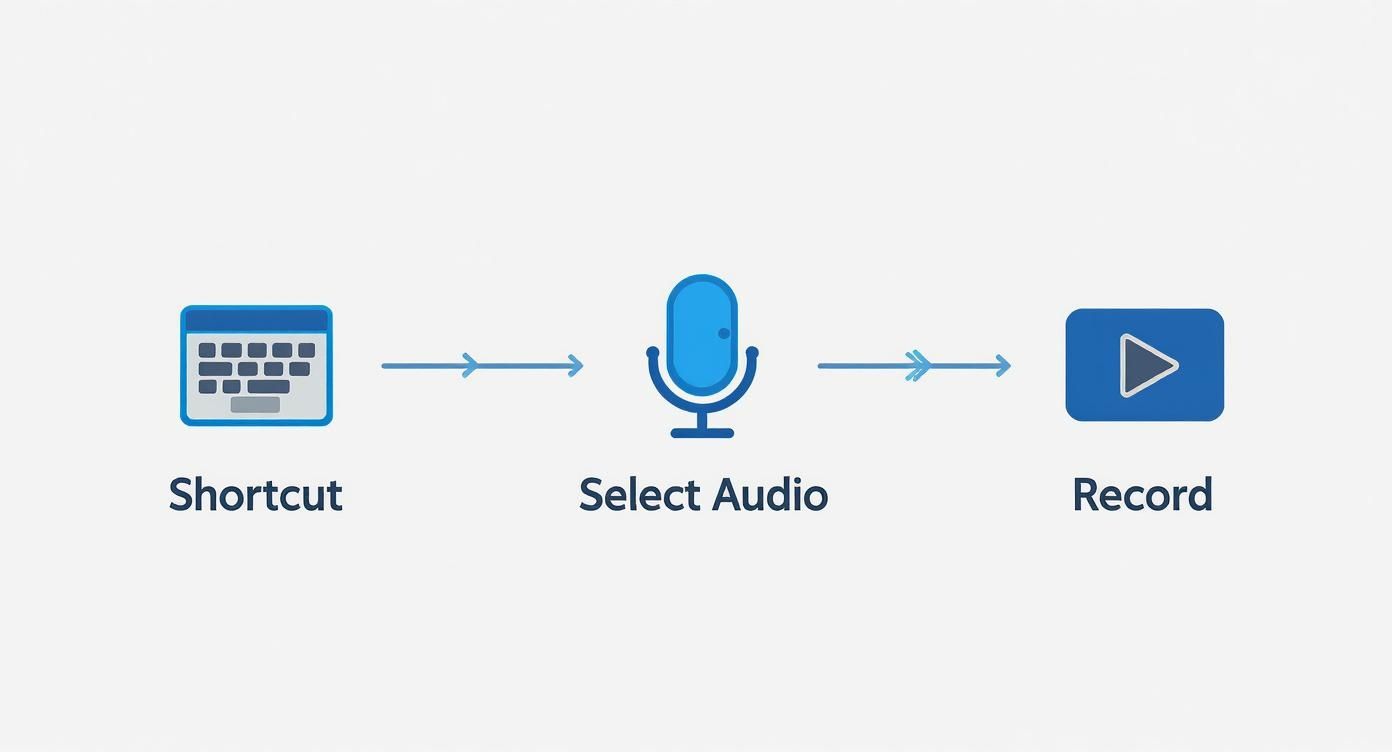
This visual breaks down the Windows process: open the recorder, select your audio source and record. On any platform, confirm the available audio inputs before starting a long capture.
Recording Your Screen and Audio on Mobile Devices
Both iOS and Android include screen recording controls. The important step is choosing the audio source before the countdown begins.
The controls are in different places on iPhone, iPad and Android, so use the instructions for your device below.
Capturing Audio on an iPhone or iPad
On an iPhone or iPad, your starting point is the Control Center. If you don’t see the screen record button (it looks like a solid circle inside a hollow one), adding it is a breeze.
- First, head over to Settings > Control Center.
- Then, just scroll down until you see “Screen Recording” and tap the green plus icon next to it.
With that done, the record icon will now be waiting for you in the Control Center. Here’s the key trick: don’t just tap it. Press and hold the icon. This reveals a hidden menu with the all-important Microphone toggle. Tap it to turn it red, and just like that, you’re ready to record your screen and your voice.
A common mistake is just tapping the record button and assuming it will capture narration. That long-press is the crucial, often-overlooked step that puts you in control of the audio. Once you get that down, your mobile tutorials will be perfectly clear.
Recording Sound on Android Devices
Android’s built-in recorder is just as powerful. You’ll usually find it in the Quick Settings panel—the menu you see when you swipe down from the top of your screen. Sometimes you have to swipe down a second time or swipe left to find the “Screen recorder” tile.
When you tap it, a small menu pops up before the recording begins. This is where you set your audio preferences. Your options will typically include:
- No sound: For a completely silent clip.
- Media sounds: This one grabs only the internal audio from your apps, games, or videos.
- Media sounds and mic: The best of both worlds. This records the device’s internal audio and your voice through the microphone at the same time.
The exact labels vary by phone manufacturer, so make a short test recording if you need both sources. Some apps restrict internal-audio capture for privacy or copyright reasons.
Troubleshooting Common Audio Recording Issues
https://www.youtube.com/embed/z2ceO8D_MUw
If a finished recording is silent, distorted or out of sync, check the selected input and permissions before recording another full take.
The key is to play detective first. Is the problem coming from your microphone, the system audio capture, or the recording software itself? Figure that out, and you’ll know exactly where to look instead of just randomly clicking on settings.
Pinpointing the “No Sound” Problem
One of the most common heart-sinking moments is a recording that has no sound at all. Before you start over, run through a quick mental checklist. It’s surprisingly easy to forget the basics when you’re focused on the content.
Did you actually select the correct audio source before hitting record? Make sure your mic isn’t muted in your system settings or within the recording app. It’s also a good idea to double-check that you’ve given the application microphone permissions. A quick trip to your Privacy & Security settings on macOS or Windows can often solve this in seconds.
Pro Tip: Always record with headphones on. Monitoring your audio in real-time is the single best way to catch problems like distorted sound, low volume, or an incorrect mic selection before you’ve wasted your time. If you’ve checked all the basics and are still getting silence, the issue might be a bit more technical. Outdated audio drivers are a frequent culprit, especially on Windows where so many hardware components need to play nicely together. A quick driver update can often work wonders.
Tackling Background Noise and Echo
Nothing ruins a great tutorial faster than distracting background noise. The low hum of an air conditioner, keyboard clicks, or an echoing room can easily make your recording unwatchable. The best solution is always to find a quiet space, but that’s not always realistic.
When you can’t eliminate the source of the noise, record close to the microphone, keep the input level below clipping and use headphones so the speakers do not feed back into the mic.
Fixing Audio and Video Sync Issues
Another classic headache is audio that slowly drifts out of sync with the video. This “lip-sync” issue usually pops up when your computer is struggling to keep up with the demands of recording.
- Close everything else: Free up your computer’s brainpower (CPU and RAM) by closing any programs you aren’t actively using for the recording.
- Lower your resolution: Recording in 4K looks great, but it’s a heavy lift for your system. Try dropping down to 1080p to see if that smooths things out.
- Check your frame rate: Make sure your recording software is set to a consistent frame rate (like 30 fps) and not a variable one, which can cause that dreaded audio drift over longer recordings.
The best strategy is to prevent these problems before the full take. Our guide to screen recording for tutorials covers planning, capture, and production choices for instructional videos.
Common Audio Recording Problems and Solutions
To make things easier, here’s a quick-reference table to help you diagnose and fix the most frequent audio hiccups I’ve run into over the years.
| Problem | Potential Cause | How to Fix |
|---|---|---|
| No audio at all | Incorrect audio source selected, mic muted, or no app permissions. | Double-check your input device in the software settings, unmute your mic, and verify microphone permissions in your OS Privacy & Security settings. |
| Only system audio or mic audio is recorded | "Stereo Mix" or multi-source recording is disabled. | In your software, look for an option to record both "System Audio" and your microphone simultaneously. Some apps require a dedicated audio driver for this. |
| Audio is too quiet | Input gain is too low on the microphone or in system settings. | Increase the microphone volume in your computer's Sound/Audio settings. If using an external mic or interface, adjust the physical gain knob. |
| Audio is distorted or "peaking" | Input gain is too high, causing clipping. | Lower the microphone volume in your system settings or on your physical audio interface until the audio meter stays out of the red zone. |
| Echo or reverb in the audio | Recording in an empty room with hard surfaces, or audio from speakers is being picked up by the mic. | Record in a room with soft furnishings (carpets, curtains). Always use headphones to monitor audio instead of speakers. |
| Audio is out of sync with video | High CPU usage, variable frame rate, or insufficient RAM. | Close unnecessary applications, lower the recording resolution/frame rate, and ensure your recording software is set to a constant frame rate (CFR). |
Think of this table as your first line of defense. By starting here, you can quickly solve the majority of audio issues and get back to creating great content without the technical headaches.
Recording a software tutorial? Tutorial AI’s software tutorial maker turns one screen recording into a tutorial with editable narration, AI transcription, cursor effects for tutorial videos and written documentation. You can also download the Tutorial AI recorder when you need a dedicated desktop capture app.
FAQ About Screen Recording With Sound
Can I Screen Record With Both System Audio and My Microphone?
Yes, if the recorder and operating system support both inputs. Choose both sources before recording and make a short test clip first.
Why Is There No Sound on My Screen Recording?
The most common reasons are a muted microphone, the wrong audio source, missing microphone permission, or a recorder that does not capture system audio.
How Do I Screen Record With Sound on Windows?
Open Xbox Game Bar with Windows + G, check the audio and microphone controls, then start recording from the Capture widget.
How Do I Screen Record With Sound on iPhone or iPad?
Open Control Center, press and hold the Screen Recording button, turn the microphone on if you need your voice, then start recording.