You’re usually trying to solve one of four problems.
You’ve got a flight and unreliable Wi-Fi. You want a lecture or tutorial ready for offline viewing. You need your own uploaded video back on the iPad in full quality for editing. Or you just want a one-off workaround without paying for another subscription.
That’s why how to download videos from youtube to ipad gets confusing fast. There isn’t one universal path that’s safe, legal, high quality, free, and convenient at the same time. Every method makes a trade-off. Some are clean and built in. Some work, but come with Terms of Service issues. Some are best only if you’re downloading your own content.
Fast answer: If you only need offline viewing, the official method is YouTube Premium: open the video in the YouTube app and tap Download when the option is available. The saved video stays inside the YouTube app. If it is a video you uploaded yourself, YouTube also lets you save your own upload to the device. For other videos, avoid third-party download methods unless you have the right to make a copy and the method complies with YouTube’s rules.
Why You Want YouTube Videos on Your iPad
The most common moment is simple. You save a few videos for later, leave home, open your iPad on a plane or train, and realize your carefully curated Watch Later list is useless without a connection.
The iPad is also where a lot of people want to watch long-form video. It has a bigger screen than a phone, enough storage for offline media, and a better setup for multitasking, note-taking, and travel. That makes it the natural place to keep tutorials, classes, documentaries, and product walkthroughs.
There’s another use case that most lightweight guides miss. Sometimes you’re not just watching. You’re collecting clips, preserving your own uploads, or moving footage into an editing workflow on the iPad.
The real choice is not just how, but why
If your goal is casual offline viewing, the best answer is usually the simplest one. If your goal is a free file you can move around, the path changes. If your goal is original-quality access to your own uploads, you need a different workflow entirely.
A useful way to consider it:
| Need | Best fit |
|---|---|
| Offline viewing inside YouTube | YouTube Premium |
| Your own uploaded video | Save your upload or use Google Takeout |
| A video file you already own on a Mac or PC | Transfer it to the iPad |
| Your own on-screen workflow | Use screen recording, then edit your recording |
| Third-party download sites or apps | Not the default: consider copyright, security and Terms-of-Service risks |
The right method depends less on the iPad and more on what kind of access you need: app-only offline playback, a movable file, or an editable source clip.
The Official Method YouTube Premium Downloads
If you want the least hassle, YouTube Premium is the benchmark. Where Premium and offline playback are available, you can save supported videos in the YouTube app and watch them without an active connection. YouTube explains the current iPhone and iPad behavior in its official guide to watching videos offline on iOS.
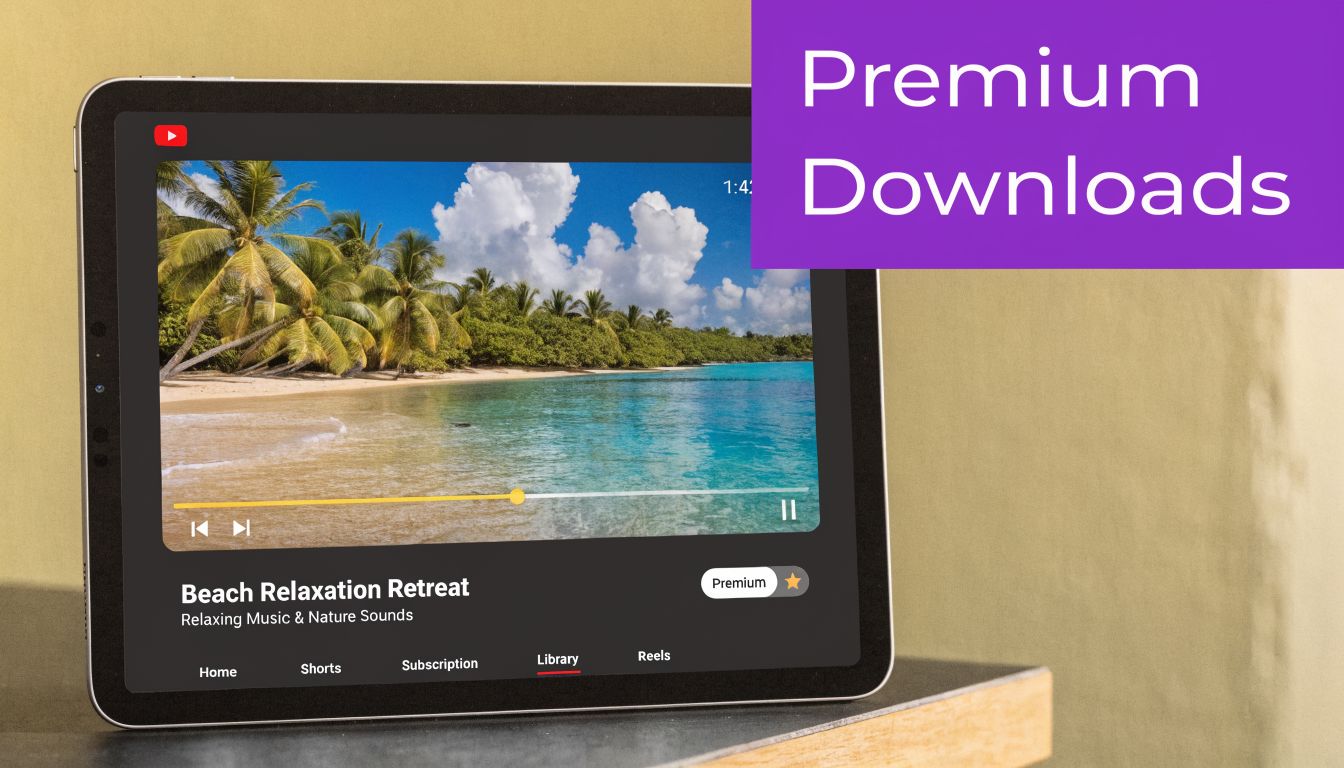
This is the answer I’d recommend first. It’s inside the app you already use. There’s no shady downloader site, no file juggling, and no guessing whether a format conversion will break halfway through.
How it works on iPad
Open the YouTube app and find the video you want. If the video is eligible, you’ll see a Download button on the watch page. Tap it, choose the quality option available to you, and YouTube saves it inside the app’s Downloads area.
A typical flow looks like this:
- Open YouTube on your iPad and sign into your Premium account.
- Pick the video you want to keep for offline viewing.
- Tap Download under the video.
- Choose the quality offered for that video.
- Watch it later from the app’s Downloads section, even when you’re offline.
The important catch is that these downloads stay inside YouTube. You’re not getting a normal MP4 file in Photos or Files. You’re getting encrypted offline access inside the app.
Why people choose it
This method wins on safety and convenience. It also stays on the right side of YouTube’s rules, which is often underestimated once users start clicking around download sites full of redirects and fake buttons.
Practical rule: If you just want to watch videos offline on your iPad, don’t overcomplicate it. Premium is the cleanest method by a wide margin.
The trade-offs are straightforward:
- Best for simplicity: No extra apps, no conversion sites, no manual transfers.
- Best for safety: You avoid the malware and phishing junk common on downloader pages.
- Limited for file access: You can’t freely export the downloaded video into Files or Photos.
- Availability varies: The Download option and available quality depend on the video, account and region.
If you want a quick visual walkthrough, this video gives a useful overview:
When Premium is the wrong tool
Premium stops being ideal the moment you need a real video file. If you want to trim a clip in another app, archive your own uploads at original quality, or move videos into a production workflow, the built-in download button won’t get you there.
That’s where workarounds and transfer-based methods start to make sense.
Using Free File Manager Apps A Popular Workaround
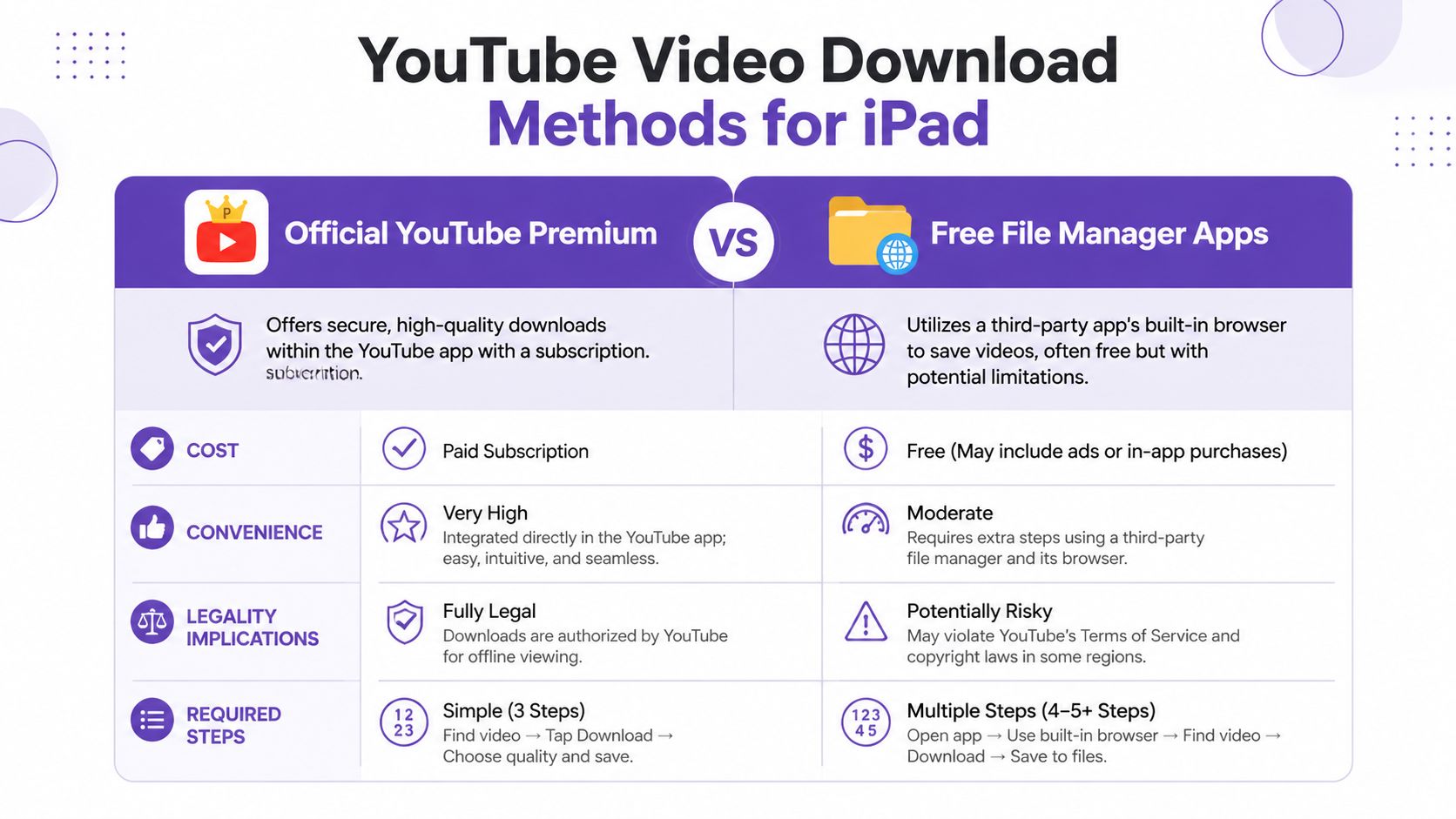
If you don’t want a subscription, the most common workaround on iPad is using a file manager app with a built-in browser. The best-known example is Documents by Readdle.
The basic idea is simple. Instead of downloading through Safari, you open the browser inside the file manager app, visit a YouTube downloader site, paste the video URL, and save the resulting file into the app. From there, you can usually move it to Photos or keep it in Files.
These workflows rely on third-party downloader sites rather than a download feature provided by YouTube. Availability and behavior can change, and using them may raise copyright, privacy, security and Terms-of-Service issues. YouTube’s own guidance says you cannot download another user’s video as a general file through its standard tools; Premium downloads are for offline playback inside YouTube.
The typical Documents workflow
Here’s the commonly used version:
- Install Documents by Readdle from the App Store.
- Open its built-in browser using the compass icon.
- Copy the YouTube link from the YouTube app with Share > Copy Link.
- Visit a downloader site in the in-app browser and paste the link.
- Choose the video format and start the download.
- Save the file inside Documents.
- Export it to Photos if you want easier playback in the Camera Roll.
This works because the app is acting as a container for the browser and downloaded file, which is easier to manage on iPad than trying to force everything through the YouTube app itself.
What works well and what doesn’t
This approach is popular because it gives you an actual file. That matters if you want to watch without opening YouTube, move the video into another app, or store it in a folder structure you control.
Where it gets messy is reliability and risk.
- Public videos tend to work best: Basic uploads are usually the easiest targets.
- Music videos and protected uploads often fail: DRM and rights restrictions break many download attempts.
- The site matters as much as the app: Documents by Readdle is just the container. The main risk usually comes from the downloader page you visit.
- Ads are part of the experience: Expect pop-ups, fake download buttons, and redirect traps.
If a downloader page asks you to install a profile, allow unusual permissions, or download a “helper app,” close it immediately.
A lot of readers also want help understanding the file-conversion side of this process. If you’re trying to make sense of downloading and converting videos from a URL to MP4, that guide is a decent companion because it explains the conversion mindset behind these browser-based tools.
My practical take on this method
This workaround is useful for occasional, low-stakes use. It is not the method I’d trust for important content, sensitive accounts, or anything I can’t afford to lose.
Use it if all of these are true:
| Question | If yes |
|---|---|
| Do you need a free option? | This is a candidate |
| Do you only need a public video? | It’s more likely to work |
| Can you tolerate failures and junky sites? | You’ll survive the process |
| Do you care about strict compliance with YouTube’s rules? | If yes, skip this method |
For one video before a flight, it’s workable. For repeated use, it gets old fast.
Transferring Videos From a Mac or PC
A desktop-to-iPad workflow makes sense when the iPad feels too cramped for the whole process or when you need tighter file control. You download on a Mac or PC first, then move the finished file to the iPad through AirDrop, iCloud Drive, or the Files app.
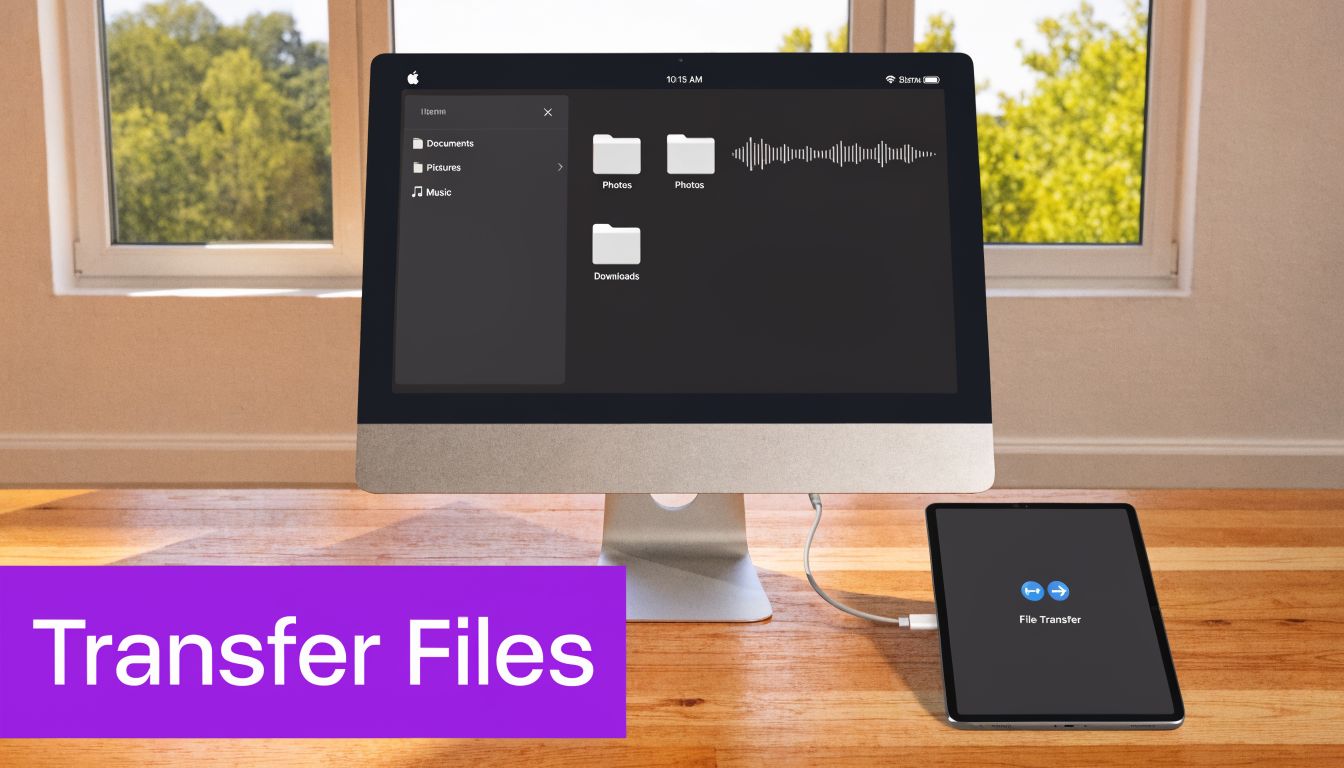
This approach is especially useful for people who are already doing video work on a computer. You can download, rename, organize, and compress files more comfortably there, then send only what you want to keep on the iPad.
Two different desktop workflows
There are really two categories here.
The first is the general workflow: download a video on your computer using whatever method you’ve chosen, then transfer the file to your iPad. That’s simple enough, but the legality and quality still depend on how you obtained the file in the first place.
The second is the official workflow for your own uploaded videos. That’s where Google Takeout stands out.
YouTube’s official help explains that you can download videos you uploaded, while Google Takeout can export all of your uploaded videos. Google says Takeout provides videos in their original format or as MP4 files with H264 video and AAC audio. You can download the archive and unzip it in the iPad’s Files app.
Best method for your own channel
If you uploaded the video, don’t scrape it back from the public page. Use Google Takeout instead.
The workflow is cleaner than often expected:
- Go to your Google account data export area and select YouTube and Music.
- Create the export and wait for Google to prepare the ZIP.
- Download the ZIP from the email link on your Mac, PC, or directly on your iPad.
- Open the file in Files on iPad and unzip it.
- Use the original-quality video in your editor, archive, or client handoff.
This is the only method in this article that is both official and designed for real file ownership.
If the video is yours, use the owner workflow. It preserves quality and avoids the weird compromises that come from redownloading your own public upload through third-party tools.
Getting the file onto the iPad
Once the file exists on your desktop, moving it is the easy part.
- AirDrop: Best if you use a Mac and want the fastest Apple-to-Apple transfer.
- iCloud Drive: Good if you want the file to appear in Files automatically across devices.
- Direct cable or sync workflow: Useful when wireless transfer is unreliable or you’re moving larger media libraries.
If the file is too large to move around casually, it helps to know a few cleaner handoff options. This guide to sharing large video files via email and beyond covers the practical transfer choices better than most generic attachment advice.
When this method is worth the extra step
Desktop transfer is not the fastest route for a casual viewer. It is, however, a strong fit when you care about storage organization, file naming, backups, and edit-ready media.
Use it when you want control. Skip it when you just want to tap one button and watch something offline five minutes later.
Recording Your Own Workflow and Polishing It
If you need to capture a software process that you perform yourself, screen recording gives you footage you own and can edit. This is different from using screen recording to copy someone else’s YouTube video.
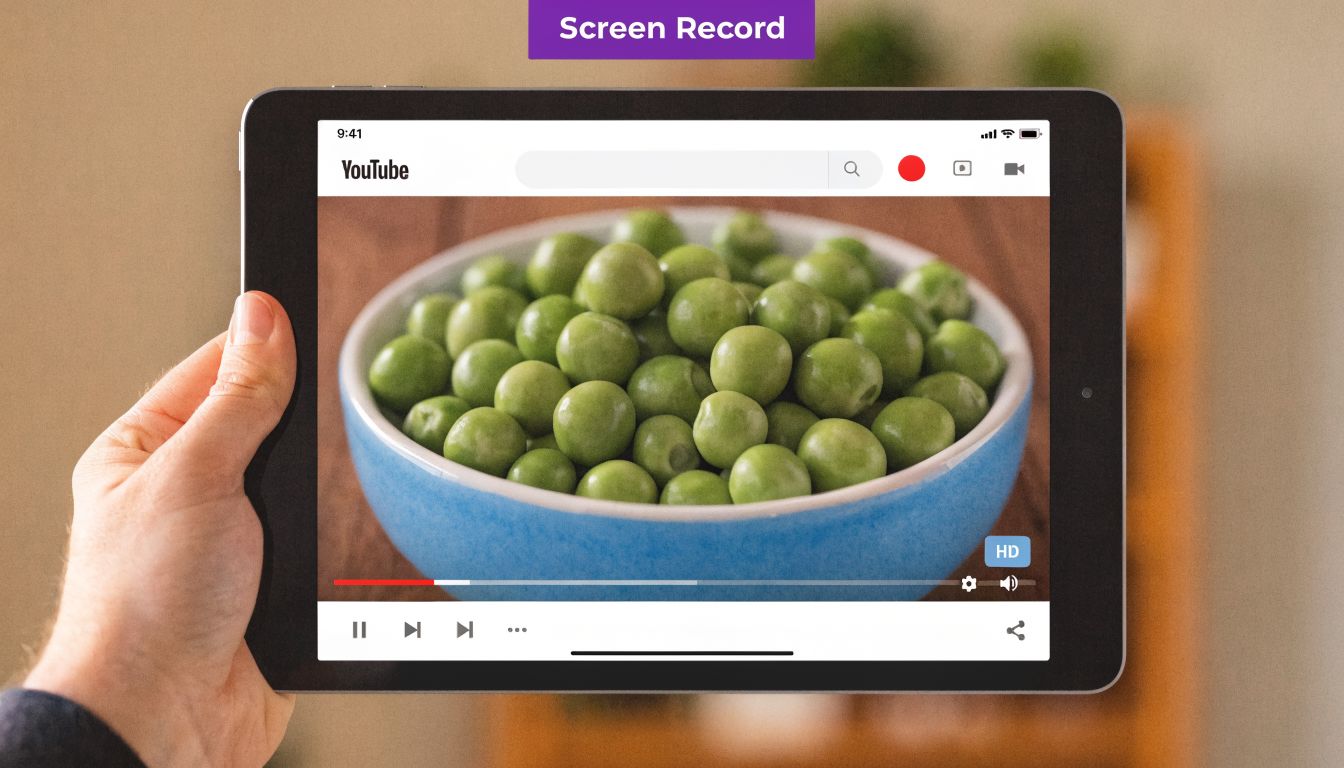
For your own demonstrations, it avoids downloader sites and gives you a local recording you can trim, explain and publish as a tutorial.
How to do it on iPad
If Screen Recording isn’t already in Control Center, add it in Settings. Open the software workflow you want to demonstrate, start recording from Control Center, complete the steps, then stop the recording. The clip lands in Photos. See the iPhone and iPad recording guide for the recording workflow.
The process is simple:
- Enable Screen Recording in Control Center if needed.
- Open the app or workflow you want to demonstrate.
- Start the recording from Control Center.
- Complete the process at a pace viewers can follow.
- Stop the recording when the clip ends.
- Trim the start and end in Photos.
There’s no file conversion and no transfer step. The iPad creates the video locally.
The hidden downsides
This method is reliable, but the output is rarely clean on the first try. Notifications can appear. You may capture accidental taps. You often end up with dead space at the beginning or end.
That matters even more if you’re not just saving a clip for yourself, but turning a screen capture into a demo, onboarding video, explainer, feature release video, knowledge base video, or support article video.
The first recording is usually too long and too rough. Easy recording tools such as Loom are often 50-100% longer than necessary, while traditional editors like Camtasia or Adobe Premiere Pro demand real editing skill and time. That creates an annoying middle ground for subject matter experts who know the product but don’t want to become video editors.
Where this becomes a production workflow
For teams that create software walkthroughs, the practical path is often:
| Step | Outcome |
|---|---|
| Record quickly | Capture the product flow without over-rehearsing |
| Clean the raw footage | Remove pauses, mistakes, and dead time |
| Add narration and polish | Turn a rough capture into something presentable |
| Publish in multiple formats | Use it in docs, onboarding, support, or enablement |
If you need a tighter workflow for YouTube-originated screen captures, this guide on capturing YouTube video is relevant because it focuses on the recording side rather than downloader gimmicks.
A screen recording is often the raw material, not the finished asset.
That distinction matters. If you’re creating internal training or customer education, the fastest high-quality process is usually to speak naturally while recording, then polish afterward instead of trying to perform a perfect take. That’s much more realistic for product managers, support leads, sales engineers, and technical writers.
Legal and Security Considerations You Cannot Ignore
The biggest mistake people make is treating every download method as morally and technically equivalent. They aren’t.
Using YouTube’s own download feature is one thing. Using third-party sites to pull copies of videos is another. Recording your own screen sits somewhere else again, and copyright adds an extra layer on top of all of it.
The Terms of Service problem
The cleanest rule is also the simplest one. If you’re using a method outside YouTube’s official offline tools or your own content export workflow, you’re entering a gray area at best and a Terms of Service violation at worst.
That doesn’t mean every individual user will face dramatic consequences. It does mean you should stop pretending a random downloader website is just another harmless utility.
Third-party YouTube downloaders are usually a convenience hack first, and a trustworthy product second.
If you want a plain-language companion read on the compliant side of this topic, how to download YouTube videos legally is worth scanning because it frames the official options clearly.
Security risks are usually more immediate than legal risks
A common initial concern is copyright. On iPad, the more immediate threat is often junky web behavior: fake buttons, redirect loops, misleading pop-ups, and attempts to push you into installing something you never wanted.
A cautious checklist helps:
- Ignore fake download buttons: Many pages show several buttons that are really ads.
- Reject permission prompts that feel unrelated: A video downloader should not need odd device-level access.
- Avoid account logins on third-party pages: If a downloader asks you to sign in with Google, back out.
- Prefer disposable browsing habits: Don’t make your main Google account the one experimenting with risky tools.
Quality is also a safety signal
Low-quality download tools often reveal themselves by their output. If the service only offers compressed files, strange aspect ratios, or broken audio, that’s not just annoying. It’s a clue that the workflow is unstable.
The pressure is getting worse, not better. The verified data notes that 4K uploads on YouTube surged 45% in 2025, while most third-party tools still reliably max out at 1080p and often degrade quality, which makes official methods and professional workflows more appealing for iPad Pro users. That trend is cited in this discussion of saving YouTube videos and the 4K gap.
If your iPad has a great display, a bad download looks even worse.
For anyone handling customer videos, internal training, or support recordings, privacy matters too. If you’re moving captures or exports through any toolchain, it’s smart to review a platform’s privacy approach for recorded content before uploading sensitive footage.
A sane rule set
Use official tools when available. Use Google Takeout for your own uploads. Treat third-party downloaders as risky workarounds, not defaults. And never confuse “it worked once” with “it’s safe.”
Choosing the Right Download Method for You
The best method depends on what you value most.
Choose YouTube Premium if you want the safest, simplest offline viewing experience on your iPad. It’s the least fiddly option and the easiest one to recommend to frequent travelers, commuters, and anyone who doesn’t want to troubleshoot.
Choose a file manager app workaround only if you want a free one-off download and you’re willing to deal with friction, failed attempts, and some risk. It can work. It just isn’t clean.
Choose Google Takeout plus transfer if you need your own uploaded videos back at original quality for editing or archiving. That’s the strongest creator workflow in this whole list.
Choose screen recording when you need to capture and explain your own software workflow. It gives you footage you can edit into tutorial material without relying on a YouTube downloader.
The shortest version is this: prioritize safety first, file ownership second, and convenience third. That ordering usually leads to the right answer.
Frequently Asked Questions
Can I download YouTube videos directly to my iPad?
Yes, for supported offline viewing inside the YouTube app, including with YouTube Premium where available.
Where do YouTube Premium downloads go?
They remain available inside the YouTube app rather than appearing as normal video files in the Photos app.
Can I download a YouTube video I uploaded myself?
Yes. YouTube provides options to save your own uploaded videos, and Google Takeout can export your YouTube data.
Should I use third-party YouTube downloader sites?
Treat them cautiously. They can create copyright, Terms-of-Service, privacy and security issues. Prefer official options or files you have the right to copy.
Need to Turn Your Own Screen Recording into a Tutorial?
If you are recording your own software workflow on iPad, Mac or Windows, Tutorial AI can turn that screen recording into a polished tutorial video and written guide. Explore Tutorial AI features.