A Chrome session can fill up quickly. Research tabs sit beside follow-up tasks, support tickets, documentation drafts, distracting sites, and a growing list of logins. Add a screen recorder for a product walkthrough and you may end up switching between even more tools before the actual work is finished.
The best productivity extensions for Chrome aren’t the ones with the longest feature lists. They’re the small combinations that match a specific bottleneck, whether that’s capturing tasks, reducing tab overload, protecting focus, documenting a process, or sharing a clear explanation. I evaluate each option by workflow fit, setup friction, browser performance, privacy, and plan limitations, not by novelty alone.
This list focuses on ten practical jobs across research, documentation, support, onboarding, sales enablement, and time-aware work. Tutorial AI is the in-browser option for turning a demonstrated workflow into a polished tutorial and written documentation, so a single recording can support both video and knowledge-base work. You can find more workflow guidance on the blog homepage.
1. Tutorial AI Chrome Extension
Visit Tutorial AI when the work starts with showing someone how a browser workflow works. The Chrome extension captures actions directly in the browser and turns the recording into a polished tutorial video, with smart zooms, cursor-aware effects, and automatically structured scenes. It suits product demos, feature release videos, customer onboarding, help-center videos, support article videos, internal training, SOPs, and sales enablement walkthroughs.
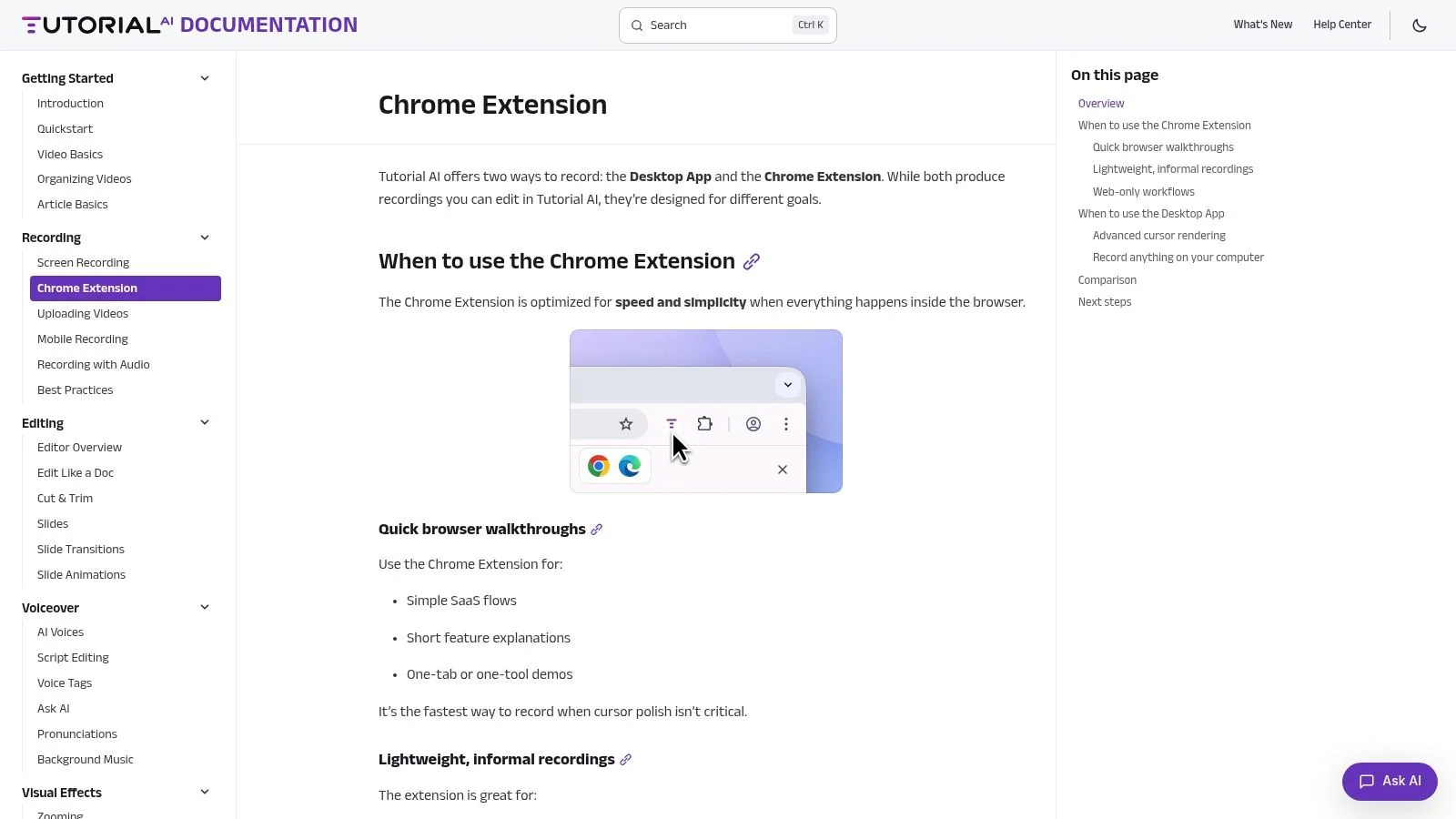
The useful distinction is what happens after capture. Tutorial AI transcribes narration into an editable script, so rewriting a sentence can update the voiceover, timing, and captions without working through a traditional timeline. AutoRetime adjusts scenes and captions to match translated narration, and lifelike AI voices support 74 languages. From the same recording, teams can generate a formatted article, screenshots, and structured documentation.
Practical rule: Use a casual recorder when you only need to send an update. Use Tutorial AI when the recording needs to become a reusable customer or team asset.
The extension is strongest for browser-based workflows. It won’t capture every system-level application outside Chrome, and cloud processing creates privacy and hosting considerations for sensitive recordings. Advanced voices, custom voice cloning, higher resolutions, and some collaboration or enterprise controls require paid plans. Teams should also compare it with Loom and other online screen recorders before choosing a capture workflow. For teams managing multilingual delivery, its Multilingual Player, built-in language selector, Brand Kits, SSO/SAML, and SOC 2 plus GDPR positioning make governance and reuse part of the evaluation rather than an afterthought.
2. Grammarly for Chrome
Writing is often the hidden bottleneck in browser work. Grammarly for Chrome checks grammar, spelling, clarity, style, and tone inside Gmail, Google Docs, Zendesk, and many other web text fields. That makes it useful for support replies, knowledge-base drafts, sales outreach, release notes, and internal documentation.
The extension’s best quality is immediacy. It flags an awkward sentence while you’re already writing, rather than forcing you to copy text into a separate editor. Generative AI features can help draft, rewrite, and respond, while paid team controls can support shared style and tone expectations.
Where Grammarly earns its place
Grammarly works well when a team produces a high volume of short written communication. A support specialist can polish a reply before sending it, while a technical writer can catch routine errors during a documentation pass. It won’t replace subject-matter review, product accuracy checks, or a real editorial standard, but it reduces avoidable cleanup.
Writing assistance should improve the sentence, not make every message sound like it came from the same person.
The trade-off is browser overhead and judgment. On low-resource machines, very large pages can feel heavier with the extension active, and some advanced AI checks and administrative controls sit behind paid plans. Suggestions can also interrupt a writer who prefers to draft quickly and edit later. Install it if browser writing quality is a recurring problem, then tune or disable suggestions on sites where they create more friction than value.
3. Loom Screen Recorder and Screen Capture
Loom is the low-friction choice for explaining something with a quick screen, camera, and microphone recording. Its Chrome extension creates hosted recordings and shareable links, which works well for async updates, bug walkthroughs, stakeholder reviews, support escalations, and short product explanations.
The main advantage is speed from intent to link. You don’t need to build a production workflow before recording a short message. Transcriptions and captions help viewers scan the recording, while paid features add engagement and viewer insights. Business and AI features can also provide automated titles, summaries, and recaps.
Best use for quick communication
Loom is a strong fit when the recipient needs context more than polish. A support engineer can show a bug, a manager can review a browser workflow, and a sales team can send a personalized walkthrough without scheduling a meeting. It also integrates with common SaaS and team tools, so the recording can travel through an existing communication workflow.
The limitation is that fast capture can produce rambling recordings, pauses, and retakes. That’s fine for an internal message, but less effective for a permanent help-center asset. Free-plan limits can apply to recording length or quantity, and some security or SSO controls are restricted to Business or Enterprise plans. Choose Loom for quick sharing, not automatically for polished, reusable training content.
The practical question is simple: does the viewer need a message from a colleague, or a tutorial they’ll revisit? Loom handles the first job especially well. Tutorial AI is better suited to turning a browser demonstration into edited video and documentation.
4. Scribe AI Documentation, SOPs and Process Guides
Scribe turns a captured browser workflow into an editable, step-by-step guide with annotated screenshots. It fits teams that need to create onboarding instructions, internal SOPs, knowledge-base articles, and customer how-tos without manually writing every click and caption.
The extension captures clicks and keystrokes, then generates a visual guide that the author can edit. Redaction and blur tools help remove sensitive information, while brand elements make repeated guides more consistent. Teams can share by link or embed, and paid tiers add export formats such as PDF, HTML, and Markdown.
Where Scribe is more useful than video
A written guide is often easier to search and reference than a recording. It lets a new employee confirm one step without scrubbing through a video, and it gives support teams a practical artifact for a knowledge base. Scribe’s visual format is particularly effective for repeatable processes with predictable browser actions.
The limitation is coverage. Desktop capture requires Pro or Enterprise, so workflows that move outside the browser may need a different approach. Mixed licensing also isn’t supported within a single team, which can complicate procurement when different groups have different requirements. Higher-tier governance and team features may be important for organizations with strict publishing controls.
Use Scribe when the deliverable is primarily a visual process guide. If the same workflow needs a polished narrated video, translated versions, and an article generated from one recording, Tutorial AI offers a broader output path. If end users need interactive guidance inside the application itself, Tango may be a closer fit.
5. Tango In-Browser Process Capture and Walkthroughs
Tango focuses on process capture and in-app guidance. Its Chrome extension records a workflow and creates step guides, while Guide-Me overlays can coach users inside the application. That makes it relevant to onboarding, digital adoption, internal enablement, and support deflection.
The product’s value isn’t just documenting what happened. It helps connect the guide to the moment when a user needs to perform the action. Viewer insights, secure blur options, workspace controls, version history, and export options support teams that maintain a growing library of workflows.
Best fit for in-app coaching
Tango makes sense when the goal is to help users complete a task inside the product rather than read instructions elsewhere. An onboarding team can provide an interactive path through a SaaS application, while IT operations can standardize guidance for recurring workflows. Enterprise plans include administrative deployment options such as SSO and SCIM, which matter when IT needs centralized control.
The trade-off is complexity and plan dependency. Some advanced guidance features and usage limits are gated by plan, and pricing for larger teams may require an app-based conversation or quote. That makes Tango less attractive for a small team that only needs occasional process documentation.
Choose Tango for adoption inside the app. Choose Scribe for fast written guides. Choose Tutorial AI when the output must include polished video and documentation from the same browser capture.
For a deeper comparison of adjacent workflow tools, see apps like Tango. The right choice depends less on which interface looks most impressive and more on where the learner consumes the guidance.
6. Todoist for Chrome Planner and Calendar
Todoist is the task-capture choice for work that starts in a browser and needs follow-through later. The extension can turn a page or email into a task, add natural-language dates and labels, show a compact view of today’s or upcoming work, and manage projects without leaving the current tab.
That quick capture matters because browser research creates unfinished commitments constantly. You find an article to review, a customer issue to investigate, or a teammate to follow up with. Saving it as a task while the context is visible is more reliable than trusting an open tab or a vague memory.
Where Todoist helps most
The strongest feature is the distance between noticing work and recording it. Keyboard shortcuts and the extension’s quick-add flow make it practical for individual planning, checklists, editorial follow-ups, and support queues. Its cross-platform apps also keep the task list available beyond Chrome.
The weakness is behavioral, not technical. Todoist can’t make an ignored task list useful. If you capture everything but never review projects, assign dates, or remove stale items, the extension becomes another inbox. AI and other advanced capabilities require paid tiers, and some legacy Gmail-specific workflows have moved into the main extension experience.
Use Todoist when the bottleneck is capture and follow-through, not when you need a full documentation or project-management system. A focused browser stack might pair it with OneTab for research sessions, then use Tutorial AI when the research turns into a product walkthrough or support asset.
7. Clockify Chrome Time Tracking
Clockify adds one-click time tracking to the browser. Start and stop timers from Chrome, toggle the timer with a keyboard shortcut, use Pomodoro reminders and idle detection, and send activity into the Clockify web app for reporting. Integrations with 50+ web apps support workflows across services, content production, and client work.
Time tracking is most valuable when it answers a concrete question. A services team may need billable records, a content team may want to compare research and production time, and a manager may need better visibility into recurring work. Without one of those decisions attached to the data, tracking becomes administrative overhead.
What works and what doesn’t
Clockify is quick to adopt and offers a free tier, which lowers the barrier for individuals and teams testing the workflow. Its reporting and export capabilities become more useful on paid plans, where teams may need deeper project views or administrative controls.
The recurring failure point is remembering the timer. Idle detection can help, but no extension can reconstruct every context switch accurately. Community feedback has also pointed to changes in free-plan limits, so teams should verify current plan details before standardizing the tool.
A practical setup uses Clockify for work that benefits from measurement, not every browser activity. Track a client project, documentation sprint, or support block. Don’t turn every casual research click into a timesheet entry unless the resulting data will change how you plan or price the work.
8. 1Password Password Manager Browser Extension
1Password makes multiple SaaS applications, admin consoles, and shared support inboxes easier to use without encouraging password reuse. Its Chrome extension autofills logins, payment cards, and addresses, supports passkeys, and connects to Watchtower security alerts. Extensions are also available for Edge, Firefox, Safari, and Brave.
The productivity gain is quiet but substantial in daily use. A reliable vault reduces login searches, password resets, and the temptation to store credentials in unsafe notes. For teams, family and business tiers support shared access patterns, while the security model uses a Secret Key and end-to-end encryption.
Treat permissions as part of the decision
A password manager has access to sensitive information by design, so trust and account configuration matter more than convenience alone. Teams should define who can access shared vaults, how accounts are recovered, and which administrative controls they need.
There isn’t a permanent free personal plan, and advanced admin capabilities are reserved for business tiers. That cost may be justified when a team manages many services or needs structured credential sharing, but individuals on a tight budget may compare other password managers before committing.
For practical guidance on handling credentials and other private data, review how to protect sensitive information. The broader rule is straightforward: don’t install a browser extension merely because it promises convenience. Check its permissions, publisher, update history, and cloud-processing model before giving it access to sensitive workflows.
9. OneTab Tab Manager and Memory Saver
OneTab solves a familiar research problem with almost no setup. Click the extension and it converts the open tabs in a browser window into a single list. You can restore tabs individually or reopen the group later, while reducing the number of active pages competing for browser resources.
It works particularly well during research, competitive analysis, content development, and product discovery. A crowded tab bar becomes a readable queue instead of a collection of tiny favicons. Basic sharing and export make it possible to pass a research set to someone else without manually copying every address.
The trade-off is simplicity
OneTab isn’t a full workspace system. It doesn’t provide the richer project structures or collaboration layers found in heavier tab managers, and restoring a large session can become manual if you haven’t grouped lists carefully. That limitation is also why it feels fast to adopt. You don’t have to design a taxonomy before you can clear the browser.
Use it as a reset button, not as a permanent knowledge base. Move important findings into Todoist, a documentation system, or your team’s research repository. Keep OneTab for the temporary layer of work that matters now but doesn’t deserve to remain open all day.
If a tab is valuable, save the information you need. Don’t confuse keeping a tab open with managing knowledge.
OneTab pairs well with StayFocusd in a research workflow. OneTab reduces visual and browser clutter, while StayFocusd protects the time reserved for reading, writing, or synthesis.
10. StayFocusd Site Blocker and Focus Timer
StayFocusd is built for the moment when you know what to do but keep opening the wrong site. It supports per-site limits, blocklists and allowlists, schedules, daily time budgets, and a Nuclear lockdown mode for stricter sessions.
The extension’s strength is its directness. You define the sites that routinely interrupt deep work, set rules, and let the browser enforce them. That behavioral friction can help writers, editors, developers, and support specialists protect a documentation block instead of relying on willpower.
Configure it around real work
Overly strict rules create their own problems. Research often requires access to sites that also contain distractions, and a blanket block can interfere with legitimate work. Build allowlists for trusted resources, use schedules that reflect actual working patterns, and start with the smallest rule that solves the problem.
StayFocusd’s focus analytics and interface polish trail more complete digital-wellbeing suites. That’s acceptable if you want a straightforward blocker rather than another dashboard. It’s less suitable if you need detailed cross-device reporting or a broader attention-management program.
The best use case is a defined work session with a visible outcome. Block distracting sites while drafting a support article, recording a tutorial, or reviewing a product release. Turn the rules off when the research context requires broader browsing, then restore them when execution begins.
Top 10 Chrome Productivity Extensions Comparison
| Product | Core features | Quality (UX) ★ | Price / Value 💰 | Target audience 👥 | Unique selling points ✨ |
|---|---|---|---|---|---|
| Tutorial AI, Chrome Extension 🏆 | In‑browser recorder, AI narration, editable transcript, AutoRetime™, docs & 4K export | ★★★★★ | Freemium → Enterprise; advanced voices & priority support 💰 | 👥 KB authors, trainers, support, product demos | ✨ Edit‑like‑doc updates voiceover/captions; AutoRetime translations; cursor‑aware effects |
| Grammarly for Chrome | Real‑time grammar/style, generative AI, works in Docs/Gmail | ★★★★☆ | Freemium; team/style controls on paid tiers 💰 | 👥 Writers, editors, support agents | ✨ Context‑aware writing suggestions & tone controls |
| Loom – Screen Recorder & Screen Capture | One‑click screen/cam recorder, instant links, transcriptions & captions | ★★★★☆ | Freemium; limits on free tier, Business/AI for advanced features 💰 | 👥 Teams, async comms, stakeholders | ✨ Fast capture + hosted playback, viewer insights |
| Scribe – AI Documentation & SOPs | Capture clicks/keystrokes → auto step‑by‑step guides with screenshots | ★★★★☆ | Freemium → Pro/Enterprise for exports & desktop capture 💰 | 👥 Onboarding teams, SOP authors, KB writers | ✨ Auto‑annotated guides, redaction & brand elements |
| Tango – In‑Browser Process Capture | Workflow recorder + on‑screen ‘Guide‑Me’ overlays and exports | ★★★★☆ | Paid tiers; enterprise pricing/quotes 💰 | 👥 Product teams, digital adoption, IT admins | ✨ In‑app overlays for guided UX + admin/SSO controls |
| Todoist for Chrome | Quick add tasks from pages, NL dates, mini task view & shortcuts | ★★★★☆ | Free & Premium plans; clear pricing 💰 | 👥 Individuals, project managers, planners | ✨ Fast capture, cross‑platform sync, natural dates |
| Clockify – Chrome Time Tracking | One‑click timers, Pomodoro, idle detection, integrations & reports | ★★★★☆ | Free tier; paid for advanced reporting/admin 💰 | 👥 Freelancers, agencies, teams tracking billable time | ✨ Simple timers + extensive integrations & exports |
| 1Password – Browser Extension | Autofill logins/cards, passkeys, vault sharing, Watchtower alerts | ★★★★★ | Paid (no permanent free personal); family/business tiers 💰 | 👥 Security-conscious teams, admins, individuals | ✨ Strong E2E encryption + enterprise admin controls |
| OneTab – Tab Manager | Collapse tabs to a single list, restore individually or all, share lists | ★★★★ | Free; very lightweight 💰 | 👥 Researchers, content creators, power‑tab users | ✨ Instant memory savings & extreme simplicity |
| StayFocusd – Site Blocker & Timer | Per‑site limits, blocklists/allowlists, scheduling, ‘Nuclear’ lockdown | ★★★☆☆ | Free 💰 | 👥 Writers, students, anyone needing deep focus | ✨ Granular site limits and strict lockdown mode |
Choose the Smallest Stack That Solves the Bottleneck
The Chrome Web Store is large, but a larger catalog doesn’t make choosing easier. Ecosystem data reports roughly 111,933 active extensions, with productivity tools representing about 55.5% of listings, or more than 62,000 extensions, in the 2024 to 2026 period (About Chromebooks). That scale makes a narrow workflow decision more useful than another generic list of features.
The market also has a long tail. Independent ecosystem data reports that 70.4% of Chrome extensions have 100 users or fewer, with a median of 18 users per extension (Exstats). Those figures aren’t a quality verdict for any individual tool, but they reinforce a practical filter: look for a clear use case, trustworthy permissions, active maintenance, and evidence that the product fits real work.
Choose Todoist for capture and follow-through. Choose OneTab for tab overload, StayFocusd for distraction control, and Clockify for measurable work sessions. 1Password is the stronger choice when faster secure access and shared credential management matter. Grammarly fits browser-based writing, while Loom is the better option for quick sharing when polish isn’t the main requirement.
For process guidance, choose Scribe when you need editable, visual step guides and Tango when users need in-app coaching. Choose Tutorial AI when one browser recording needs to become a polished tutorial video plus documentation. It can turn a real screen and real voice into an edited training, onboarding, support, or sales-enablement asset, rather than generating a synthetic talking head that hides the actual interface.
Teams should also consider language delivery and governance before committing. Tutorial AI supports narration in 74 languages, AutoRetime for translated voiceovers, Brand Kits, shared workspaces, embeddable players with language selectors, SSO/SAML, and SOC 2 plus GDPR. Synthesia documents a multilingual player that lets viewers switch translated or dubbed versions from player controls, detects browser language when a translation is available, and can set a default with a language parameter in a share link or embed (Synthesia’s video player documentation). Its translation workflow also notes that translated versions must be published under the original video for the selector to work, and switching languages loads a new video file, requiring the viewer to click Play again (Synthesia’s multilingual video guidance). Those mechanics are useful benchmarks when reviewing any multilingual player.
A small stack is easier to maintain and safer to govern. Install one extension at a time, review requested permissions, understand whether recordings or page content are processed in the cloud, and test memory impact during a normal workday. Disable anything that duplicates another tool or adds more switching than it removes. The objective isn’t to enable every utility. It’s to build focused bundles for research, documentation, support, onboarding, and time-aware work.
Tutorial AI captures real browser workflows and turns them into polished tutorial videos, editable narration, and structured documentation from the same recording. Visit Tutorial AI to see how one Chrome-based workflow can support product demos, customer onboarding, support articles, and internal training without requiring expert timeline editing.