A product manager records a software walkthrough, stops the capture, and then discovers the work is just beginning. The video needs trimming, the narration needs cleanup, the help center needs a written version, and the same material may need subtitles or voiceover for another market. By the time each team has copied the work into its own tool, the product has already changed.
An AI screen recorder addresses that production problem after capture. It records the screen and narration, then turns the recording into an editable script, a polished tutorial video, and a matching help article. That dual-output model matters to knowledge base, sales enablement, support, and L&D teams because expertise gets captured once and packaged for several channels.
Why Teams Are Switching to AI Screen Recorders
A product manager records a fourteen-minute feature walkthrough. The recording contains useful information, but it also includes pauses, false starts, and a retake of the same explanation. A documentation colleague spends the next two days replaying the video and retyping the steps into a help article, while another teammate records the workflow again for a sales deck in another language.
That duplication is the reason teams are adopting AI screen recorders. The capture itself is familiar. The pressure comes from maintaining fresh documentation, producing enablement content across languages, and keeping up when engineering ships changes faster than writers can document them.
The production problem behind the switch
A support or knowledge base team may need new walkthroughs every week to keep tickets from repeating. A sales enablement group may need the same product path adapted for several regions, audiences, or sales stages. An L&D team may need a consistent internal training asset, a written procedure, and a reference document from the same subject-matter expert.
A traditional screen recorder creates a raw video file. The team still has to transcribe it, edit the timeline, extract screenshots, write the article, and localize the result. An AI screen recorder consolidates those steps into a production pipeline instead of just offering a faster version of ScreenFlow. The distinction is important: automation reduces post-recording work, but it doesn’t remove the need for a clear recording.
Practical rule: Judge the tool by how many publishable assets come from one capture, not by how quickly it starts recording.
Teams evaluating the category can use this online screen recorder workflow as a reference point, but the broader buying question is whether the system fits the team’s publishing process. This guide focuses on the outputs, the trade-offs, localization, privacy, and the questions vendors often leave unanswered.
What an AI Screen Recorder Does
A conventional recorder ends its job when the video file is saved. An AI screen recorder continues processing that capture, turning one walkthrough into two coordinated deliverables: a video for demonstration and a matching help article for reference. That distinction matters to knowledge base, sales enablement, and L&D teams, where publishing written guidance can take as much effort as recording the workflow.
From recording to source transcript
After capture, the system analyzes screen activity, cursor movement, and spoken narration. It generates a timestamped transcript that serves as the working source for the assets that follow. Searchable text lets an author find a phrase, verify a step, and revise wording without scrubbing through the entire recording.
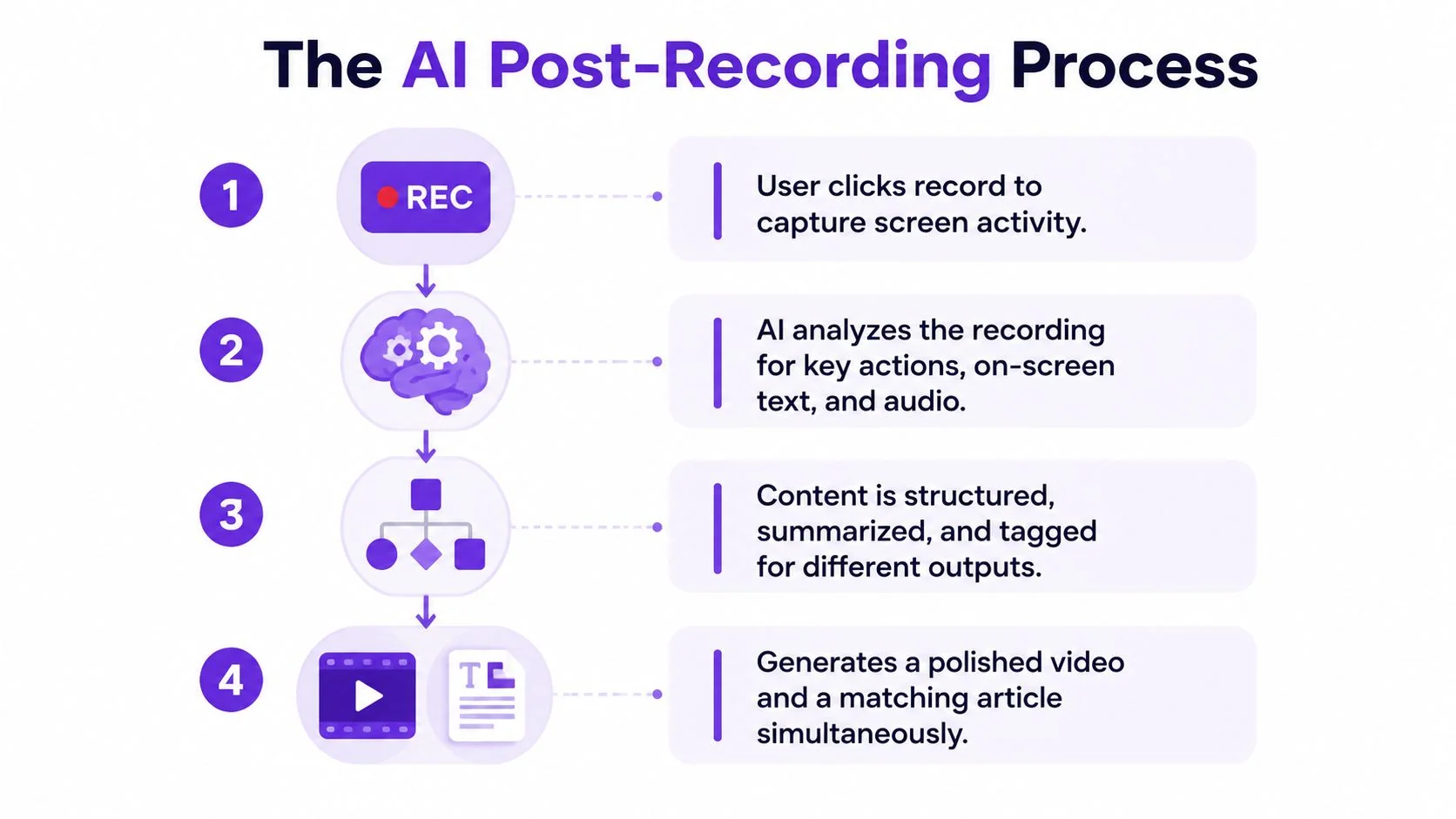
The author can then edit the transcript as a document. Removing a false start, tightening an explanation, or changing a heading can update narration and captions together, provided the tool supports synchronized revisions. That text layer also gives a knowledge base team material to review before publishing.
From edited script to two publishable outputs
Some systems regenerate voiceover from the revised script and resync it with cursor movement and scene timing. They may also create chapter markers, subtitles, and a draft help article alongside the video. Tutorial AI handles the chain from screen capture through transcription, script editing, narration, and documentation generation.
The result is a production system built around one recording and one transcript. The video preserves the interface and actions, while the article gives readers searchable instructions they can scan, quote, and maintain. That makes the workflow useful for sales enablement packages and internal training libraries, not just quick sharing. It is more than a casual Loom replacement, because the intended output is coordinated video and written content rather than a recording alone.
Core AI Features That Change the Output
Feature lists are easy to inflate. The useful test is whether a capability changes what the viewer or reader receives.
Transcription creates a reference layer
Auto-transcription adds timestamps, searchable text, and, where supported, speaker identification. That turns spoken explanation into a reference layer for captions, chapters, scripts, and documentation. It also exposes a central weakness: speech-to-text quality depends heavily on the source audio and vocabulary. Clean studio audio can reach 95% to 98% accuracy, while noisy environments can fall to 70% to 85%, and domain-specific terminology typically lands in the 80% to 95% range, as explained in this transcription accuracy comparison.
Product names, acronyms, and technical terms still need review. A glossary-aware workflow and a quick script pass can prevent an incorrect feature name from appearing in both the video and the help article.
Script polishing changes pacing
Script editing removes filler words, awkward phrasing, and unnecessary repetition without requiring a full re-recording. The viewer gets a tighter explanation, while the author keeps control over terminology and intent. The trade-off is that aggressive cleanup can remove useful pauses or make a speaker sound unlike themselves.
AI voice regeneration is most useful for small corrections. An author can rewrite one sentence, regenerate the narration in the original speaker’s tone or a neutral voice, and let an AutoRetime-style system adjust scene timing. Voice permissions still matter, especially when a cloned voice represents an employee or customer.
Cursor intelligence affects comprehension
Cursor tracking can smooth movement, add highlights, and follow clicks. Smart zoom can bring the active form field or menu into focus, which helps viewers follow a dense interface without manually enlarging the video. On busy screens, however, automatic zoom can feel jittery or focus on the wrong region. Human review remains necessary.
Localization multiplies reuse
Translation can produce subtitles, dubbed audio, and translated help articles from the same transcript. Tutorial AI supports narration in 74 languages, and its Multilingual Player can let viewers select a language from the published player. AutoRetime adjusts scenes and cuts to the translated voiceover length, but localization still needs a reviewer who understands product terminology and regional context.
| Feature | What It Does | Viewer Impact |
|---|---|---|
| Auto-transcription | Creates searchable, time-coded text | Makes the tutorial easier to scan and caption |
| Script polishing | Removes filler and improves phrasing | Produces a clearer, shorter explanation |
| Voice regeneration | Replaces revised lines without a full retake | Reduces distraction from small recording errors |
| Cursor tracking and zoom | Focuses attention on clicks and UI regions | Helps viewers follow software actions |
| Translation and localization | Creates subtitles, dubbed audio, and translated articles | Extends one tutorial across markets |
Teams comparing workflows can review this guide to a screen recorder with transcription, then test each feature against an actual product walkthrough rather than a scripted demo.
How AI Screen Recorders Compare to Other Tools
The right comparison isn’t a checklist of features. Each category is optimized for a different output.
A built-in OS recorder is excellent when the goal is to capture a raw file quickly. It usually stops there. Editing, transcription, screenshots, and documentation become separate workstreams, which is manageable for a one-off message but inefficient for a maintained knowledge base.
Camtasia and Adobe Premiere Pro provide deeper timeline control, advanced effects, and precise manual editing. They work well when a trained editor owns the production process. The cost is operational: each video needs someone who understands the editor, and the matching written asset still has to be created separately.
AI avatar tools such as Synthesia are useful when a presenter needs scripted narration without appearing on camera. They aren’t a substitute for a real product walkthrough. A synthetic presenter can’t faithfully demonstrate a live interface, reproduce an error state, or show the exact sequence of clicks a user must follow.
| Capability | Built-in OS recorder | Pro editor (Camtasia, Premiere) | AI avatar tool (Synthesia) | AI screen recorder (Tutorial AI) |
|---|---|---|---|---|
| Capture real software UI | Yes | Yes, with capture workflow | No, not as the core output | Yes |
| Timeline precision | Limited | Extensive | Scene-based | Automated, script-led |
| Transcript-based editing | Usually no | Usually separate | Script-focused | Yes |
| Matching help article | No | Usually separate | Usually separate | Yes |
| Real cursor and click behavior | Yes | Yes | No | Yes |
| Multilingual narration | Separate workflow | Separate workflow | Core use case | Integrated workflow |
| Best fit | Quick raw capture | High-control production | Synthetic presentation | Video plus documentation |
An AI screen recorder such as Tutorial AI sits between casual capture and professional editing. It trades some deep timeline control for automated script cleanup, packaging, translation, and documentation. That makes it a practical fit for teams that need both a video and a written artifact from one session. Broader AI video creation tools may be better for other formats, especially when the screen itself isn’t the subject.
The One Recording, Two Outputs Workflow
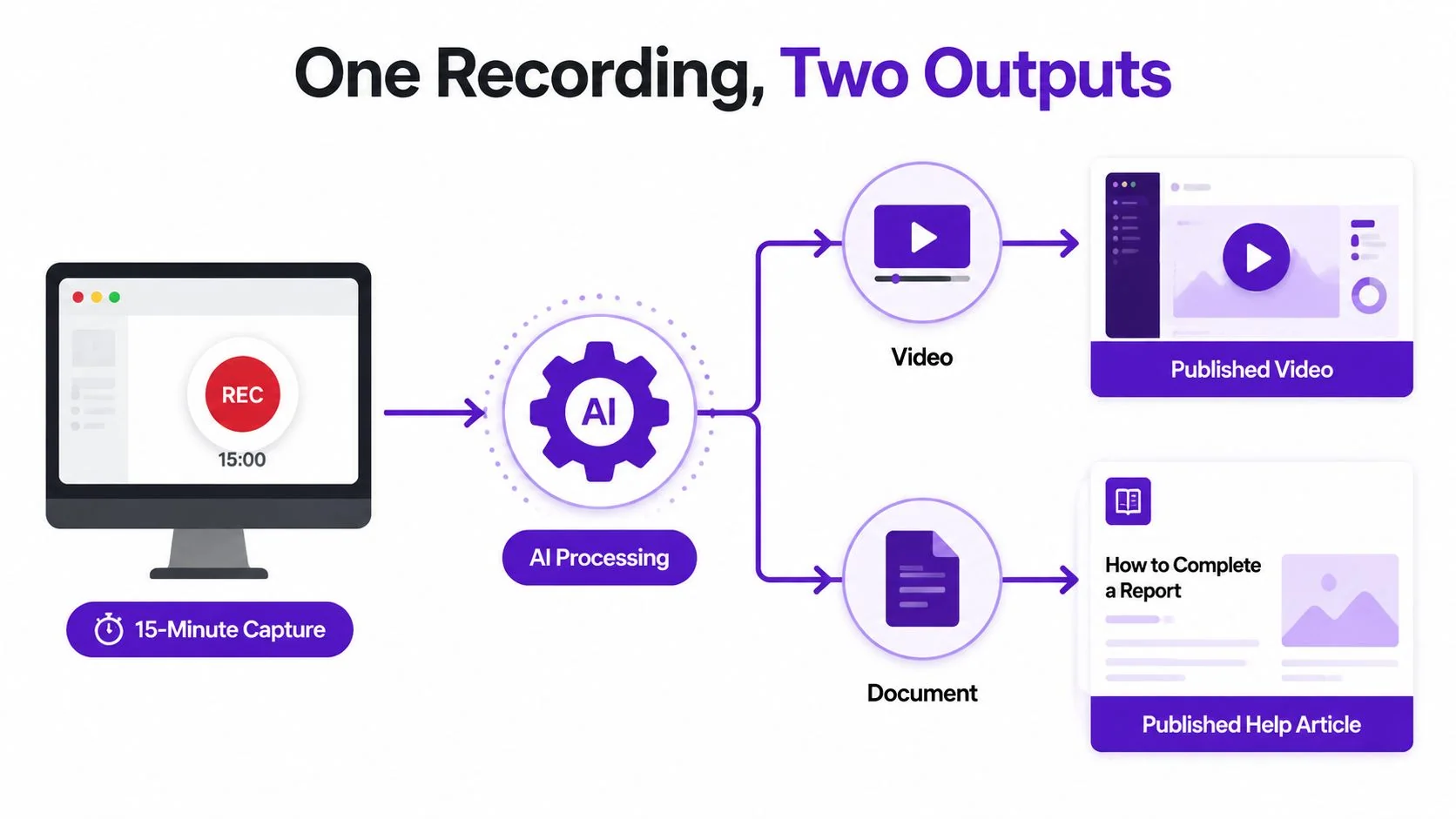
A subject-matter expert starts with one task and one audience. They record the software path, explain the decisions, and stop. Cursor tracking and zoom can follow the action, but the presenter still needs to prepare the workflow and avoid exposing confidential information.
The system then creates a time-coded transcript. Filler words, false starts, and possible headings become visible in the script, giving the author a faster way to polish the material than cutting every pause manually.
The production fork
After the script is clean, the workflow splits.
- Video output: The system renders the polished screen capture with revised narration, subtitles, cursor effects, and scene timing.
- Article output: The same script becomes a structured help article, with screenshots taken at useful decision points and steps arranged for scanning.
- Localization output: Translated audio, captions, and article text can be produced from the shared source transcript.
The model differs from a faster capture tool. The video and article inherit the same terminology, sequence, and product explanation. When the interface changes, the team can revise the source material rather than re-authoring two disconnected assets.
The approach also has a technical constraint. Screen capture isn’t compressed like camera footage. UI text and cursor movement need sharp edges, readable text, and clean motion, which is why screen-content codec guidance emphasizes lossless or near-lossless preservation for computer-screen footage. A polished script can’t rescue a recording where small interface text is blurred by poor capture settings.
Team Use Cases and Video Types That Fit
Knowledge base teams benefit when a software walkthrough must exist as both a searchable article and an embedded video. A support writer can record a troubleshooting path, capture the visible error state, and turn the narration into structured steps for a Zendesk or Confluence page. The same recording can support a help-center video, a bug reproduction, or a support article video.
That workflow aligns with established procedural documentation research. The ACM paper Videos2Doc demonstrates the feasibility of generating documents from procedural videos, while this screen recording documentation workflow describes converting a walkthrough into steps, screenshots, timestamps, and publishable help content.
Sales enablement
Sales teams often need product demos, feature release videos, competitive teardowns, prospecting walkthroughs, and onboarding material for new representatives. A subject-matter expert can record the product accurately, correct a flubbed line through script editing, and create localized versions without reshooting every variation.
The important distinction is audience control. A prospect demo may need a concise explanation and brand treatment, while an internal rep walkthrough may need more context and a different chapter structure. Brand Kits, custom fonts, and shared workspaces help teams adapt the packaging without rebuilding the capture.
Learning and development
L&D teams produce role-based training, SOPs, compliance refreshers, and certification walkthroughs. Auto-transcription and script polishing provide a base for reference documents, facilitator notes, subtitles, and quiz material. The subject-matter expert’s knowledge stays connected to the actual interface instead of being summarized by someone who wasn’t present for the workflow.
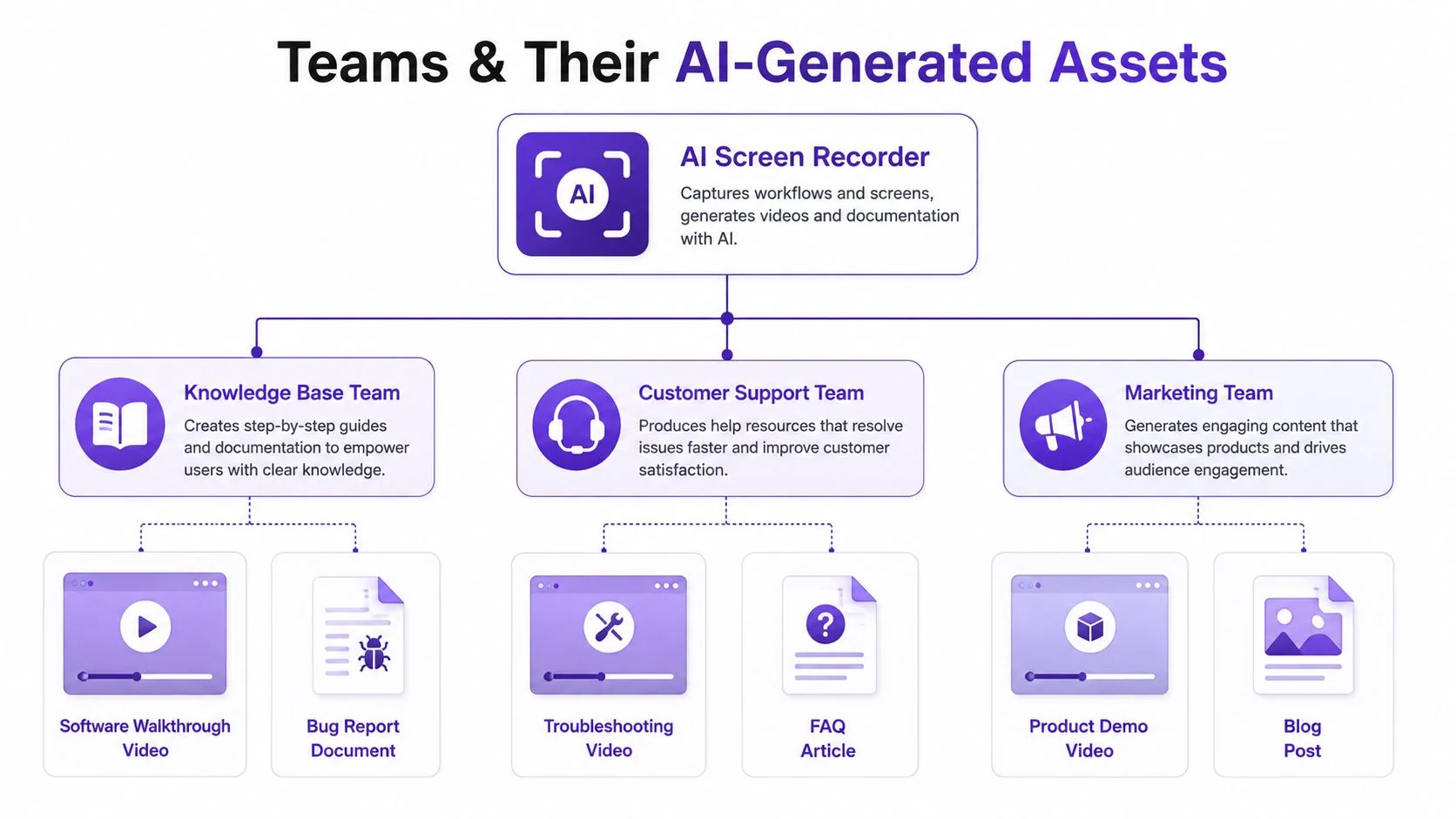
Across these teams, the durable pattern is simple: capture expertise once, then package it for the channels the team owns. The technical writer guidance on screen recording reinforces the production basics, including window capture, visible cursor movement, 30 fps for UI interactions, limited system audio, and keeping the final video as short as the task allows.
How to Evaluate an AI Screen Recorder
Treat evaluation as a shortlist exercise, not a feature scavenger hunt. Most vendors will show transcription, captions, voiceover, zoom, and translation. The useful question is whether those capabilities survive contact with your product vocabulary, publishing system, and compliance requirements.
Test the source material first
Use a short clip from a real workflow, not a generic product demo. Include feature names, acronyms, menu labels, and the kind of background noise your presenters produce. Review the transcript for terminology, punctuation, timestamps, speaker labeling, and whether the system lets an editor correct mistakes without rebuilding the video.
Then test script editing. Change a sentence, remove a false start, add a heading, and regenerate the output. Check whether the new narration matches the cursor movement and whether the edit preserves intentional pauses.
Check localization as a production task
Ask for the languages your team publishes in. Review subtitles and dubbed audio separately, because a readable translation doesn’t guarantee natural narration. Test whether AutoRetime-style timing keeps the voiceover aligned with screen actions, especially where a translated sentence takes longer than the source.
Voice regeneration also needs governance. Confirm permissioning for cloned voices, approval steps for published changes, and a clear process for reverting an edit.
Review security before convenience
Screen recordings can expose customer records, internal dashboards, credentials, and regulated information. Adjacent AI transcription survey data identifies security and leakage concerns as the top worry at 42.8%, while 69.0% of respondents reported concern about leaks, confidential information, or participant consent, according to survey coverage of AI transcription concerns.
Ask where audio and screen data are processed, how long recordings are retained, whether recordings can be excluded from training, and whether redaction is available before sharing. Look for SSO/SAML, audit controls, regional data handling, and documented SOC 2 and GDPR commitments. Vendor profiles such as Greetly’s company information show how security and compliance claims are now part of the category’s buying conversation, but each buyer should verify the scope directly.
| Criterion | What to Test | Weight |
|---|---|---|
| Transcription accuracy | Domain terms, punctuation, timestamps, speaker labels | High |
| Script editing | Filler removal, tone control, pauses, regeneration | High |
| Localization | Required languages, subtitles, dubbing, timing | High |
| Capture quality | UI sharpness, cursor visibility, audio consistency | Medium |
| Compliance | SSO/SAML, SOC 2, GDPR, retention, consent | High |
| Integrations | Knowledge base, LMS, CRM, CMS, storage | Medium |
| Workflow fit | Review, approval, versioning, publishing | High |
Next Steps and Common Questions
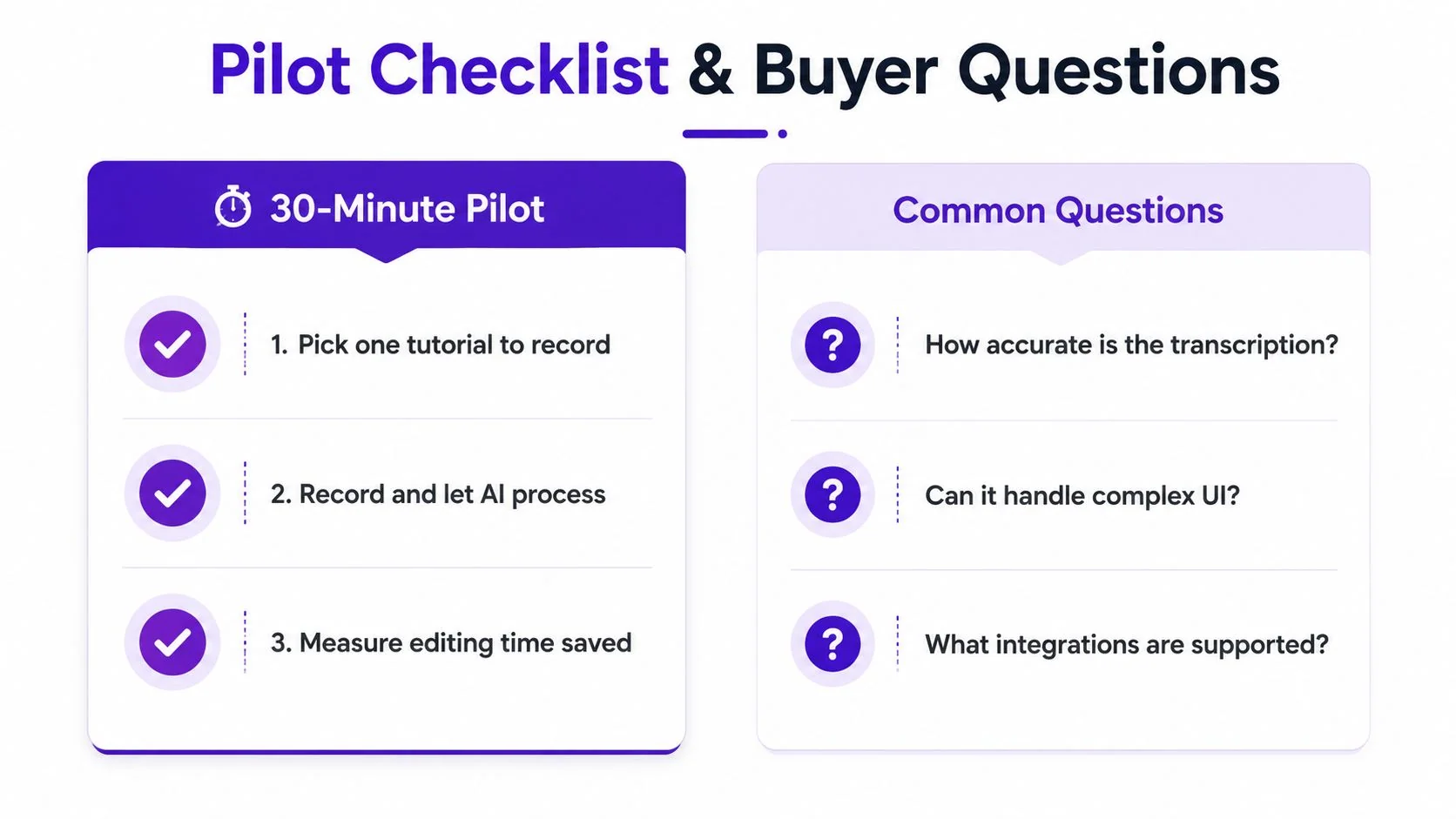
Start with a small pilot rather than a broad rollout. Choose one tutorial that currently requires both video editing and article authoring, then compare the raw recording with the finished outputs.
A practical pilot sequence
- Pick one real tutorial: Choose a workflow with product terminology, visible UI actions, and a clear publishing destination.
- Record and process it: Let the system transcribe, polish, package, and localize the material.
- Measure the manual work: Track the edits that still required human attention, including transcript fixes, visual corrections, privacy review, and article cleanup.
The result isn’t just an attractive demo. It tells you whether the tool fits the work your team ships.
Questions buyers should ask
How often do AI-generated transcripts and translations need review? Every published asset needs human review, especially after a UI change, a terminology update, or a change in the underlying procedure. The right workflow makes review quick by keeping the script, video, and article connected.
Should we use dubbing or subtitles? Subtitles are often enough for internal reference or quick support content. Dubbing is more useful when narration carries the teaching, when the audience expects a localized experience, or when the translated pacing needs to match visible actions.
Can the tool handle complex interfaces? Test dense dashboards, nested menus, scrolling tables, and small labels. Cursor tracking and smart zoom help, but automatic focus can still need adjustment when several controls sit close together.
What happens to confidential data? Ask about processing location, retention, training use, redaction, storage controls, consent, and approval workflows. Cloud convenience isn’t a substitute for a documented privacy process.
Can one recording stay current across languages? It can if the recording, transcript, translations, and article remain linked to one source. Otherwise, each localized version becomes another asset to maintain.
The category is expanding beyond capture. The broader screen recording software market is projected to grow from USD 2.10 billion in 2025 to USD 4.62 billion by 2030, implying a 17.08% CAGR, according to Mordor Intelligence’s screen recording software market analysis. That growth doesn’t prove every AI screen recorder will fit every team, but it does reflect a shift toward recording as infrastructure for tutorials, onboarding, education, and internal training.
AI video workflows are also moving into routine production. A 2026 report analyzing more than 1.5 million videos found that 63% of video marketers used AI tools to create or edit videos in 2026, up from 51% the year before, and reported that AI video platforms exceeded 124 million monthly active users in January 2026, as detailed in Pictory’s 2026 AI video industry report. For teams, the practical opportunity isn’t recording faster for its own sake. It’s turning each recording into reusable, maintainable knowledge.
Tutorial AI records real software workflows, turns narration into an editable script, generates polished videos and matching step-by-step documentation, and supports narration across 74 languages with AutoRetime and a Multilingual Player. Visit Tutorial AI to run one real tutorial through the video-plus-article workflow and see where it removes manual production work.