
Organize videos with folders
Sort, nest, and group your videos — including automatic Virtual Translation Folders that bundle every translated copy with its original.
As your video library grows, folders keep it navigable. You can create folders, nest them, move videos between them, and rely on Virtual Translation Folders that group translated copies with their original automatically. Folders also live inside workspaces — useful for separating team-shared content from personal projects.
Creating a folder
- On the Videos dashboard, click the New Folder button.
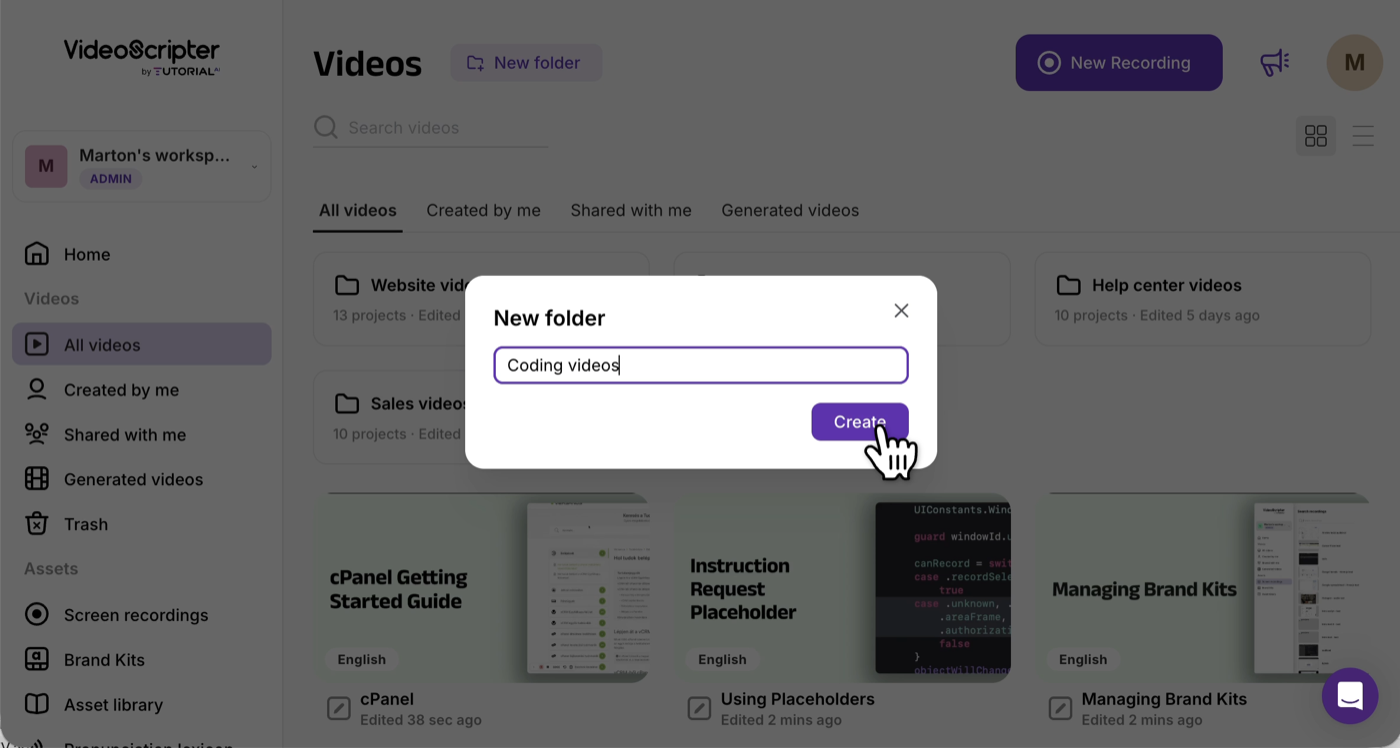
- Enter a name in the prompt that appears.
- Confirm to create the folder.
Moving videos into a folder
- Find the video you want to move.
- Open the three-dot menu on the video tile and choose Move to.
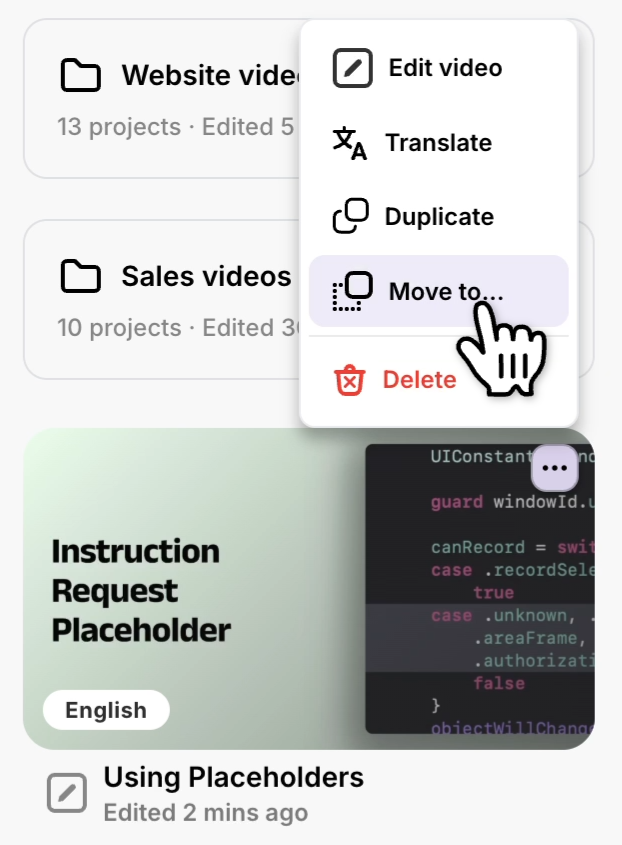
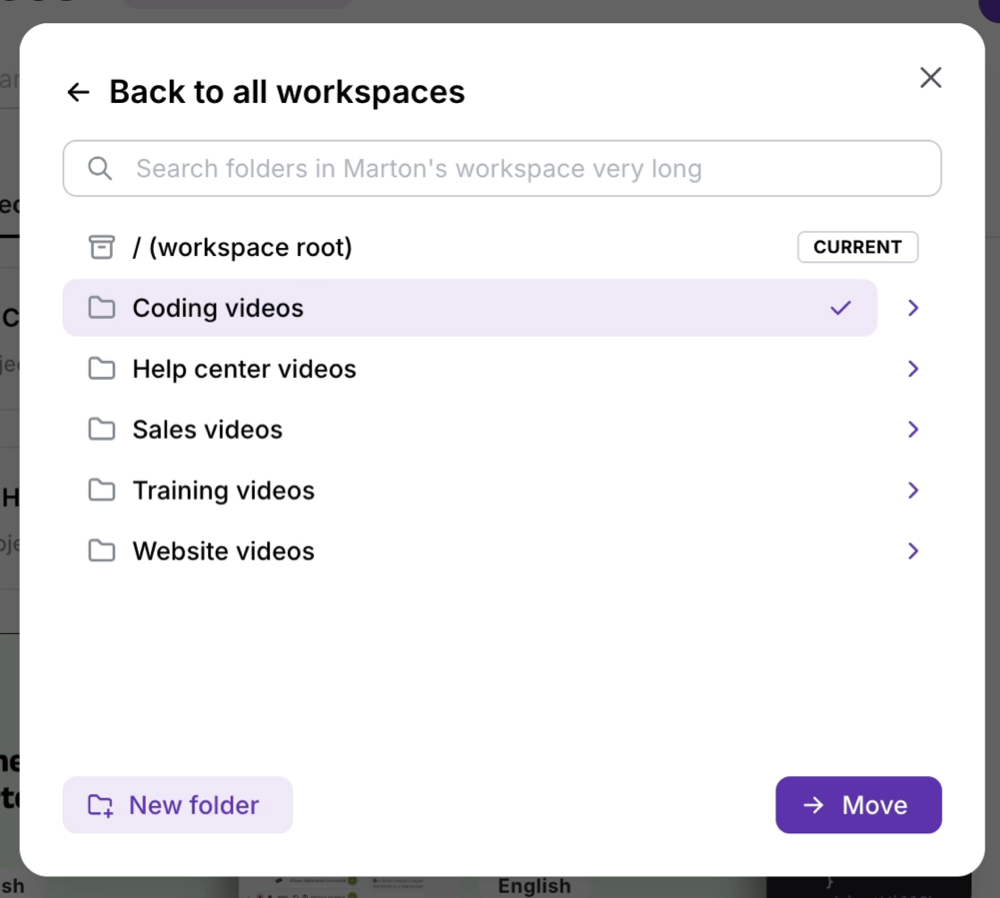
- Pick the destination folder from the list. The video moves immediately.
Nested folders
You can put folders inside folders — the same structure you’re used to on your computer.
- Navigate into an existing folder, then click New Folder to create a subfolder there.
- Or, from the Move to popup, use the New Folder button at the bottom-left of the folder selector to create a subfolder in place.
Virtual Translation Folders
💡 Automatic — you don’t need to create these manually.
When you translate a video, Tutorial AI groups the original and all of its translated copies into a Virtual Translation Folder. The folder is created by the system, named after the source video, and visually bundles every language version in one place.
- New translations of the same source always land in the same Virtual Translation Folder.
- The folder is virtual — you can still find and open the underlying videos in their normal location too.
- This makes it easy to manage a multilingual set: edit the source, retranslate, and every version stays grouped.
See How do I translate a project? for the translation flow itself, and Video Player for embedding all languages in a single player.
Moving videos across workspaces
Folders live inside workspaces. From the Move to popup, navigate one level up past the top folder to see your other workspaces — you can move a project across workspaces from there.
⚠️ Brand Kit links break when moving across workspaces. Brand Kits are workspace-scoped — a project that used a Brand Kit in its original workspace will lose the link when moved to a different workspace. You’ll need to re-apply a Brand Kit from the destination workspace. See Brand Kits for details.
Notes
- Rename a folder — open the three-dot menu on the folder itself and choose Rename.
- Delete a folder — also from the folder’s three-dot menu. Videos inside are not deleted; they move back to the parent location.
- Breadcrumbs — use the breadcrumb trail at the top of the dashboard to navigate up out of nested folders.