
Embed videos in Zendesk Knowledge Base articles
Add Tutorial AI video embeds to your Zendesk Help Center articles by pasting the embed code into an HTML block.
Zendesk lets you embed any external video into a Knowledge Base article via an HTML block — including Tutorial AI’s Multilingual Player. Two things happen on the Zendesk side: turn on Display unsafe content in your Help Center’s security settings, then paste the embed code into an HTML block in the article editor.
Grab the embed code from your Tutorial AI project first — see Export & Publish video for the Share dialog — then follow the steps below.
Enabling video embeds
Zendesk blocks arbitrary iframes by default. Turn on the Display unsafe content setting so embedded HTML — including video iframes — renders in your published articles.
- Click the Gear icon in the left sidebar to open your Help Center settings.
- Navigate to the Security menu.
- Enable Display unsafe content to allow embedded HTML such as video iframes.
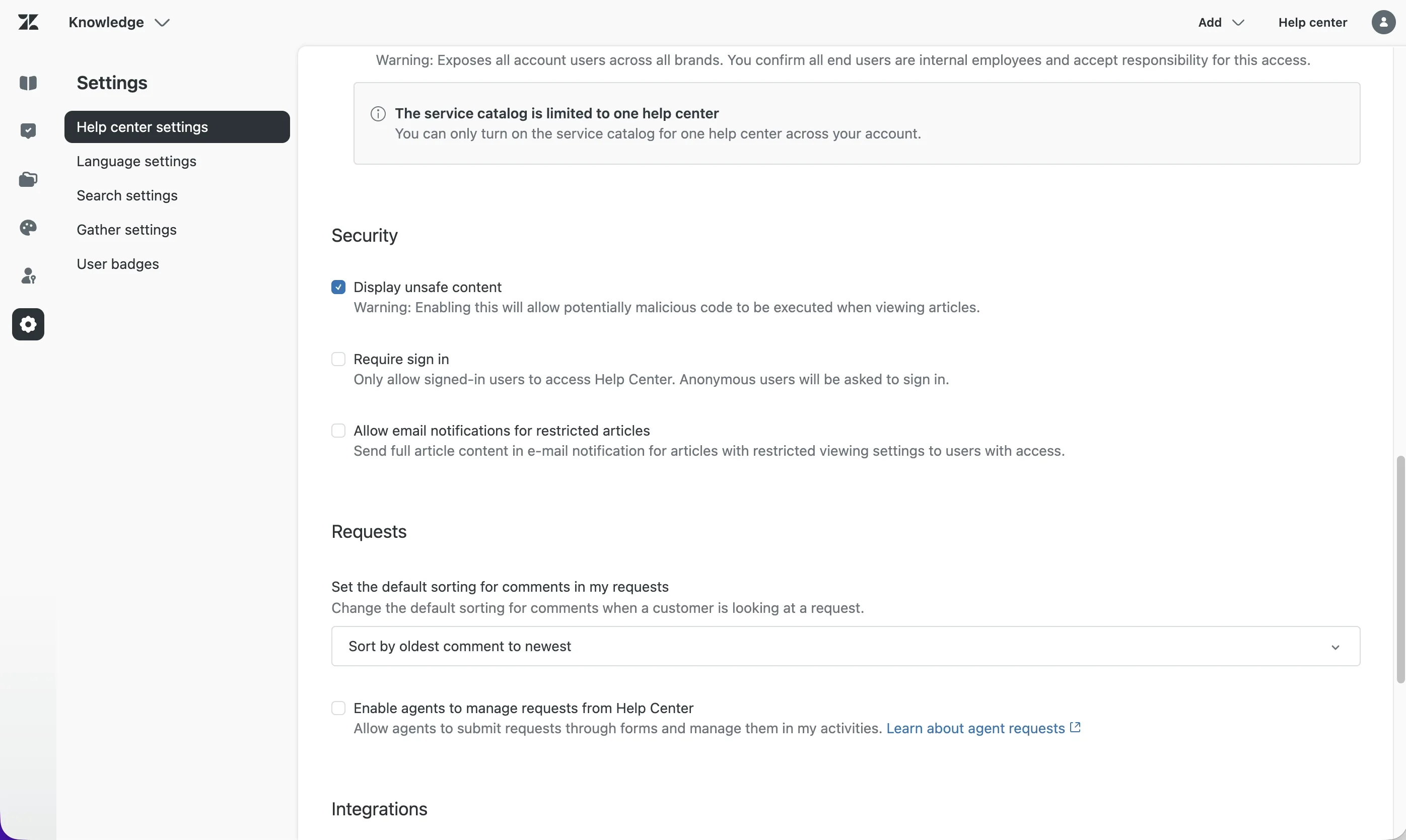
- Save your Help Center settings to apply the change.
💡 You only need to do this once. The Display unsafe content setting applies to the whole Help Center, not per article.
Inserting the embed code
- Open or create a knowledge base article in Zendesk.
- Place your cursor in the article body where you want the video to appear.
- Click the Insert menu in the article toolbar.
- Select the HTML block option to open the code snippet modal.
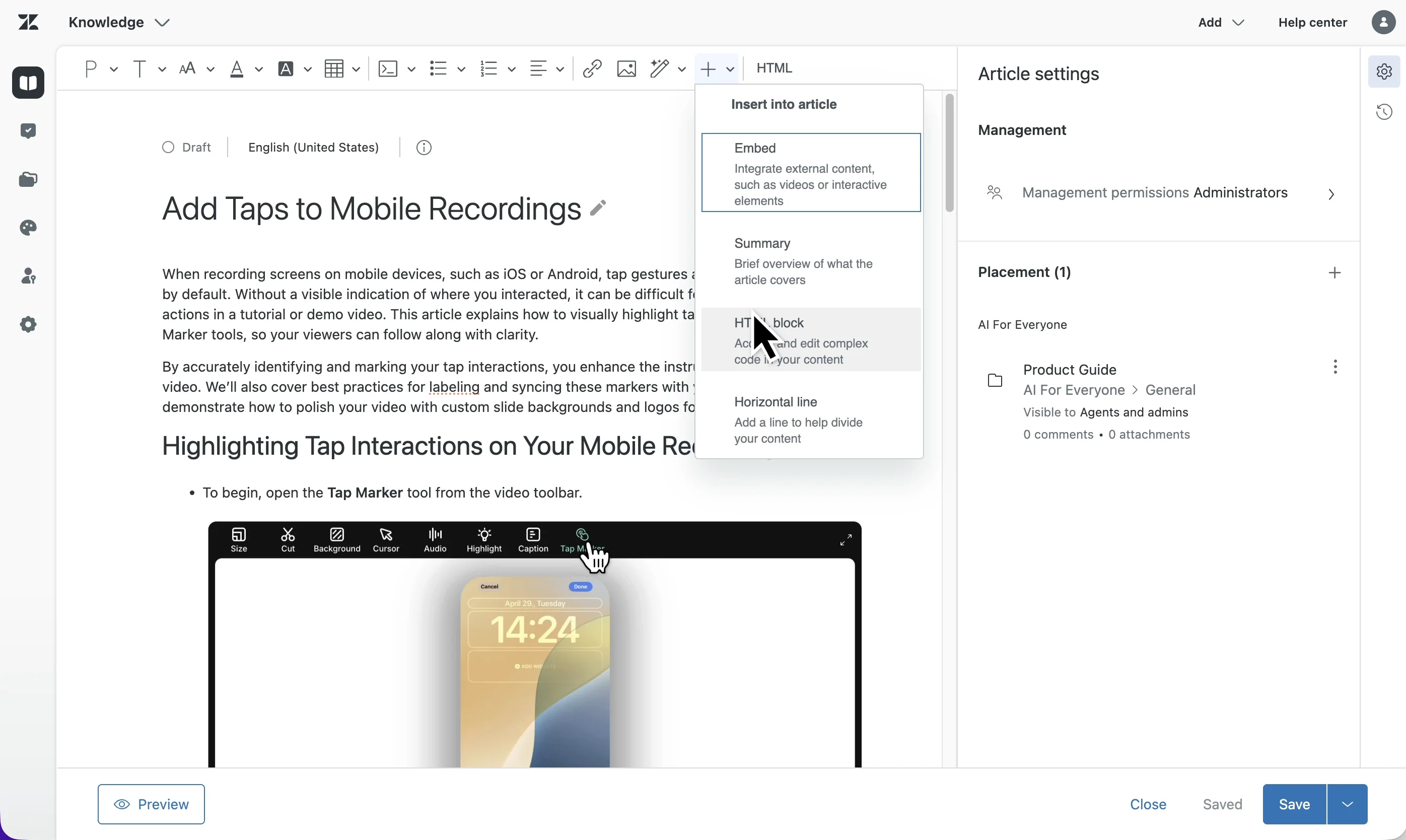
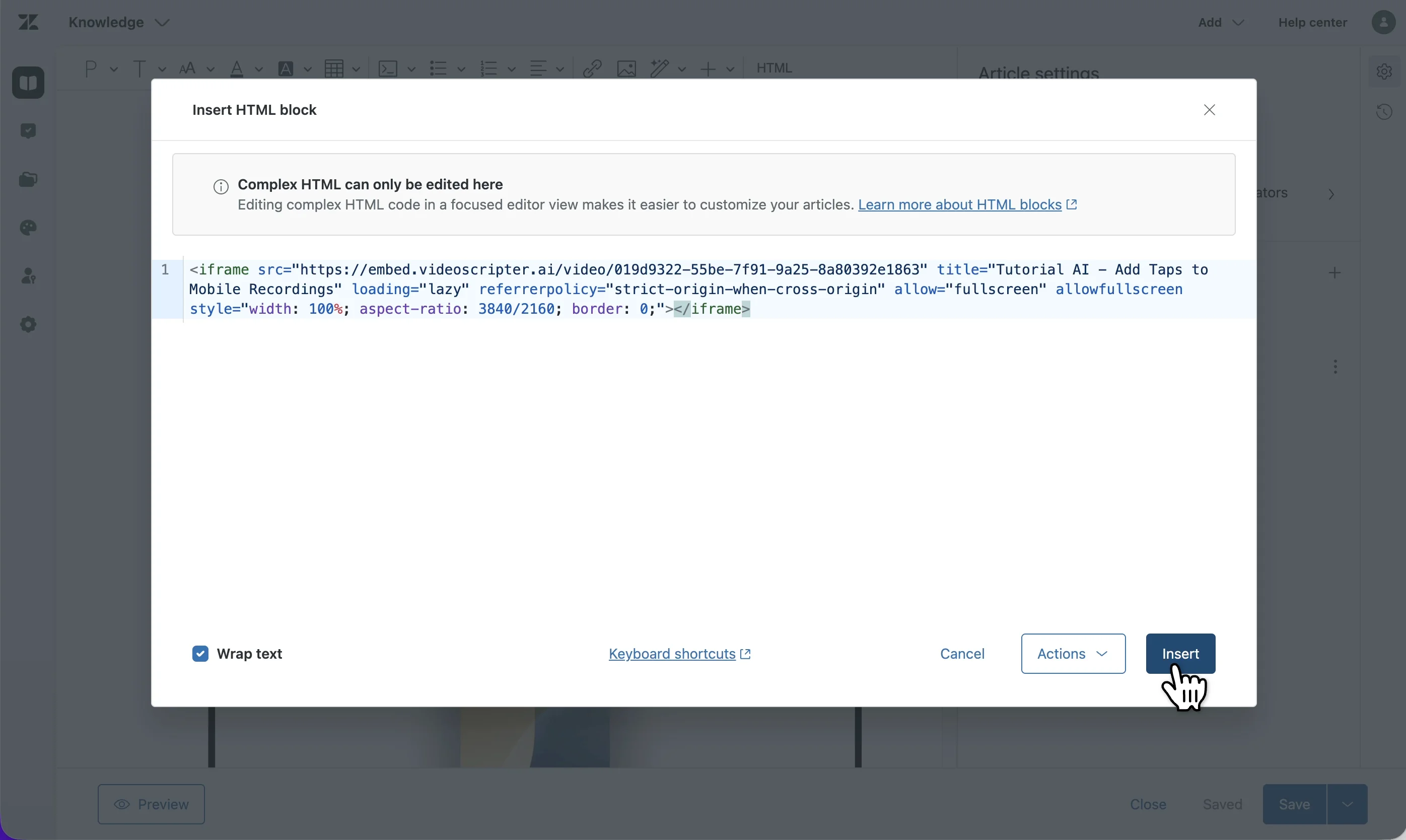
- Paste your Tutorial AI embed code — the
<iframe>snippet from the project’s Share dialog — into the HTML block modal. - Click Insert to add the block to the article.
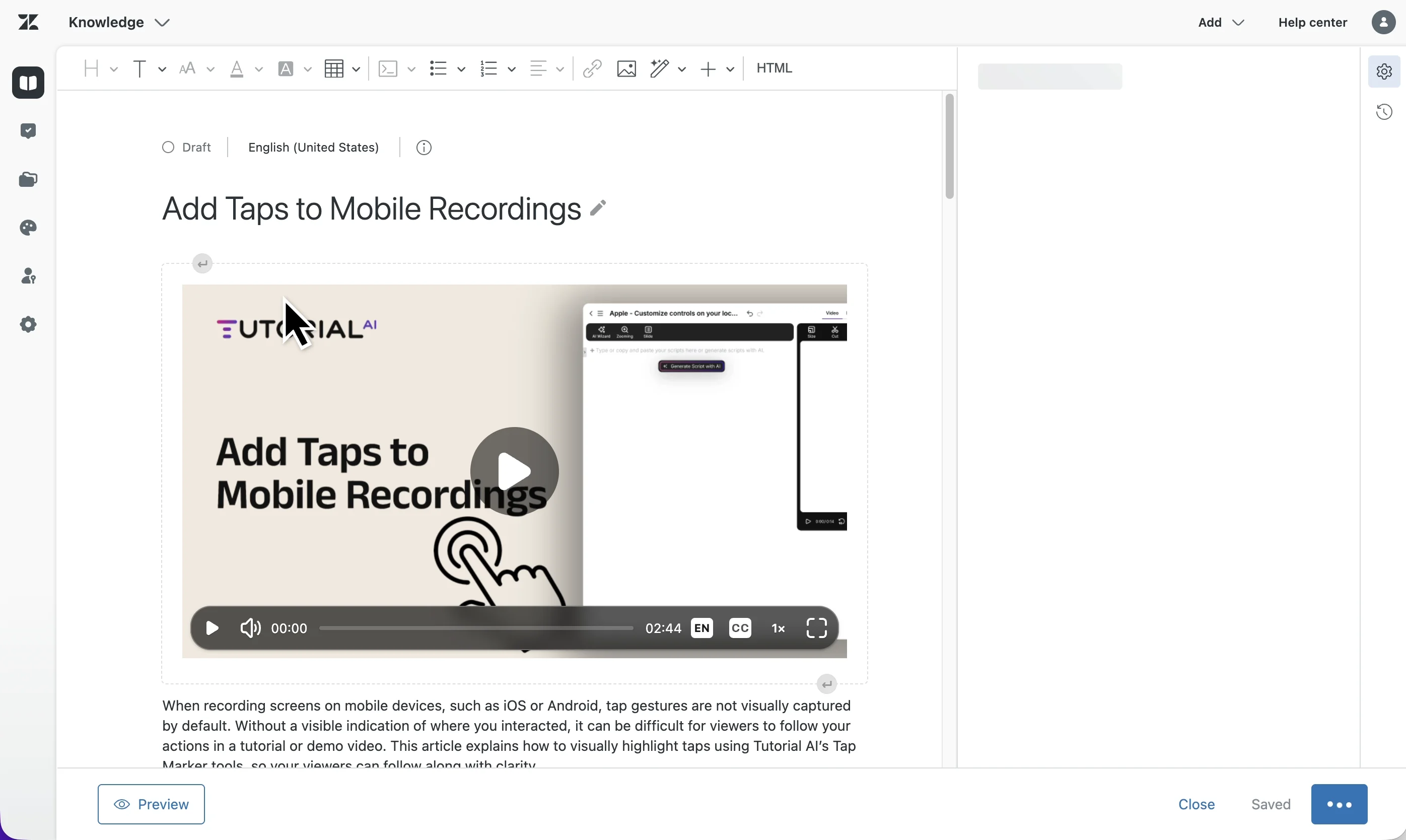
The video player appears immediately in the editor and renders for your readers when they open the published article.
Multilingual embeds
If you’ve translated your Tutorial AI video into multiple languages and published each one, the embedded player automatically opens in the reader’s browser language. Readers can also pick a language manually from the dropdown in the player controls.
For how to translate a video and manage published languages, see How do I translate a project?. To share just one language independently (no in-player switcher), see How do I share a single language version?.
Notes
- Preview before publishing. Zendesk’s article editor previews the embed inline, but the final iframe only renders on the published article page. Open the published preview to confirm the video loads.
- The embed URL doesn’t change when you re-publish. If you edit your Tutorial AI project and re-publish, the video already embedded in Zendesk picks up the latest version automatically — no need to swap the iframe.