
Update or replace part of a recording
Your UI changed, you translated a project, or you forgot a step — swap in new footage and keep your narration, without recording the whole tutorial again.
Tutorials go out of date. A screen gets redesigned, a setting moves, or you notice a step you never showed. With Clips you record only the part that changed and swap it in — the rest of your video, script, and effects stay as they are.
This article covers replacing a clip’s footage, showing the interface in a translated project’s language, and adding a step you forgot to show.
💡 Clips, including Replace clip, is available on all paid plans.
Replacing a clip’s footage
Replace clip (Beta) swaps a clip’s footage for a new recording and keeps its narration. Use it when the workflow is still right but the screen isn’t — your product’s interface changed, or you translated the project.
- Record the new footage. Record the same workflow again with the Desktop App, or upload a recording. You can pick any recording in Screen Recordings; videos in the Asset Library can’t be used.
- Open Replace clip. In Clips, select the outdated clip and click Replace clip in the toolbar.

- Pick the new recording. Search or scroll to it and select it.
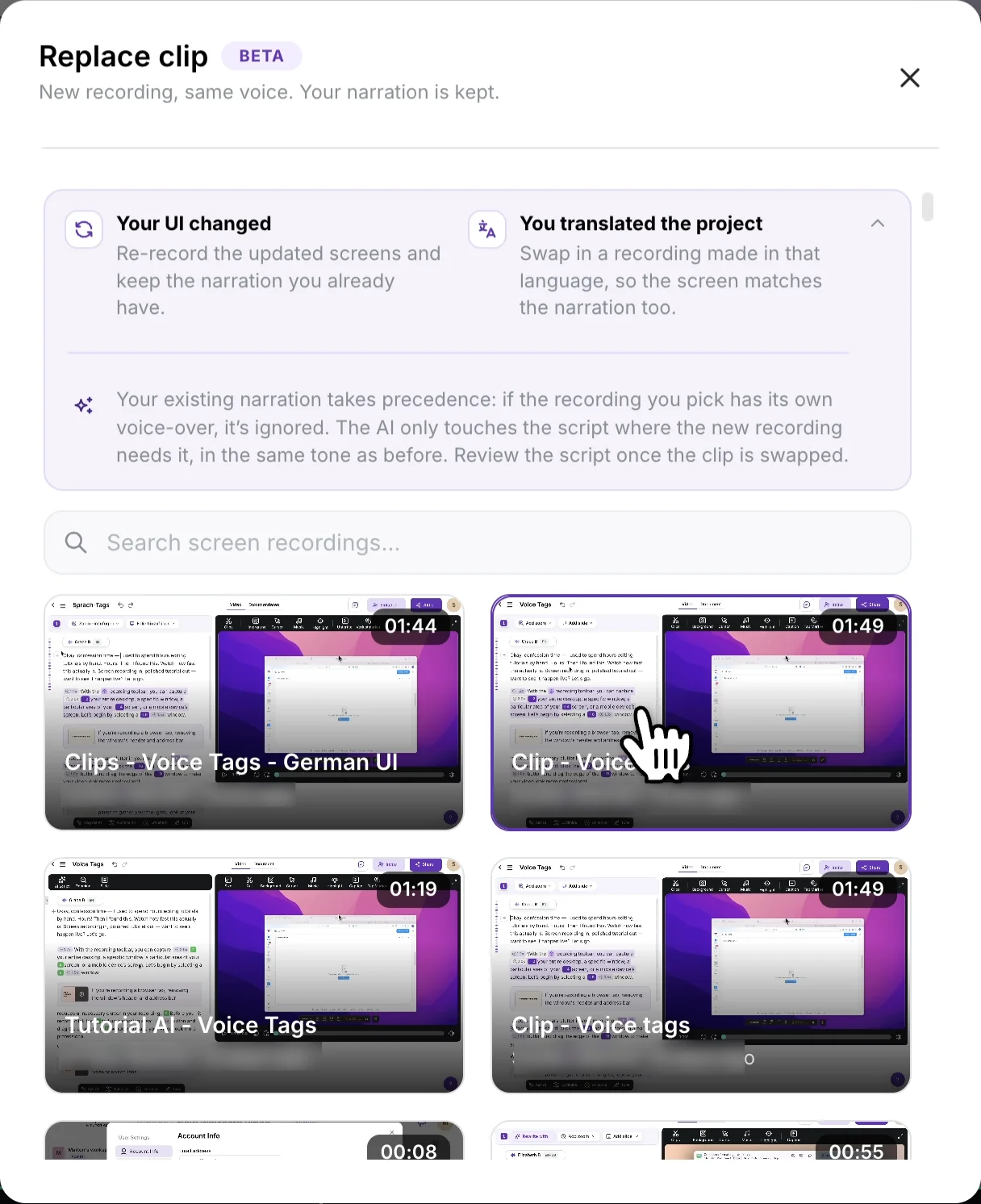
- Confirm. The new footage previews on the timeline, marked Not saved yet. Play it, then click Replace footage & open script to keep it, or × to keep the original.

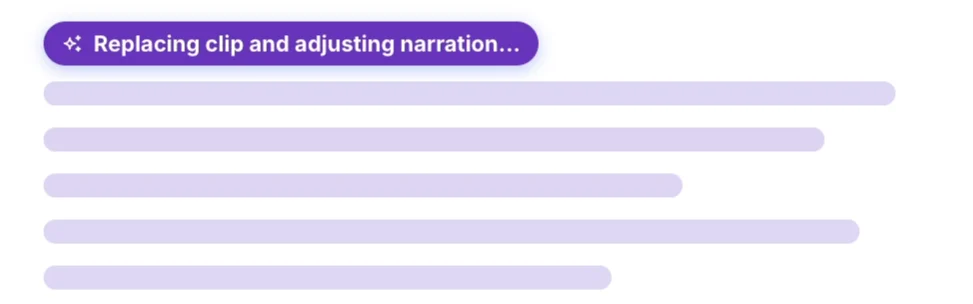
- Review the script. The script opens and shows Replacing clip and adjusting narration… while AI fits the narration to the new footage. When it’s done, check that each line still matches what’s on screen, especially button names, menu labels, and any section AI added.
What happens to your narration
- Your existing narration takes precedence. If the new recording has its own voice-over, it’s ignored.
- AI only rewrites what the new footage needs. Where the steps still line up, your wording stays; changed lines are rewritten in the same tone.
- Genuinely new UI gets its own section. If the new recording shows a control or step the old one didn’t, AI adds narration for it in the same style.
- The clip takes the new recording’s length.
💡 Only part of a clip is outdated? Split the clip just before and just after the outdated part so it becomes its own clip, then replace only that clip.
Showing the interface in a translated project’s language
A translated project gets new narration, voiceover, and captions, but its screen recording still shows the original interface. To make the screen match the narration:
- Record the localized workflow. Switch your product’s interface to the target language and record the same workflow, following the original steps as closely as you can.
- Open the translated project. Each translation is its own project version, so the original stays as it is.
- Replace the clip with the new recording, as described above.
- Check the result. Make sure the on-screen labels match the narration and the right screens appear at the right moments.
Adding a step you forgot to show
- Record the missing step on its own.
- Split where it belongs. In Clips, move the playhead to the moment the step should appear and split the clip.
- Insert the recording at the split. Click the + at the split point, choose Screen recording, pick the new recording, and confirm.
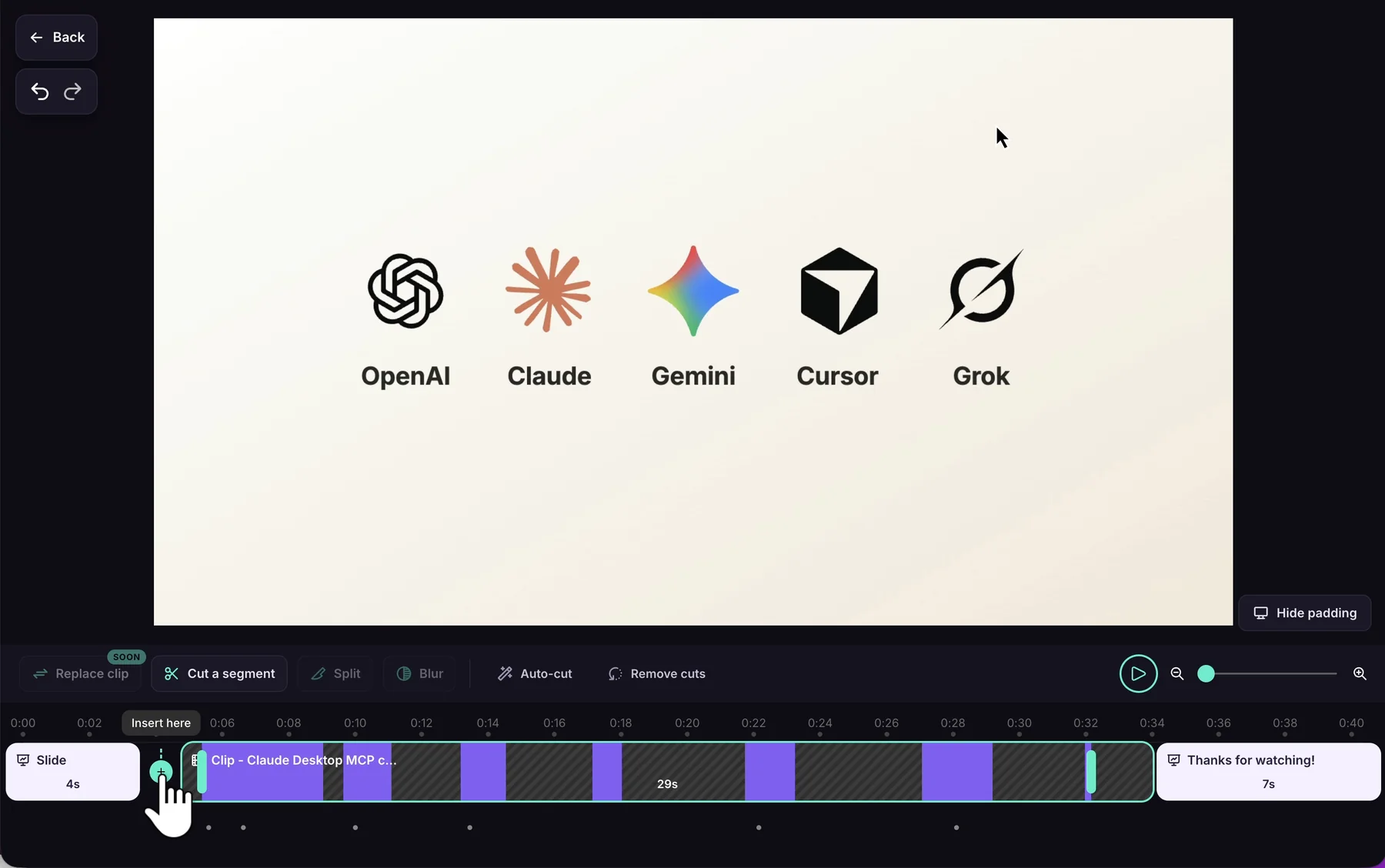
- Check both joins. Set a transition on each side and preview the result. Nothing was removed, so the narration on either side stays exactly as it was.
Replacing footage with new narration
Replace clip keeps the narration you have. If the new recording shows a different workflow and you’d rather AI wrote fresh narration for it, insert it and remove the old clip instead:
- Insert the new recording next to the old clip. Click the + beside it, choose Screen recording, pick the recording, and confirm with Insert video & open script. AI writes narration for it.
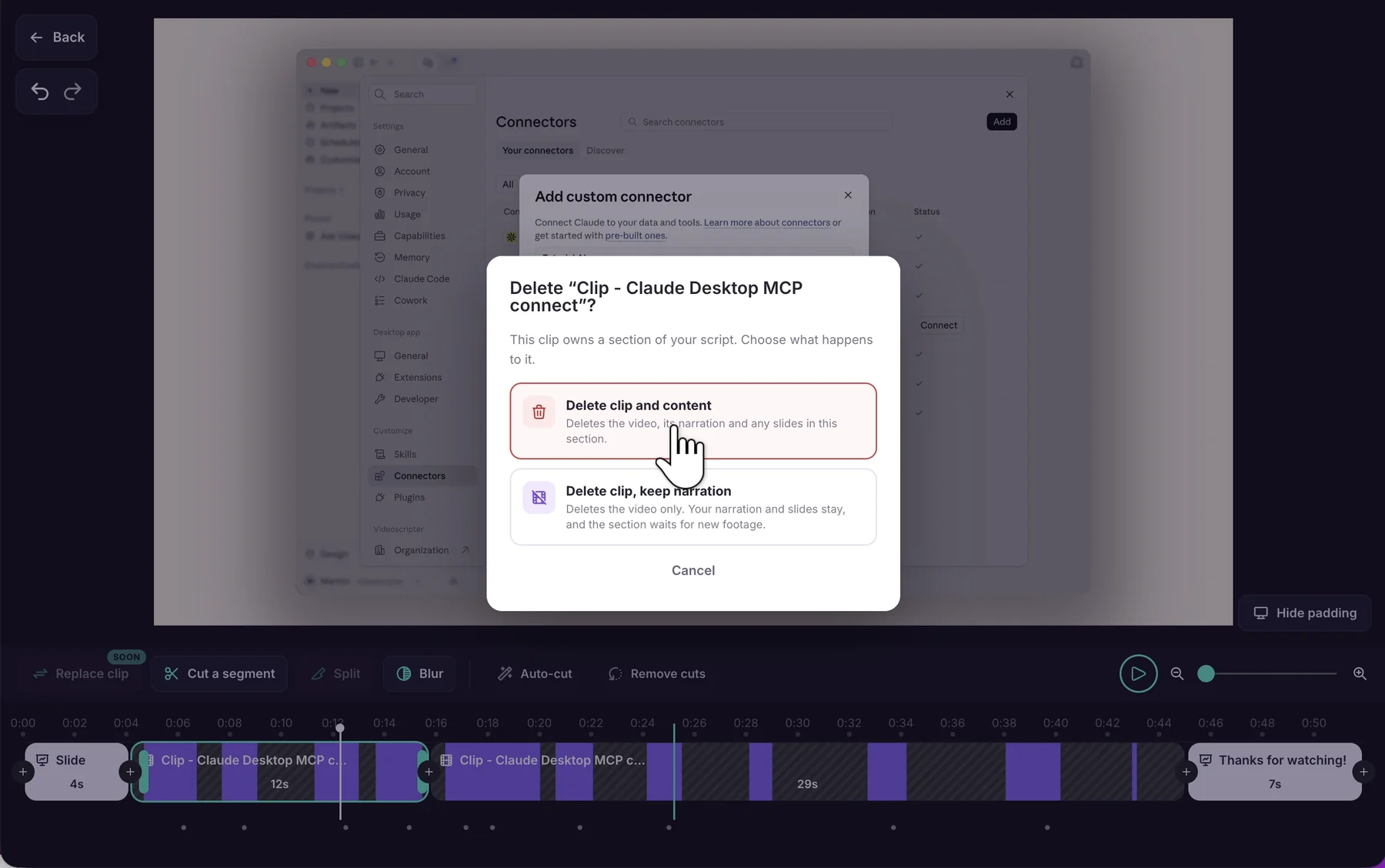
- Remove the old clip. Right-click it, choose Remove clip, then Delete clip and content.
- Pick the transition and preview. Choose Direct Cut or Fade on the new clip’s heading in the script, then play across both joins.
Insert the new recording before removing the old clip: once a clip is removed, there’s no insert point left where it used to be.
Combining recordings or reusing a clip
To add more recordings to a video, or reuse an intro or demo from another project, without changing what’s already there, see Combine multiple recordings into one video.
Tips
- Follow the original workflow. Replacement footage that repeats the same steps keeps the most of your narration.
- Match the recording setup. Record new footage in the same app, window size, and theme as the original so it looks seamless next to the clips around it. To check the original’s size, right-click the video preview: Source size shows it in pixels.
- Name your clips. Clear clip names in the script make the right section easy to find the next time you update the video.
- Check the order before publishing. Make sure the clips tell the story in the right sequence.