
"This marker points to a cut segment" — what it means and how to fix it
Why a Sync Marker that falls inside a cut segment is ignored, and three ways to resolve it.
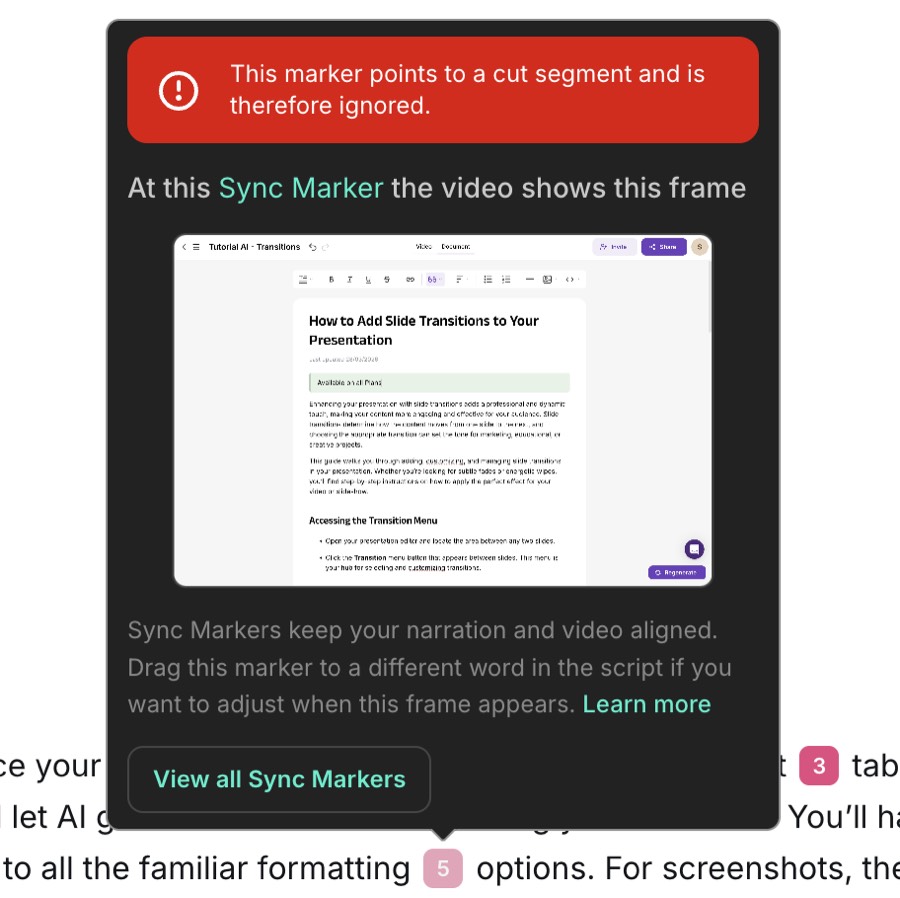
When you try to sync a marker with a part of your narration, you may see this message:
“This marker points to a cut segment and is therefore ignored.”
Why this happens
Every time you remove a segment in the Cut Tool, that portion of the video is excluded from playback. If a Sync Marker happens to fall inside one of those cut-out segments, Tutorial AI cannot use it — the video frame it points to no longer exists in the final timeline.
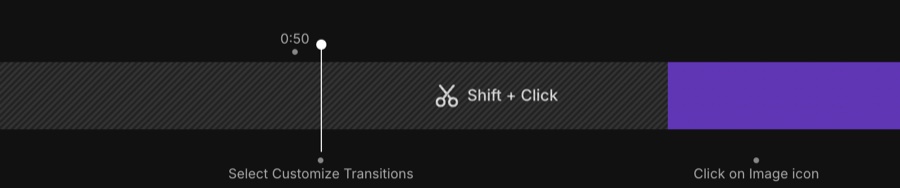
The timeline below shows what this looks like: the Sync Marker sits inside a grey cut segment and is therefore skipped.
How to fix it
There are three ways to resolve this, depending on what’s easiest for your video. Note that leaving the ignored marker in your script is also fine — it won’t cause any problems. If you want to clean it up, simply select it and press Backspace to delete it.
Option A — Use a nearby marker that isn’t inside the cut
Look for a different Sync Marker just before or just after the cut segment and use that one to sync your narration instead. Drag it to the word in your script that needs to be timed to that part of the video.
Option B — Adjust the cut segment so the marker is no longer inside it
Open the Cut Tool and drag the edge of the cut segment to exclude the marker’s position. Once the marker falls outside the grey area, it becomes active again and can be used for syncing.
Option C — Create a custom Sync Marker outside the cut segment
If there is no nearby automatic marker available, create a custom Sync Marker at a frame just outside the cut segment. Scrub the timeline to a point that isn’t cut out, click the + button in the Sync Markers panel to place a new marker there, then drag it to the word you want to sync.