
Desktop Recorder vs Chrome Extension
When to Use Which
Tutorial AI offers two ways to create tutorials: the Desktop Recorder and the Chrome Extension. While both are useful, they are designed for different goals.
This article explains when to use each tool, and why the Desktop Recorder is essential for polished, engaging, professional tutorials.
When to Use the Desktop Recorder
The Desktop Recorder is the best choice when you want high-quality, engaging tutorials with full control over how interactions appear.

Key Advantages
1. Advanced Cursor Rendering (Desktop-Only Feature)
The Desktop Recorder captures the screen without recording the cursor directly, then re-draws the cursor on top of the video afterward. This unlocks a set of powerful features that browser extensions cannot offer.
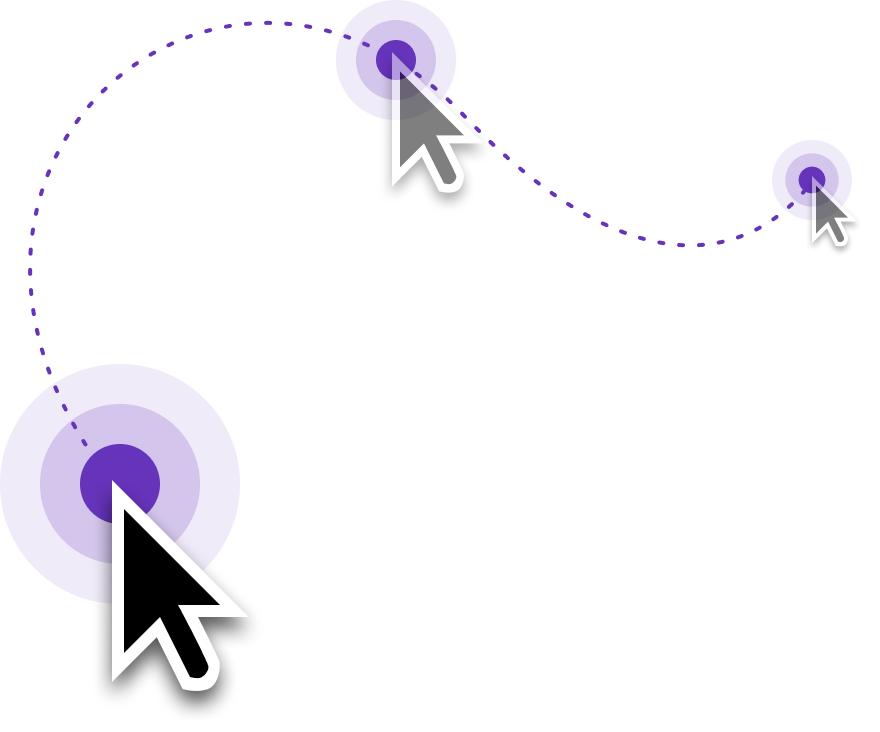
With the Desktop Recorder, you can:
- Enlarge the mouse cursor for better visibility
- Smooth cursor movement for a more professional feel
- Simplify mouse paths (straight movement from click to click)
- Reduce cursor flicker and jitter
- Automatically hide the cursor when idle
This results in tutorials that are:
- Easier to follow
- Less visually noisy
- More accessible for viewers
- Significantly more polished
👉 Chrome extensions (including Loom and similar tools) cannot do this. Because they rely on the browser’s native cursor capture, these features require a desktop application. If you care about cursor clarity and presentation quality, the Desktop Recorder is the only option.
2. Record Anything on Your Computer
Unlike browser extensions, the Desktop Recorder captures:
- Native desktop apps (Figma, Slack, Excel, IDEs, design tools)
- Multi-app workflows
- System dialogs, menus, and file operations
- A selected area of your screen
This makes it ideal for real-world, end-to-end processes.
3. Ideal for Engaging, Professional Tutorials
Choose the Desktop Recorder when you’re creating:
- Customer-facing tutorials
- Product demos
- Training and onboarding materials
- Sales enablement or support content
The enhanced cursor behavior alone can dramatically improve viewer comprehension, especially in detailed workflows.
When to Use the Chrome Extension
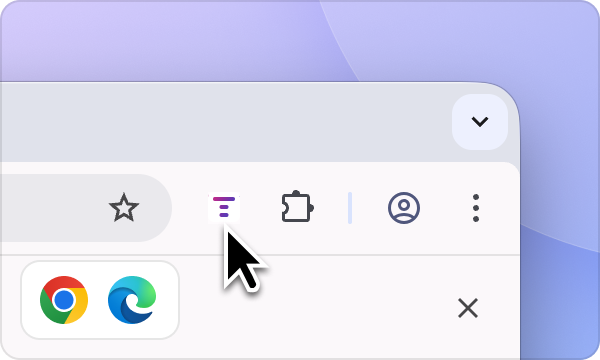
The Chrome Extension is optimized for speed and simplicity when everything happens in the browser.
Best Use Cases
1. Quick, Browser-Only Walkthroughs
Use the Chrome Extension for:
- Simple SaaS flows
- Short feature explanations
- One-tab or one-tool demos
It’s the fastest way to record when cursor polish isn’t critical.
2. Lightweight, Informal Recordings
The extension is great for:
- Internal references
- Quick explanations
- Capturing something on the fly
No install friction, no setup — just hit record.
3. Web-Only Workflows
If your entire process lives inside Chrome and doesn’t require:
- Desktop apps
- File system access
- Cursor enhancements
…the Chrome Extension is sufficient.
Why Cursor Quality Requires a Desktop App
Browser extensions cannot:
- Replace or redraw the cursor
- Smooth or simplify cursor paths
- Hide the cursor dynamically
- Eliminate flicker caused by OS-level rendering
These capabilities require low-level screen capture, which is only possible in a desktop application. That’s why all Chrome-based tools (including Loom) lack these features.
Summary: Which Tool Should You Choose?
If you want tutorials that look professional, feel smooth, and are easy to follow, use the Desktop Recorder. Use the Chrome Extension when speed matters more than polish and your workflow stays entirely in the browser.