
How to Download a Cover Image (Thumbnail)
You can download any frame of your video and use it as a cover image by pausing the preview and saving the frame as an image file.
You can quickly create and download a cover image (thumbnail) from any moment in your video by saving a frame directly from the video preview.
Step-by-step Instructions
- Open your project in the editor.
- Play the video until you reach the frame you want to use as the cover.
- Pause the video at the exact moment you want.
- Right-click directly on the video preview.
- Select “Save Image As…”,** **choose a folder on your computer and save the image.
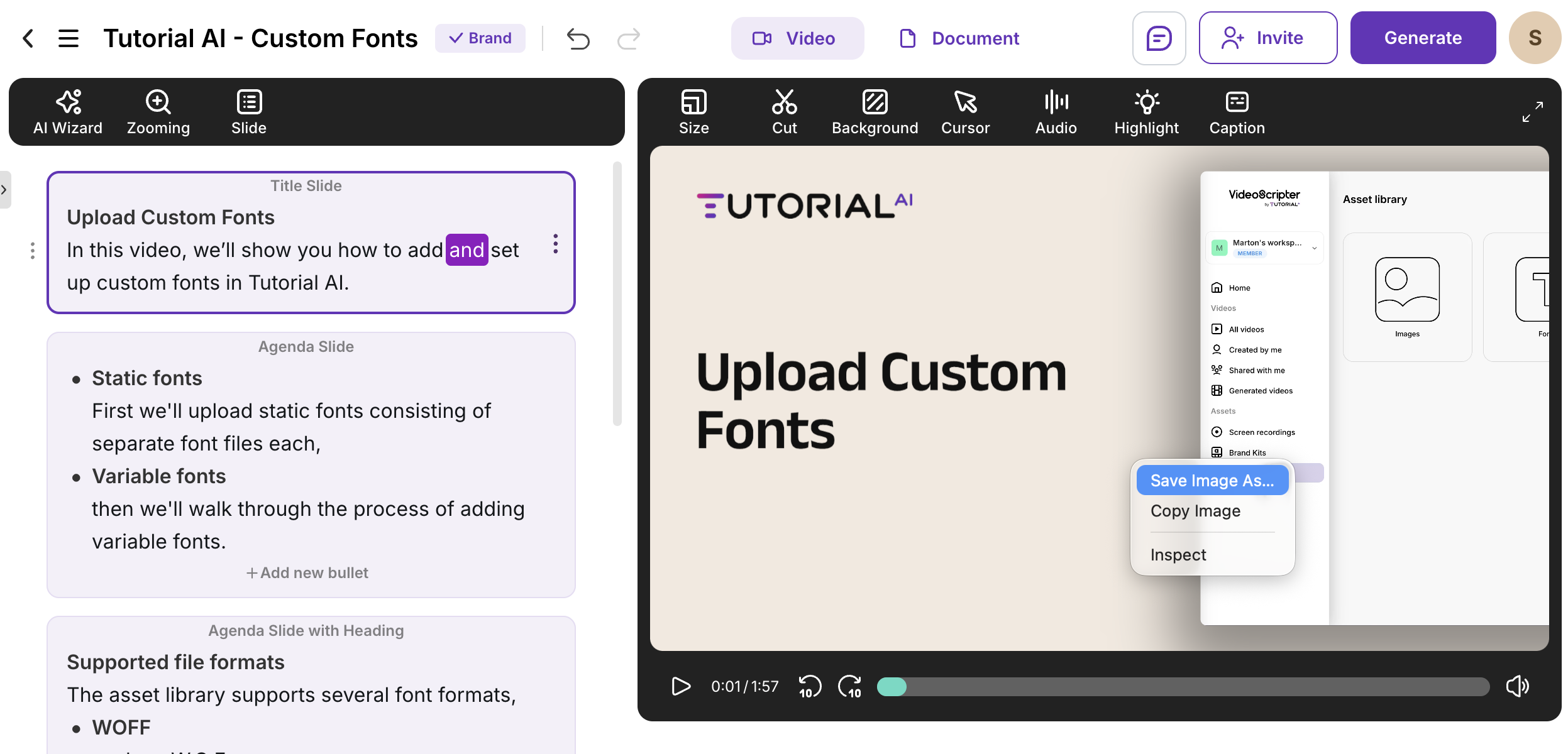
✅ That saved image can now be used as your cover image.
Upload Thumbnail in YouTube Studio
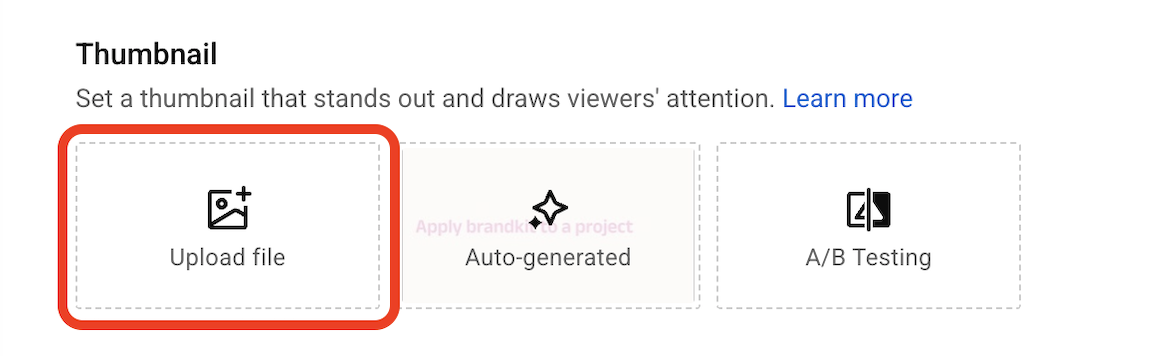
When uploading a video to YouTube, you can upload a custom cover image instead of using an auto-generated thumbnail. In YouTube Studio, go to the Thumbnails section and upload your image there.
YouTube Studio uploader
Tips for Best Results
-
Pause on a frame where the screen is clear and readable.
- Avoid motion blur—pause on a moment where nothing is moving quickly.
- If you want a specific frame, use the timeline to scrub slowly and pause precisely.
- Use your keyboard arrow keys for precision: After pausing the video, press the Left Arrow (←) or Right Arrow (→) keys to move frame-by-frame, so you can select the exact moment you want.
FAQ
What format will the downloaded image be?
Most browsers save it as PNG by default.
Why don’t I see “Save Image As…”?
Some browsers restrict it depending on the video playback method. Try:
- Using Chrome
- Opening the video editor in a new tab
- Playing the video first and pausing it
- Right-clicking after pausing the playback directly on the video preview area (not the narration editor)